A Guide to MapleStory-Supported Special-Character Emoticons, Official Emoticons & Chat Shortcuts #특수문자 이모티콘
마빡도로시
Hello.
This post covers special-character emoticons—emoticons made up of special characters, just as the name suggests. I looked into which ones MapleStory recognizes, along with practical options for in-game emoticons and chat shortcuts.
Special-character emoticon website: https://snskeyboard.com/emoticon/
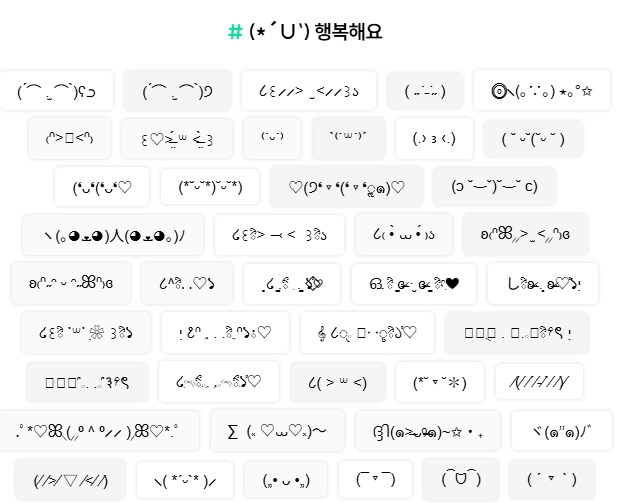
I was not very familiar with these, since I do not use them myself. They have become a category of their own, though, and this website alone appeared to have over ten thousand. To copy one automatically, visit the site and click the emoticon you want.
The problem is that MapleStory does not recognize many special characters. Here is an example.
Original:
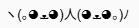
Website: ヽ(。◕ܫ◕)人(◕ܫ◕。)ノ
In-game:

Many characters are not recognized even on Korean websites, let alone in-game. I cannot speak for other games, but copying them directly into MapleStory does not seem to be a reliable option.
I started by looking for emoticons that the game does recognize.
Special-character emoticons recognized in-game: Greetings & Congratulations
1) ( ´ ▽ ` )/

2) (^▽^)/

3) (^ω^)/

4) (ㅇ∀ㅇ)/

5) (>∇<)/

6) (>▽<)b

7) (ㅇ▽ㅇ)b

8) \(^▽^) /

9) (`ω ´)b

10) (^o^)b

11) (>_<)9

12) (`_´)b

Official in-game emoticons: A practical alternative
As you can see, the game recognizes only a limited range of characters, which makes it difficult to rely on special-character emoticons as your main option. They may be cute, but they can also feel a little excessive unless the people you are chatting with share your taste. That makes them less suited to general use.

The game's official emoticons offer an alternative you can use alongside text. To open the emoticon interface, select the corresponding menu in the chat window.
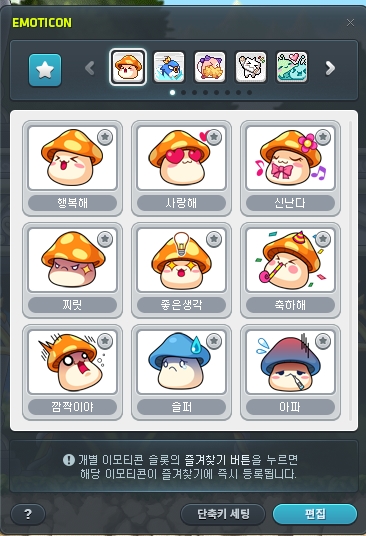
The emoticon feature faded from attention after its initial release, then received improvements in a later revamp. Things have been quiet again since then. Although nothing new is being added, the revamp made the feature much easier to use, so it is a reasonable option if you want to use emoticons.


You can use emoticons through shortcut keys, though limited quick-slot space makes it difficult to use many of them this way.


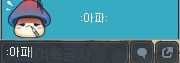

You can also use them directly in chat. Enter :emoticon name: to use an emoticon immediately; it will also appear in the chat window.
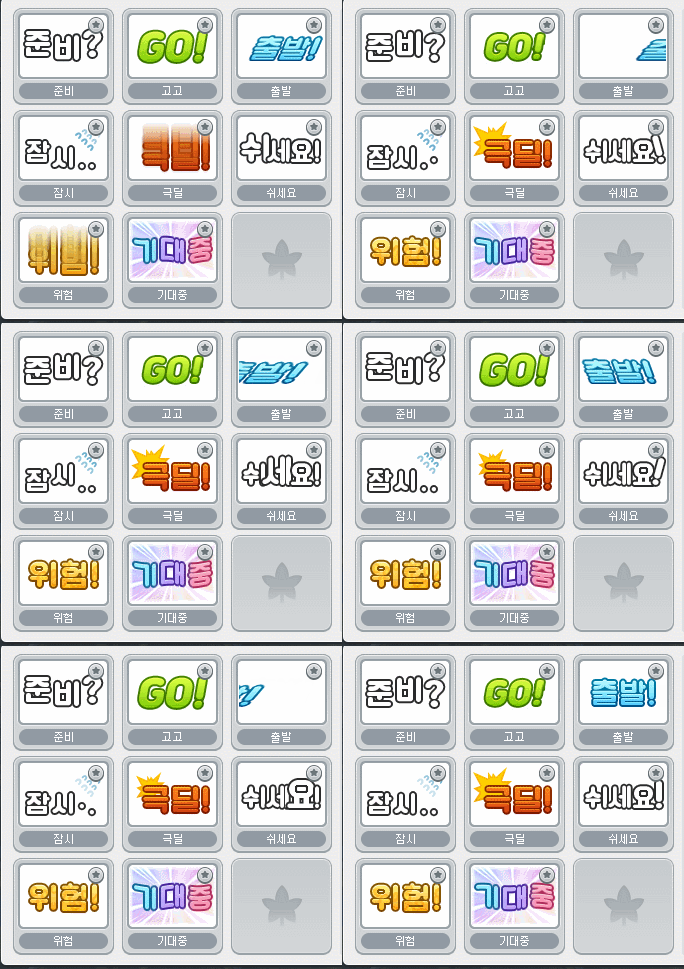
The selection includes emoticons designed for party use that were added in the previous revamp,
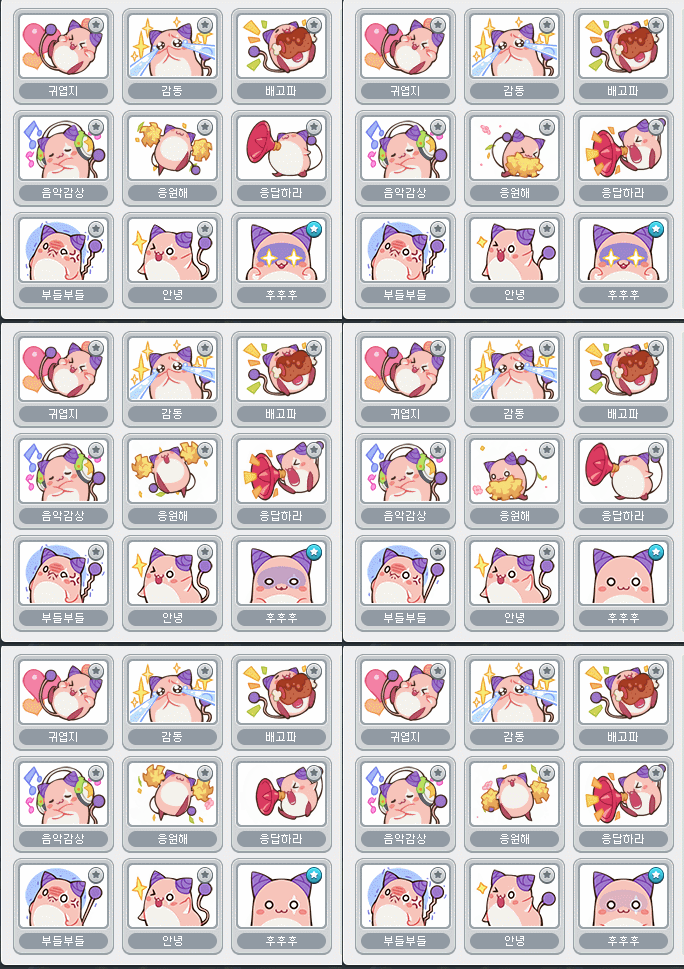
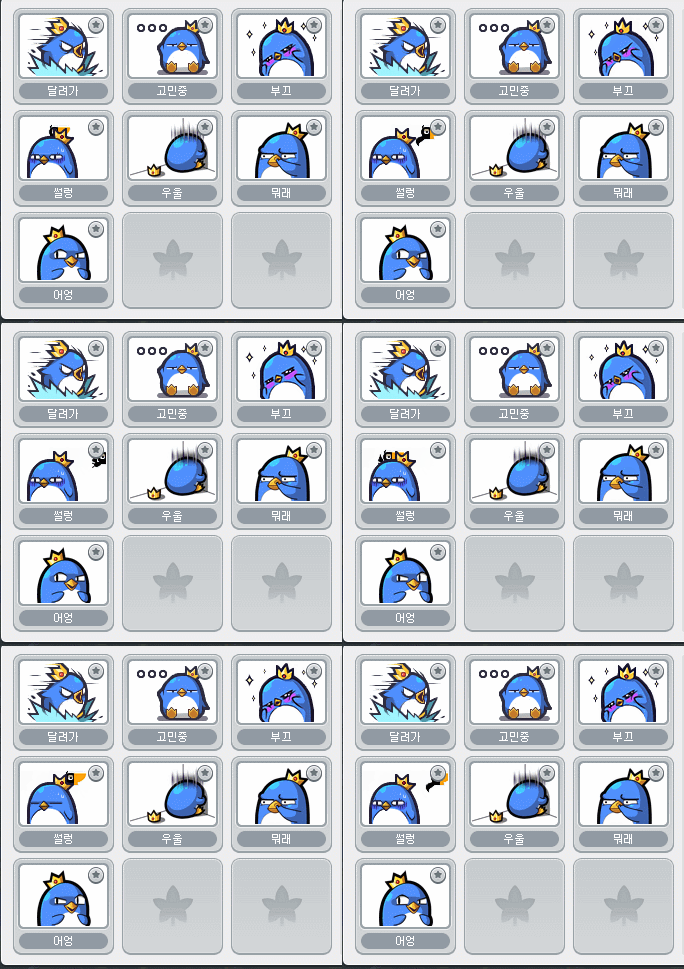
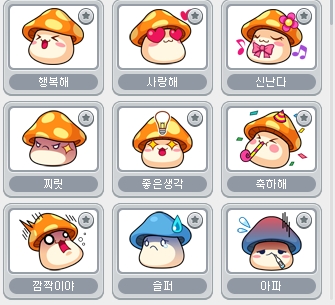
as well as plenty of simple, cute ones that have been available since the beginning. You can use them much like KakaoTalk emoticons.
Chat shortcuts

The chat window also has a chat shortcut menu next to the emoticon menu.
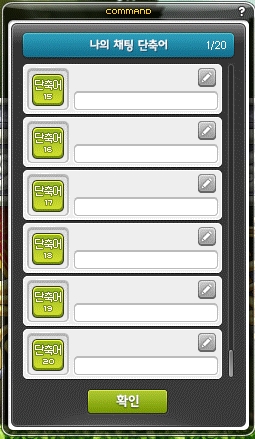
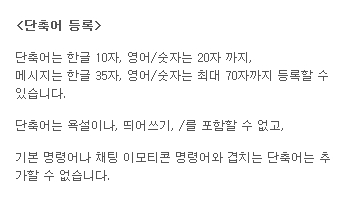
This feature lets you create up to 20 chat shortcuts.
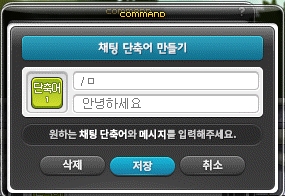
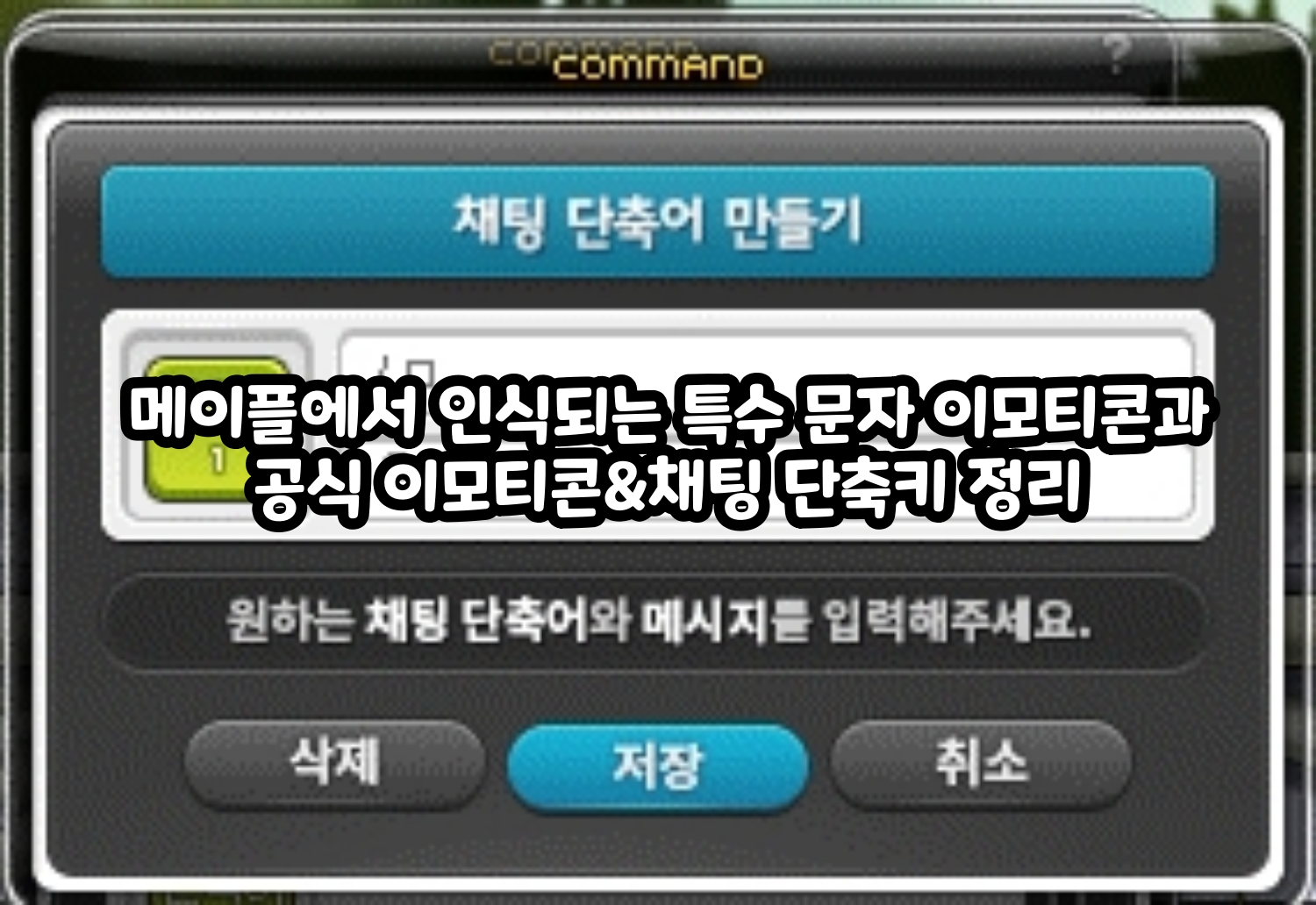
Click the Edit tab. Enter your shortcut in the top field and the text you want it to send in the bottom field. You can then enter that text instantly by typing the shortcut, or by placing the shortcut in a quick slot and activating it from there.
For example, assign “Thanks for your hard work” to “/ㅁ”. After finishing an activity such as Monster Park Extreme, you can type “/ㅁ” instead of the full message.
These shortcuts can also make the special-character emoticons and official emoticons covered above easier to use.
Finally, the “default commands” mentioned in the explanation above are the following:
-
/ㄷ, /e : All
-
/ㄹ, /f : Buddy
-
/ㅔ, /p : Party
-
/ㅎ, /g : Guild
-
/ㅕ, /u : Alliance
-
/ㅈ, /w : Whisper
-
/파티탈퇴 : Leave party
You can switch chat groups with the TAB key or the commands above.
Thank you for reading.

![메이플스토리 IP를 테마로 한 방탈출 [Maplestory Escape]](https://peak-file.nexon.com/uploads/20260930_0356_189506ff.jpg)
![[메이플] #수능 금지곡 #수능허용곡 BGM 10가지 모아봄!](https://peak-file.nexon.com/uploads/20251115_0805_d60-b14c-433c-b7ca-e37a364fc97b)