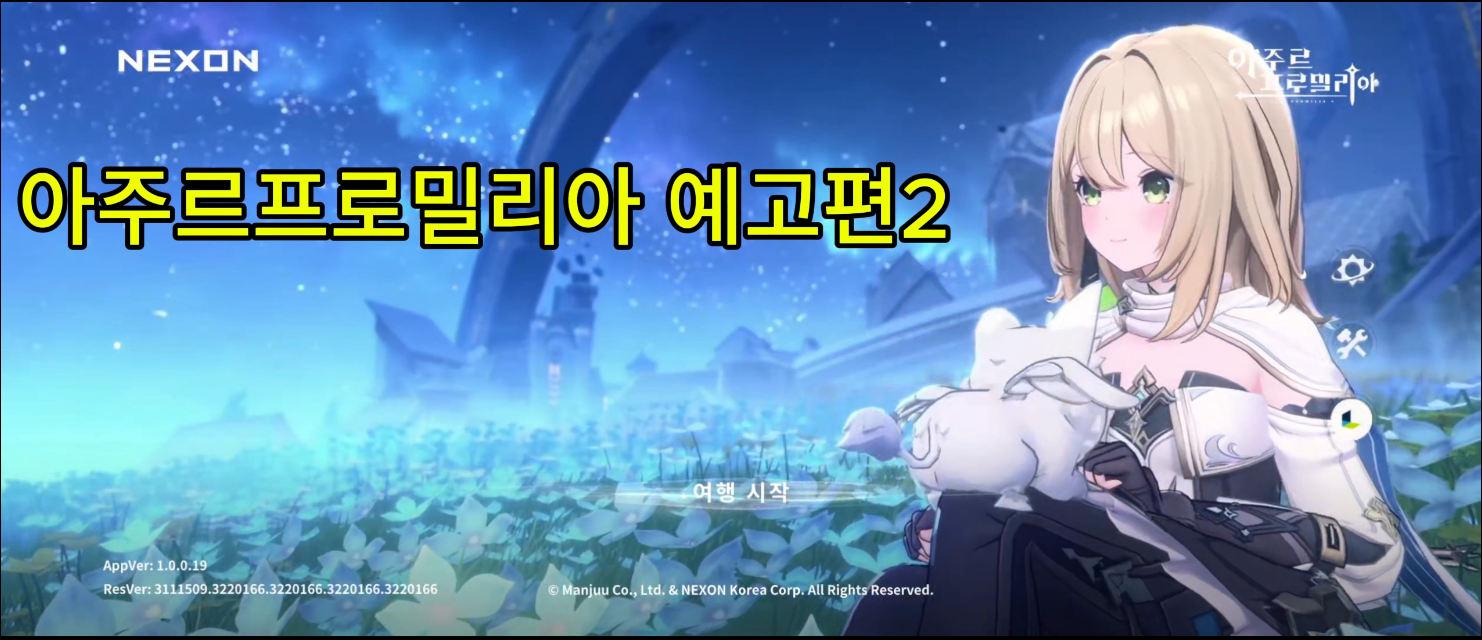
New Release Day-One Checklist: Azur Promilia PC Installation and Settings!
피스타임

|
This post was created as part of the NEXON PEAK program. |
Hello!
I'm 피스타임, a NEXON PEAK creator.

When a new game launches, it is tempting to hit the install button and get started right away. After trying the PC version of Azur Promilia, I recommend checking your account and storage space before launching the game, then adjusting your graphics settings and claiming rewards once you log in. Account or storage issues can delay your first session, and launch rewards are easy to miss because they are split between the in-game mailbox and web event pages.
In this guide, I will cover what to check when starting Azur Promilia on PC, following the same steps I took. Whether you are playing on PC for the first time or moving over from mobile, this should help you get started.
|
Contents |
|---|
|
1. Check Your Account, System Specs, and Storage Before Starting |
|
2. Install Through NEXON Plug |
|
3. Adjust In-Game Graphics Settings on Your First Login |
|
4. Day-One Rewards and Important Details |
|
5. Day-One Checklist at a Glance |
1. Check Your Account, System Specs, and Storage Before Starting

To play Azur Promilia on PC, you must be aged 15 or older and have an identity-verified NEXON ID. If you started on mobile, log in with the same NEXON ID to continue with your existing character.
Before switching, check which account you are using in the game under [Settings] → [Account] → [NEXON Customer Support] → [View Details] → [Check Linked Account].
|
Category |
Minimum Requirements |
Recommended Requirements |
|---|---|---|
|
Operating System |
Windows 10 64bit or later |
Windows 10 64bit or later |
|
CPU |
Intel Core i5-9400F or equivalent |
Intel Core i7-10700K or an equivalent or better CPU |
|
Graphics Card |
GeForce GTX 1060 or equivalent |
GeForce RTX 2060 or an equivalent or better graphics card |
|
Memory |
16GB |
16GB or more |
|
DirectX |
11 or later |
11 or later |
|
Storage |
At least 160GB of free space (actual installation size: approximately 85GB) |
At least 160GB of free space (actual installation size: approximately 85GB) |
Note that even the minimum requirements call for 16GB of memory. A GTX 1060 is enough to run the game, while an RTX 2060 or better meets the recommended graphics requirements. These requirements are somewhat high for a game that is also available on mobile.
2. Install Through NEXON Plug
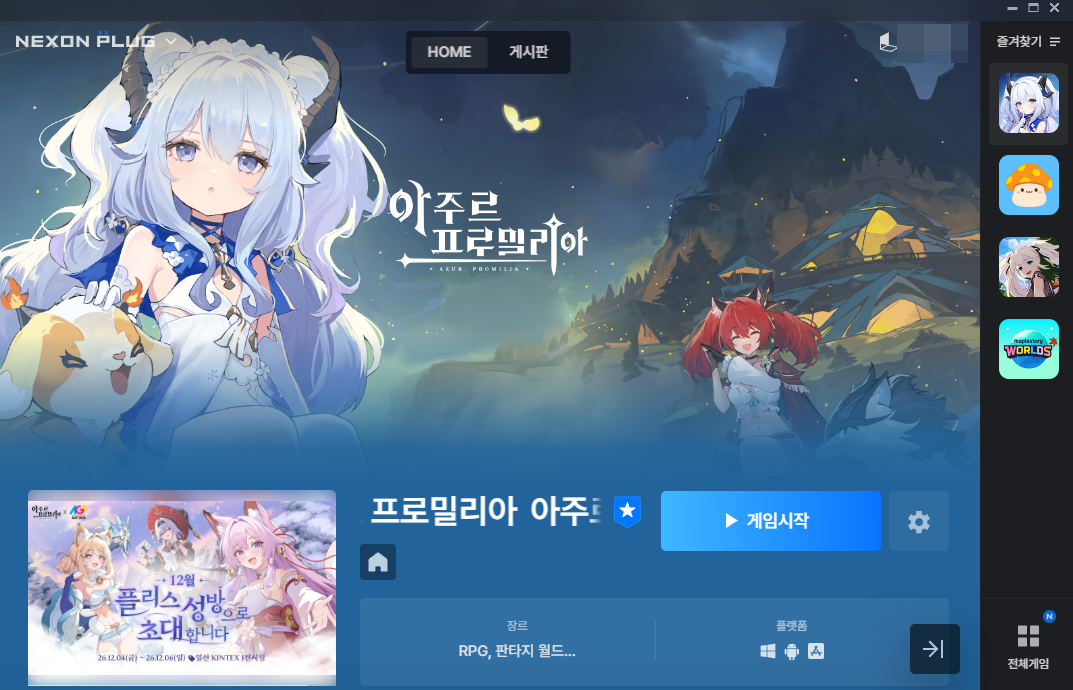
To install the PC version, log in to the official Azur Promilia website with your NEXON ID and click GAME START in the upper-right corner. The game installs through NEXON Plug. If you do not already have NEXON Plug, you will be prompted to install it first.
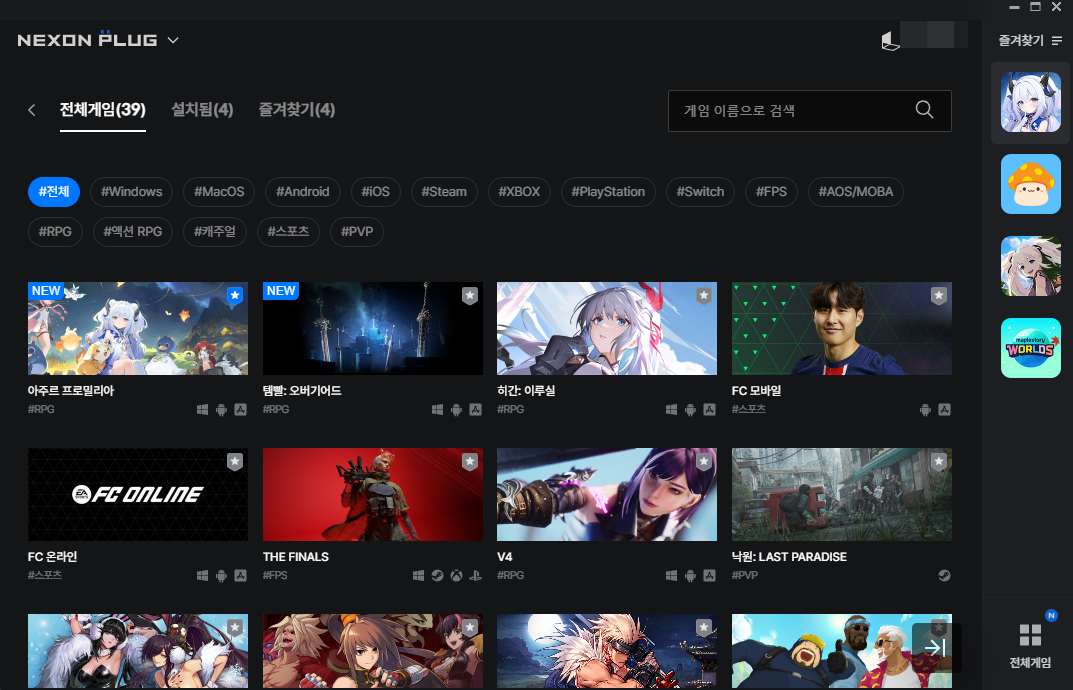
I already had NEXON Plug installed because I also play Mabinogi Mobile and MapleStory, so I could select Azur Promilia from the game list and start installing immediately. If nothing happens when you click the download button, check whether your browser is blocking pop-ups.
3. Adjust In-Game Graphics Settings on Your First Login
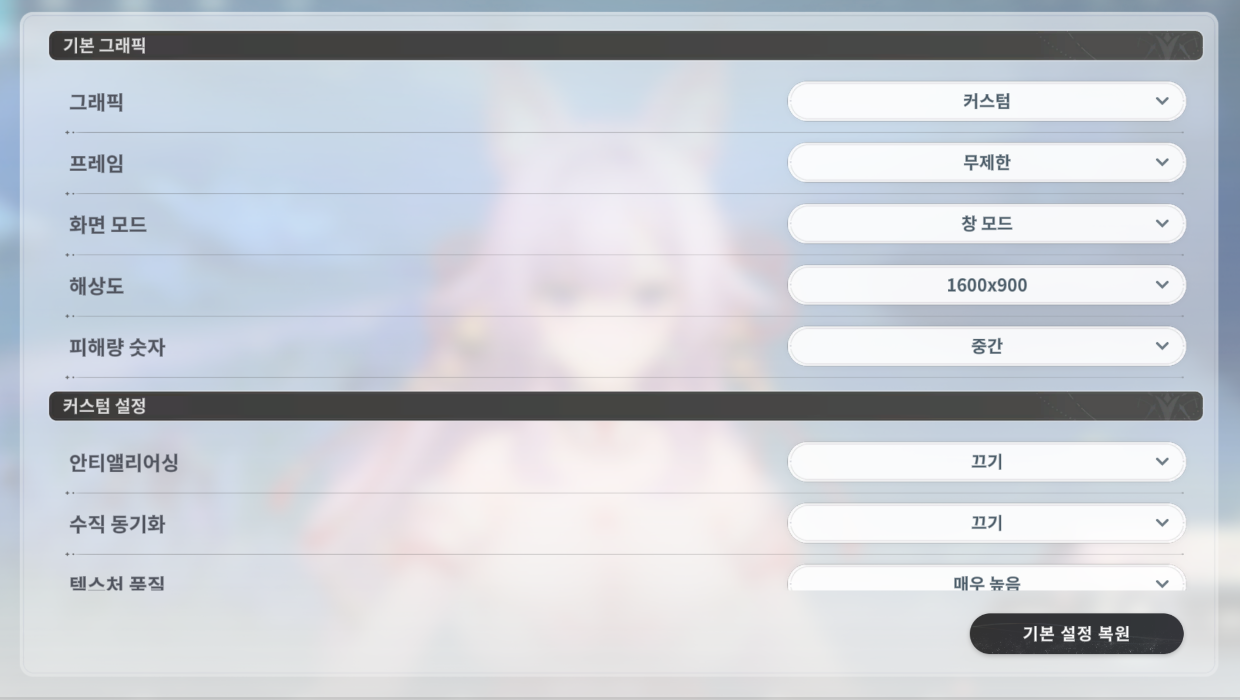
After installation, I recommend adjusting the graphics settings when you first enter the game. Press ESC and go to [Settings] → [Graphics]. My PC has an AMD Ryzen 7 9800X3D CPU and an RX 9070 XT graphics card, so it comfortably exceeds the recommended requirements. I therefore set nearly everything to maximum.
First, select the Original graphics preset to set most options to their maximum values. Then choose either 90 or Unlimited for the frame rate, set the display mode to Full Screen, and select a resolution that matches your monitor. Anti-aliasing reduces jagged edges, but enabling supersampling or increasing the rendering scale also removes them, so I left it off.
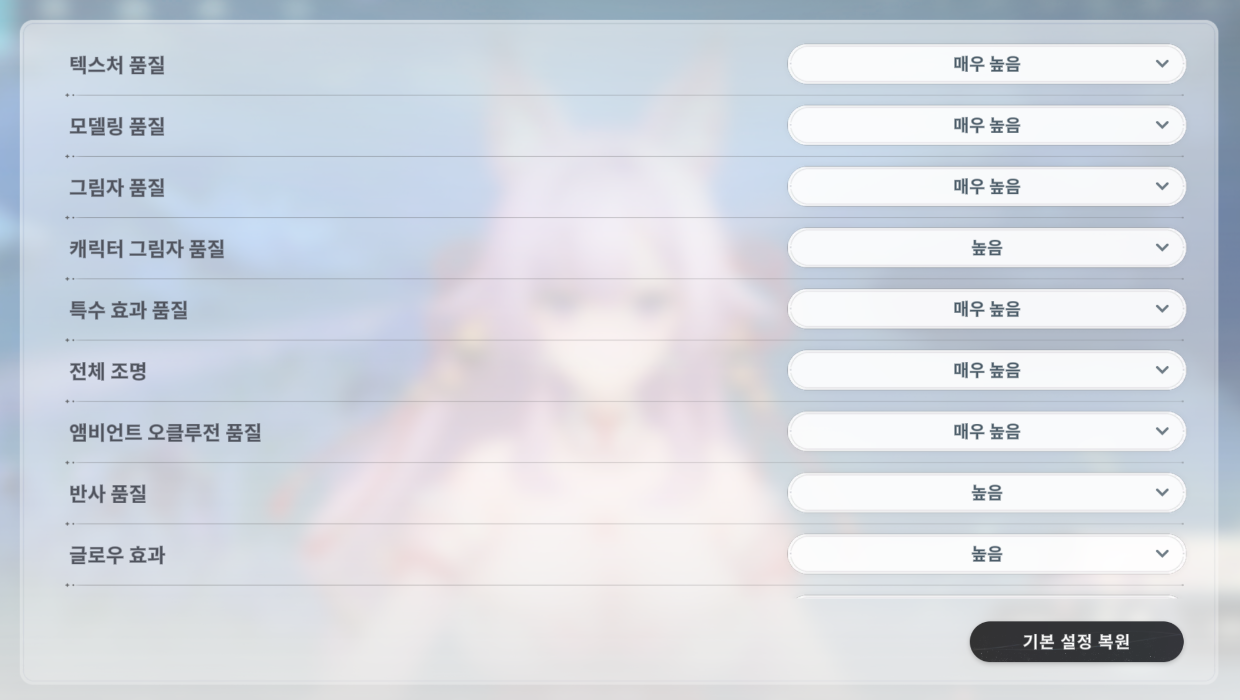
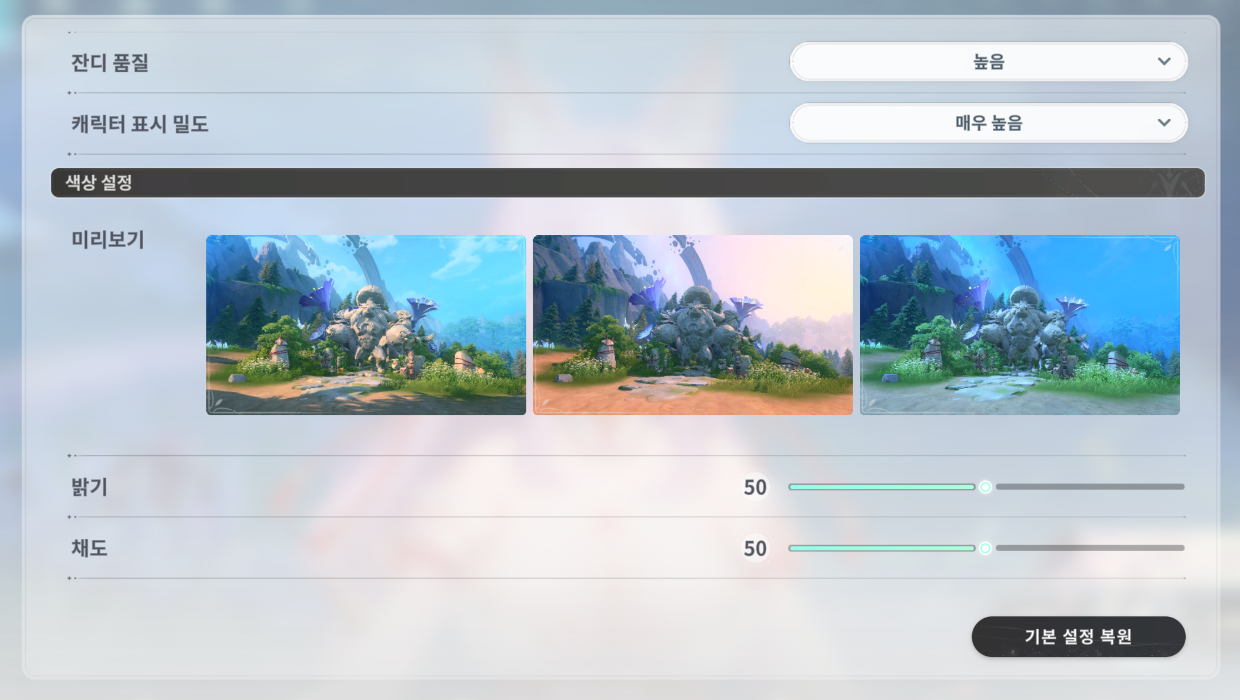
I set most quality options to Very High, along with the character display density.
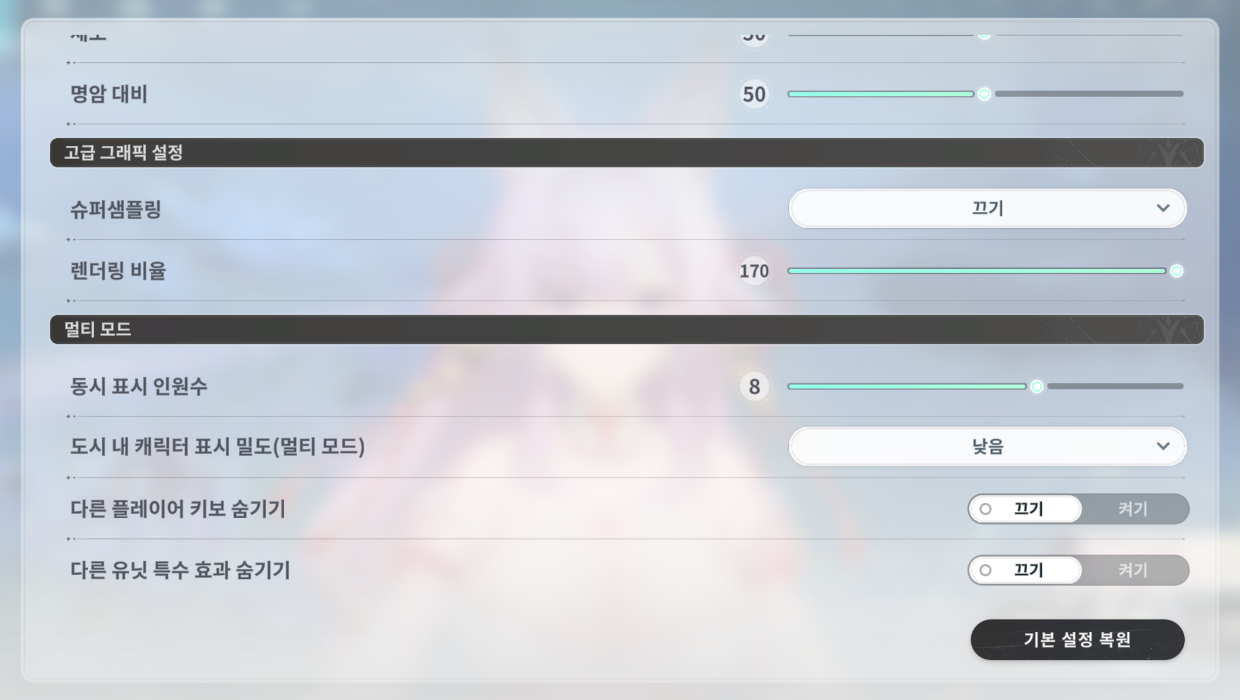
Pay particular attention to Advanced Graphics Settings. If you use an NVIDIA graphics card, enable DLSS under supersampling. AMD graphics cards like mine do not support DLSS, so FSR is the only option. Enabling FSR made the image look slightly blurry, so I turned it off entirely and increased the rendering scale to its maximum.
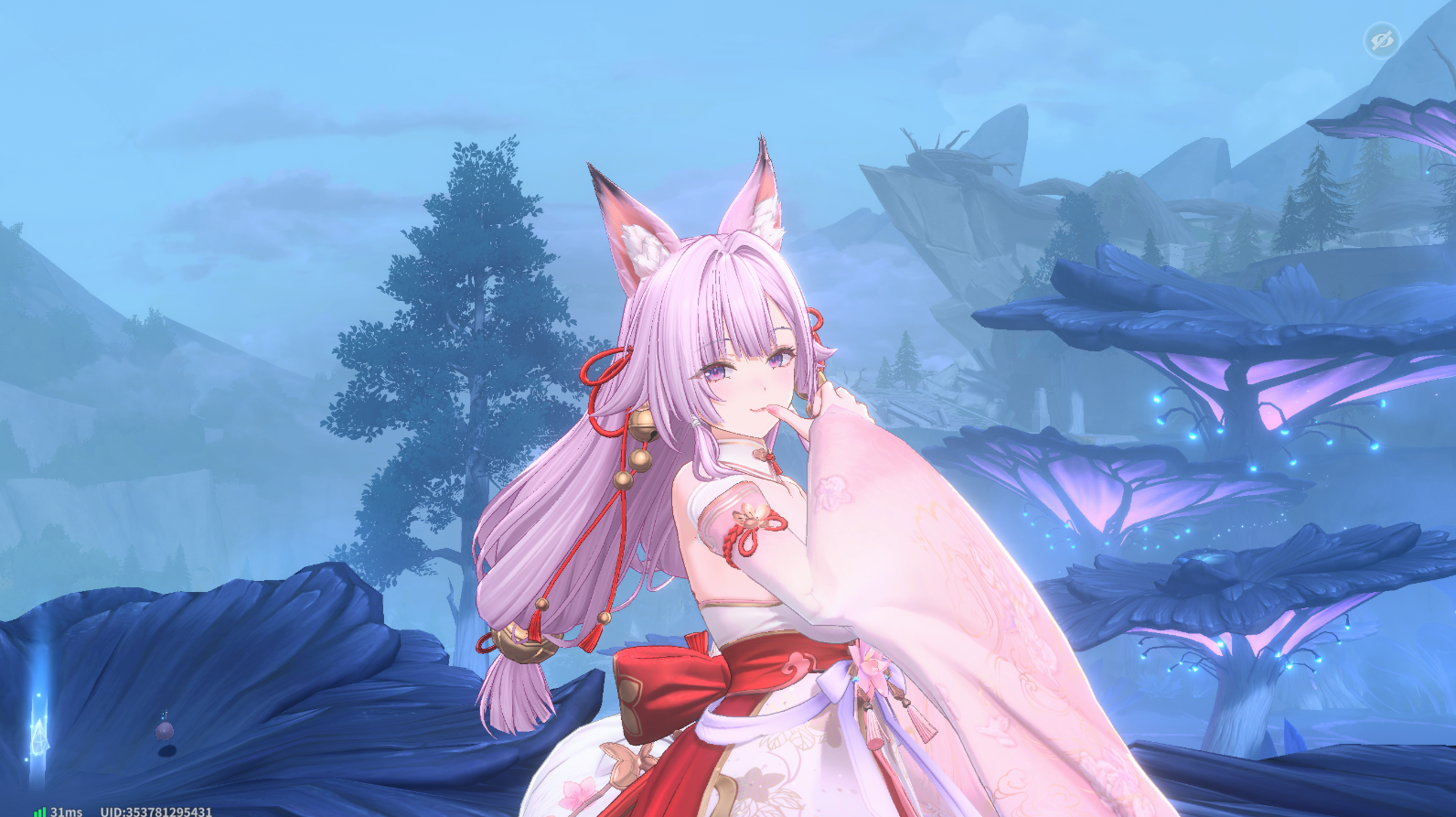
This image shows the results of those changes. Some image quality was lost during capture, but the game still looked much better than it did with the default settings.
4. Day-One Rewards and Important Details
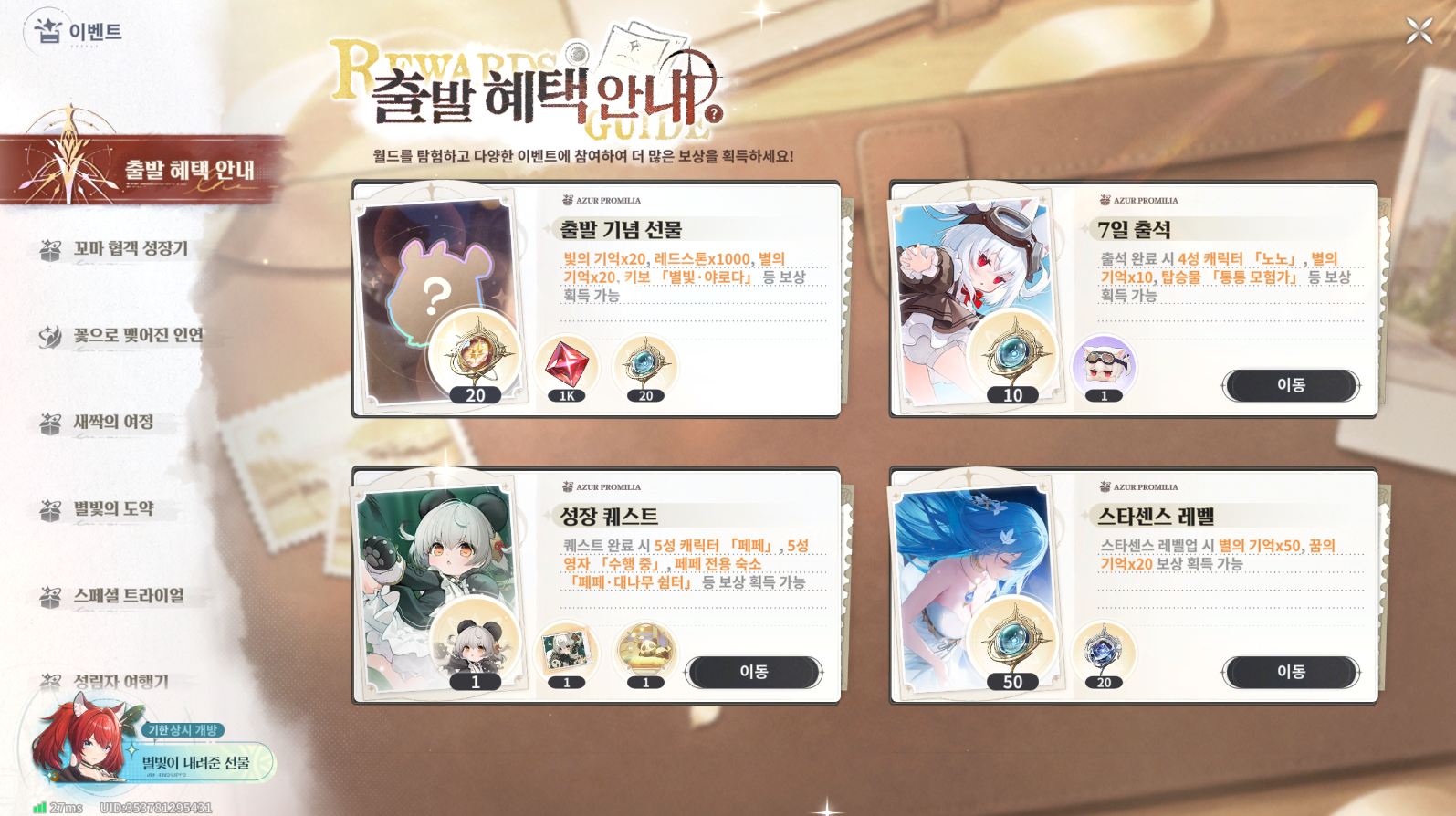
According to the official launch benefits announcement, logging in during version 1.0 grants 66 free Observations. Collecting all exploration and event rewards can bring that total to more than 510 Observations. You will not receive the full amount just for logging in; you need to work through exploration and events to collect the remaining rewards.
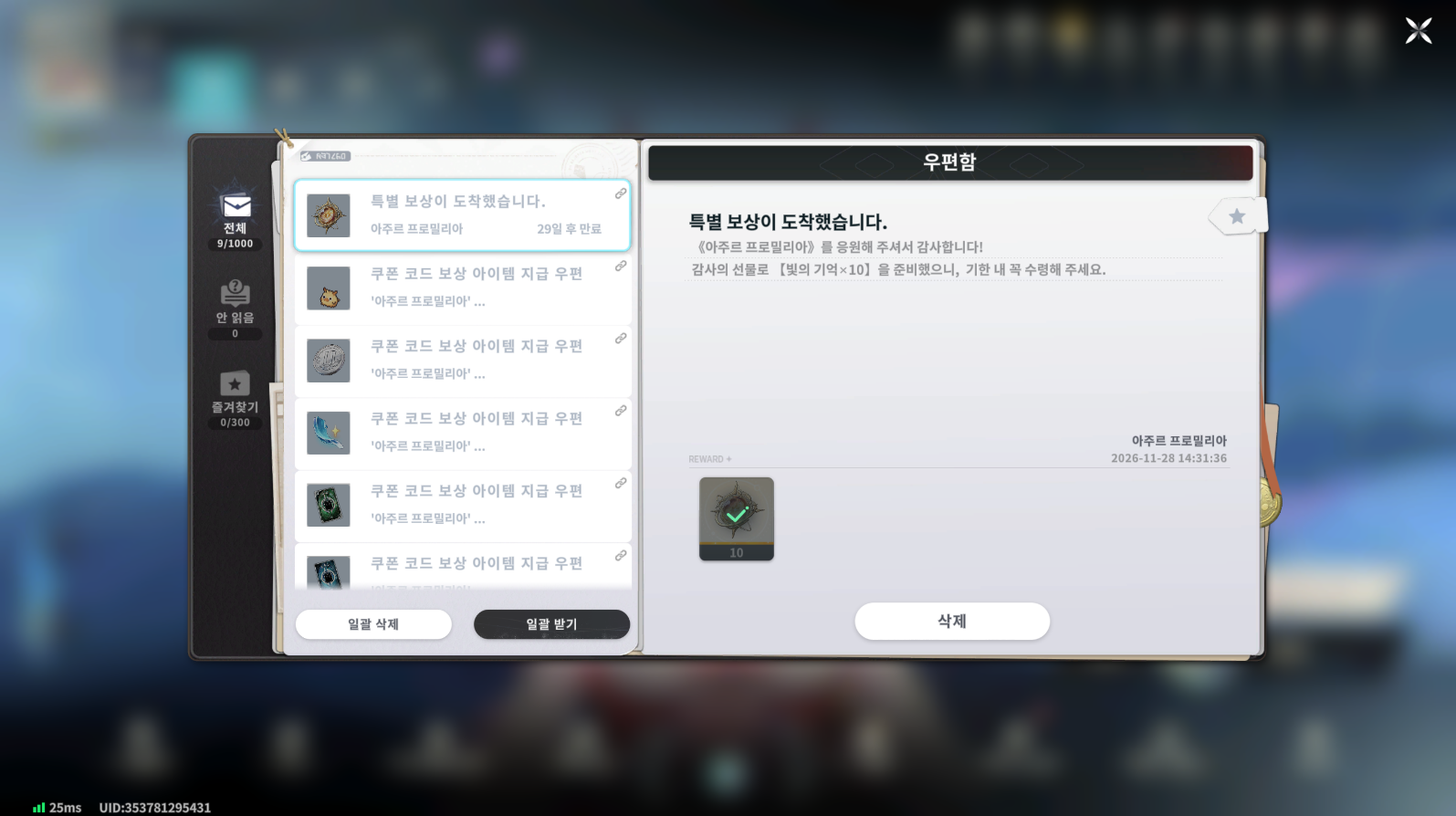
Starting November 28, 10 Memories of Light are being delivered to the in-game mailbox as a launch thank-you gift. Only accounts that log in before maintenance on January 5, 2027, will receive them. If you are planning to reroll, now is a good opportunity.

The web event Operation Kibo Camp opened before launch and runs until December 31. If you participated, you will need to claim your rewards manually. Log in to the event page with the NEXON ID you used to participate, then claim your rewards there to have them sent to your in-game mailbox.
5. Day-One Checklist at a Glance
|
Step |
What to Do |
Easy-to-Miss Details |
|---|---|---|
|
1. Before Starting |
Complete identity verification for your NEXON ID and check the account linked on mobile |
Your character will not carry over if you log in with a different ID from the one used on mobile |
|
2. Before Installation |
Check your PC specs and confirm you have 160GB of free space |
Check free space on the game installation drive, not the drive where you downloaded the installer; delete CBT files |
|
3. Installation |
Click GAME START on the official website to install NEXON Plug |
If nothing happens, check your browser's pop-up blocker |
|
4. First Login |
Adjust settings under [ESC] → [Settings] → [Graphics] |
AMD graphics cards do not support DLSS; use the Alt key to access the cursor |
|
5. Rewards |
Check the in-game mailbox and web event page |
Web event rewards must be claimed directly on the event page |
That covers the checks to work through on your first day in Azur Promilia. Following these steps should make getting started much smoother, so keep this guide handy when you are ready to play.