[Mabinogi Mobile] 4 PC Settings for Beginners: From Graphics to Your Mouse Cursor
이호
This post was created as part of NEXON PEAK activities.
Hello, adventurers! 이호 here!
In an earlier post, I recommended Monk and Crossbowman for anyone new to RPGs. Neither class has as many movement skills as Dancer or Dual Blade, which makes them a little easier to get comfortable with and keeps the view from shifting too quickly. (🍀Read that post here https://peak.nexon.com/post/2758)
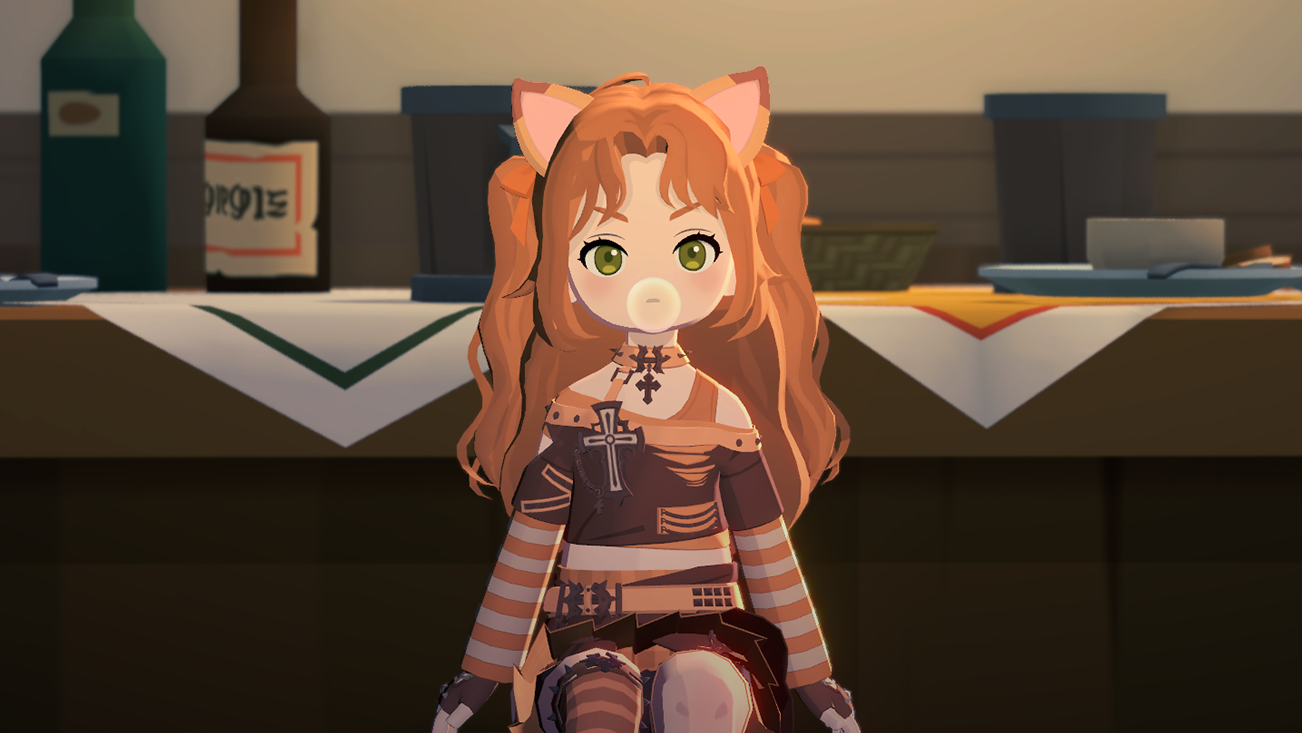
Thinking about it more, though, I realized that the combat visuals in Mabinogi Mobile might themselves feel unfamiliar to RPG beginners! I've heard that when skill effects fill the screen and the camera moves faster than expected, players who aren't used to all those flashy visuals can sometimes feel motion sick.
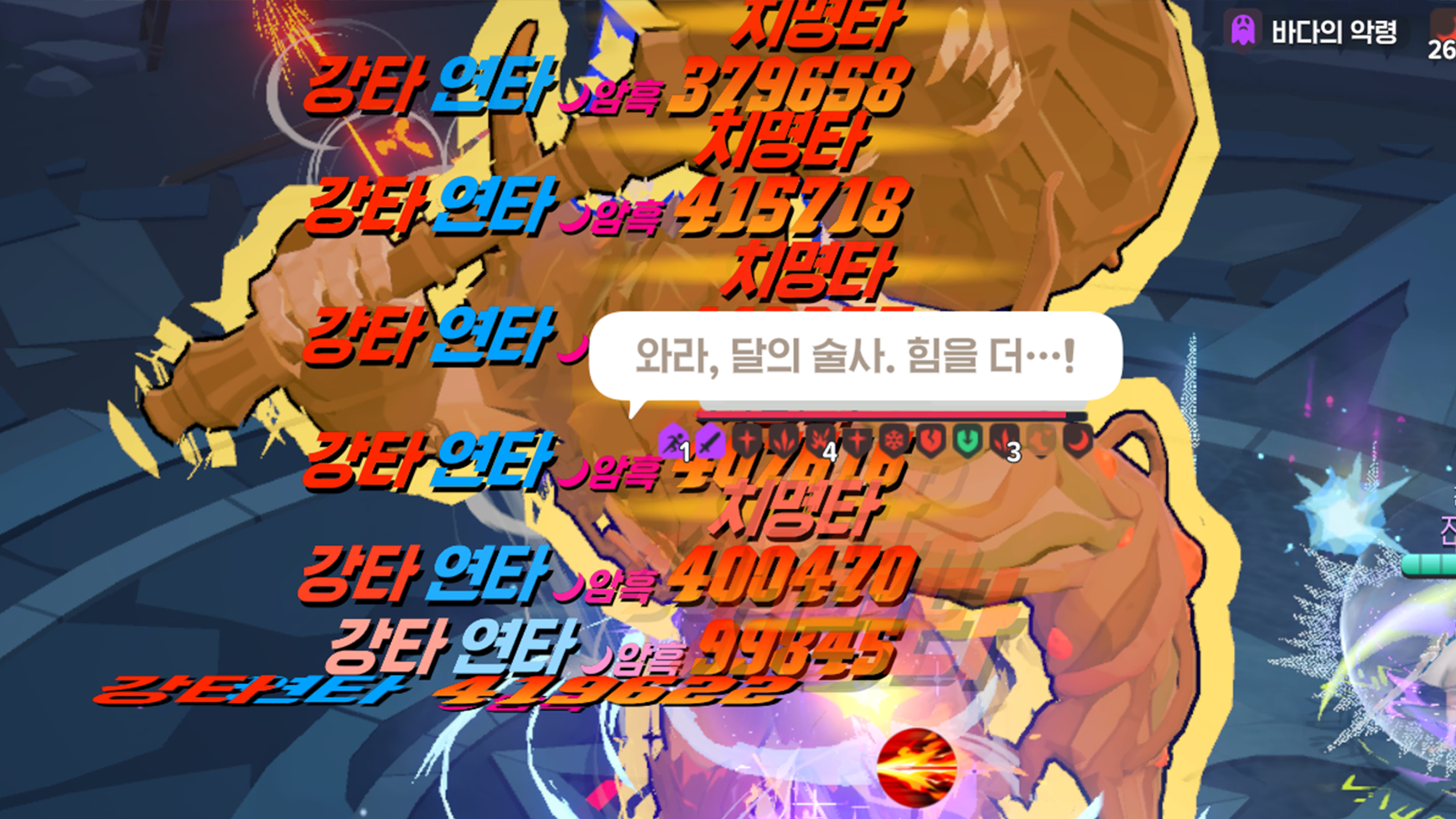
I had moments like that when I first started playing Mabinogi Mobile, too. By adjusting the things that bothered me one at a time, I've found the settings that work best for me!
For context, I mainly play on PC. The settings screen looks a little different on mobile, where some options are also available as separate settings. Please keep in mind that this guide is based on PC!

While playing, I sometimes noticed stuttering or felt that the image wasn't very clear. I wasn't sure what to adjust at first, so I started with the automatically recommended settings.
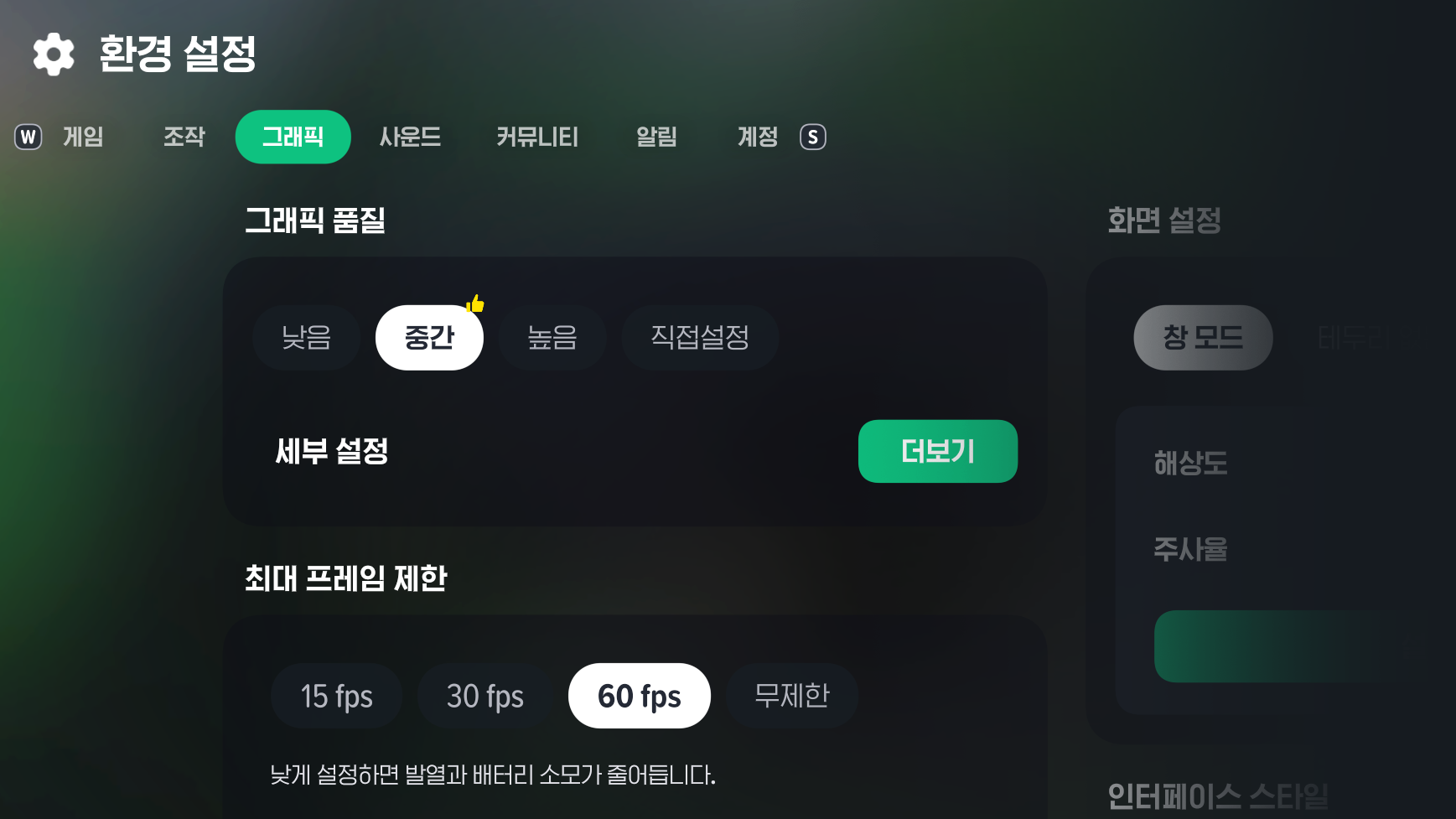
Under [Settings] → [Graphics], a recommendation icon appears above the graphics quality level best suited to your device. If you're not sure which level to choose, this is a good place to start.
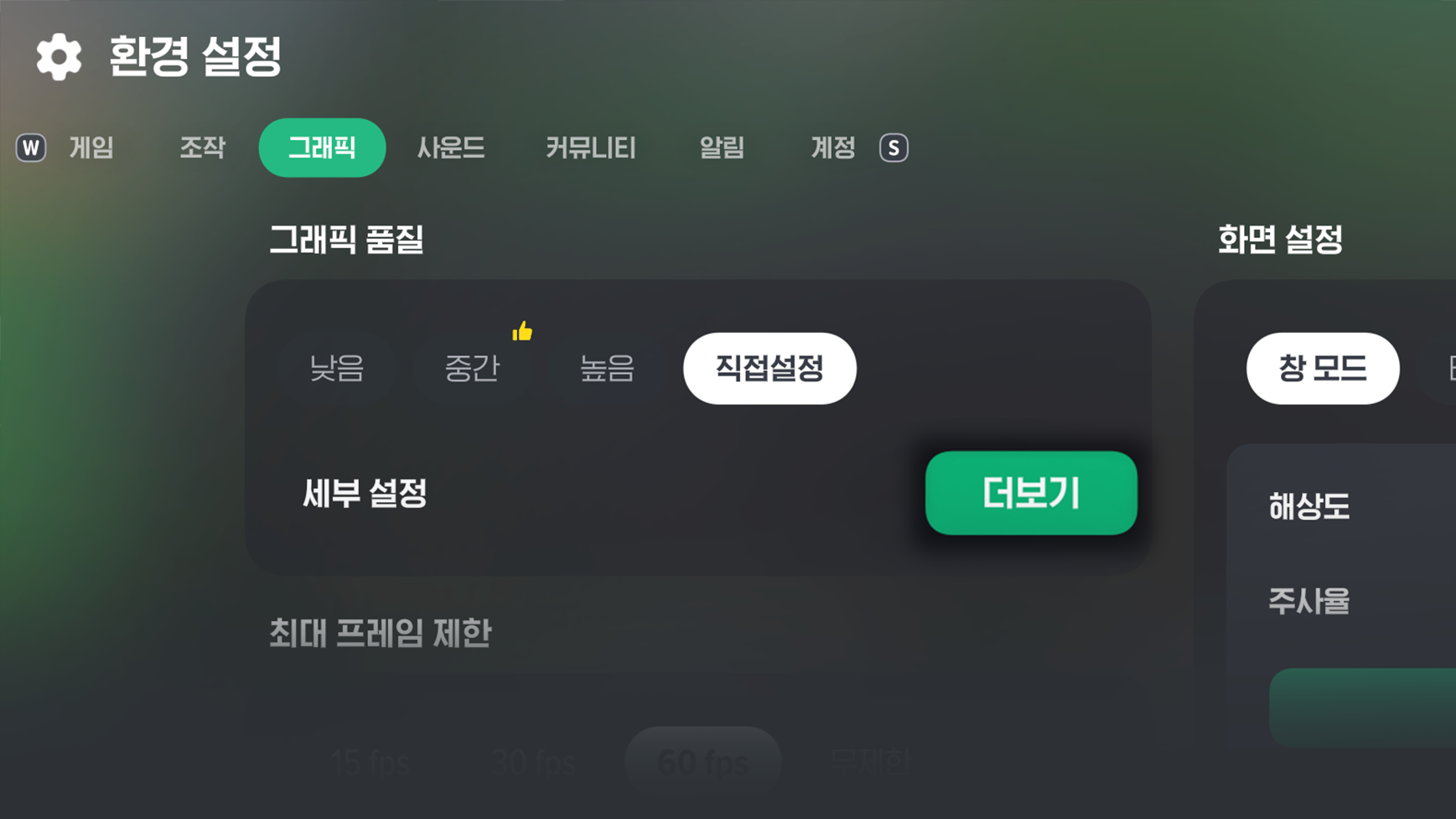
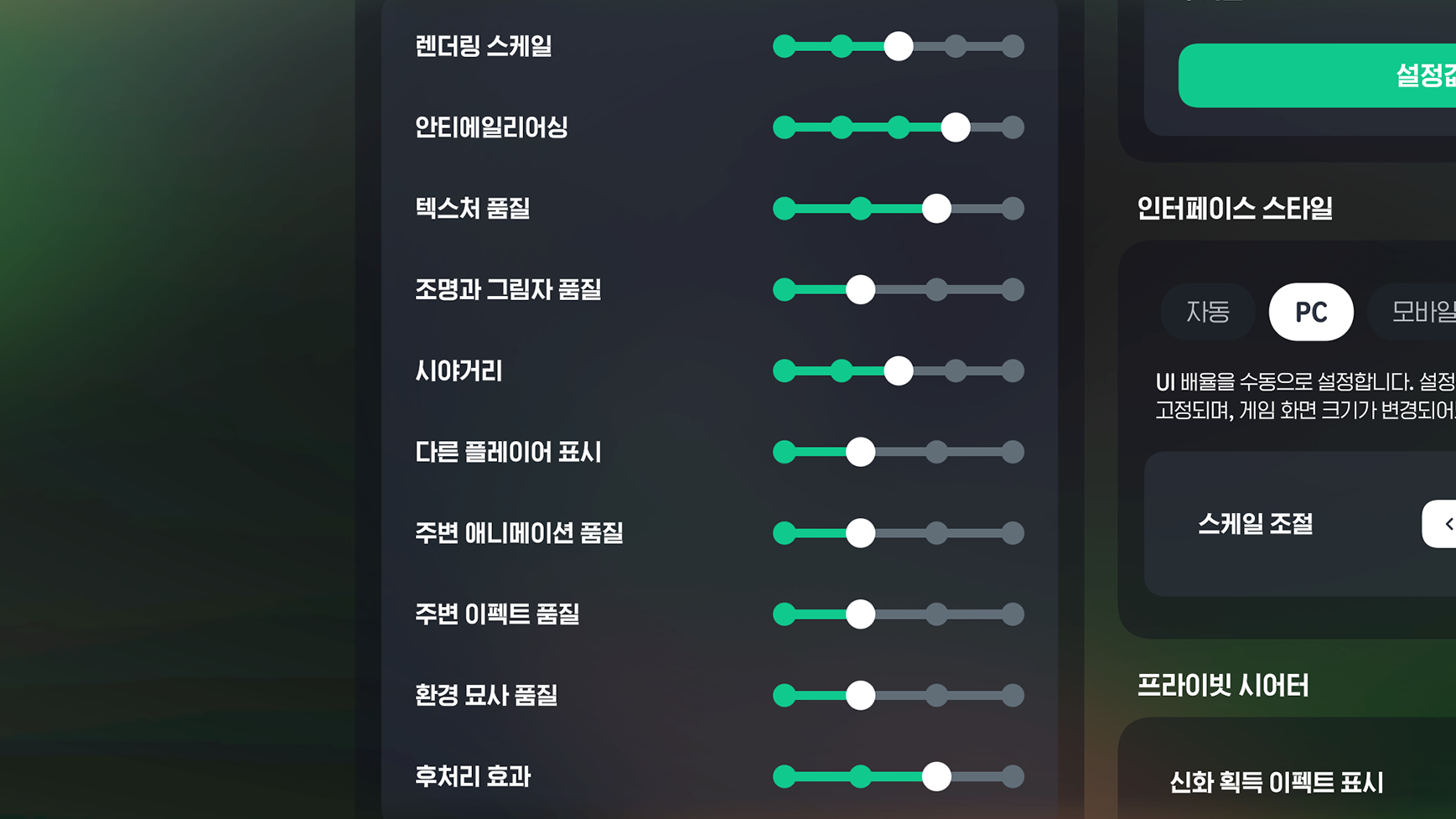
The recommended settings still didn't look quite right to me, though. So I clicked [Show More] to open [Detailed Settings] under [Graphics Quality], then adjusted the options one by one until I arrived at the setup I use now.
Detailed Settings lets you adjust each quality option separately. Keep in mind that your device's performance or memory may limit the available levels, and both the options and their levels can differ between mobile and PC.
Here's what some of the common options mean.
-
Texture Quality: Controls the detail on surfaces such as clothing and the ground. This tends to use a lot of graphics memory. The 2025-12 update expanded the range to 5 levels on mobile and 4 on PC.
-
Anti-Aliasing: Smooths out the jagged, stair-like edges around characters and buildings. The 2026-10-15 update expanded the range from 3 levels to 5.
-
Environment Detail Quality: Determines how densely background objects such as grass and trees are rendered.
My current settings work for both screenshots and combat, keeping edges smooth while placing a moderate load on my device. That's why I keep anti-aliasing high but settings such as effects and animations low.
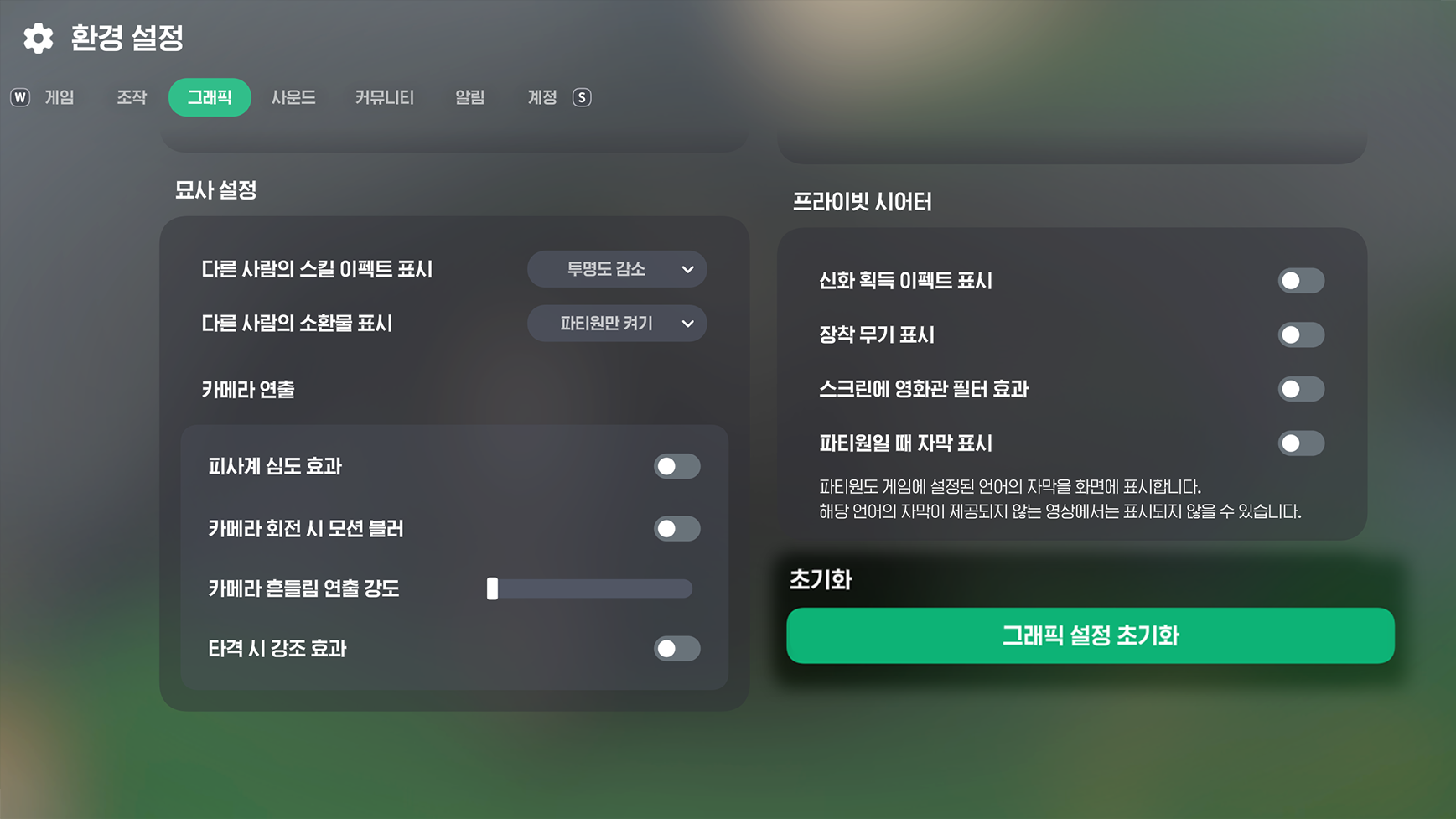
If you lose track of your adjustments, you can start over with the Reset Graphics Quality Settings button in the [Graphics] tab. Don't be afraid to change things one at a time and find what works for you.
One thing to remember: higher graphics settings also generate more heat! If you play on mobile, check the [Automatically Adjust Within the Set Rendering Scale] option to help reduce heat and power consumption.
If the game stutters in crowded areas, you can reduce the maximum number of players shown on screen using [Display Other Players] in the PC [Graphics] settings.
Changes to this setting take effect after you move to another area or log in again.

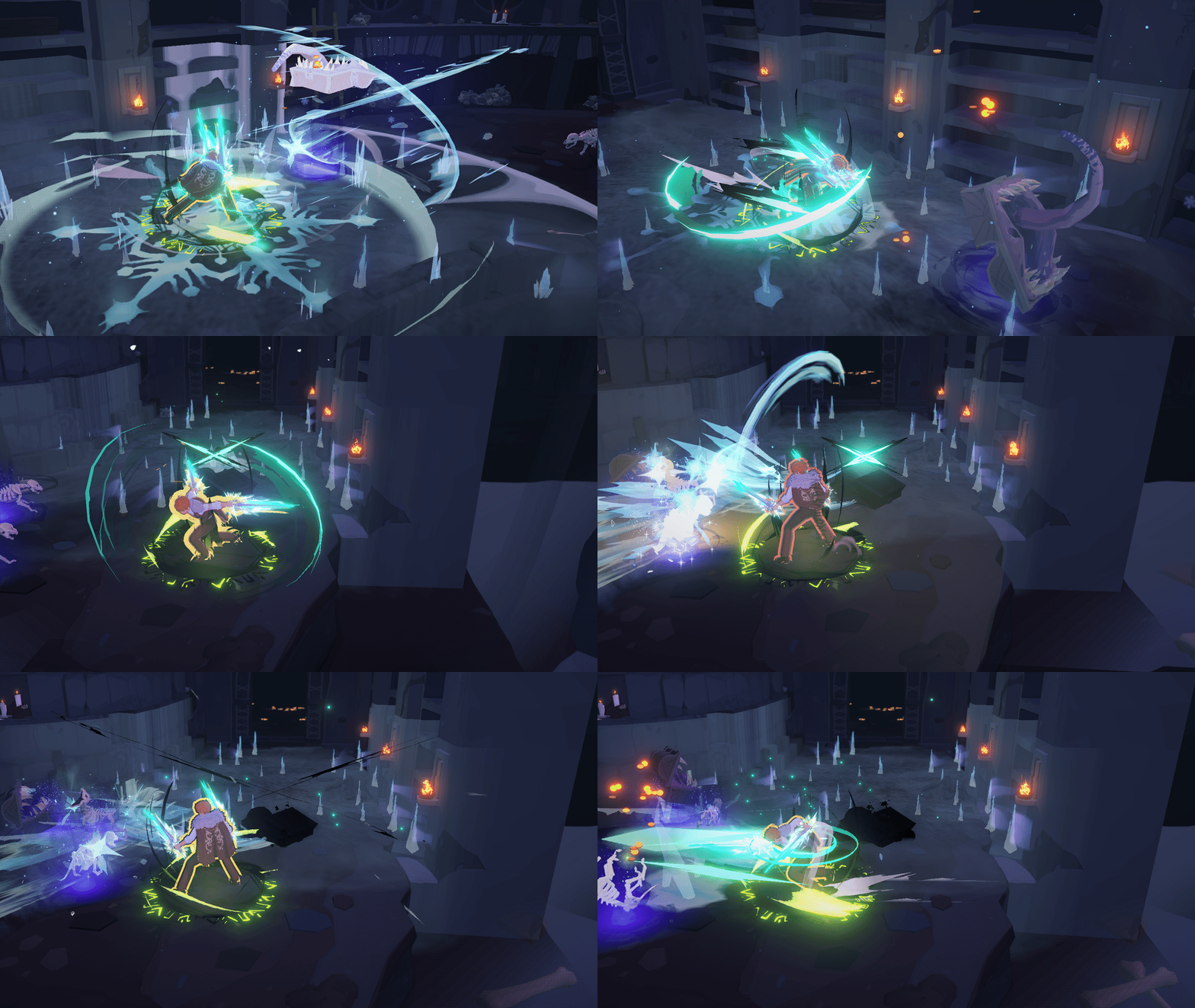
When you fight monsters as a Crossbowman or Dual Blade, damage numbers—often called a “receipt”—appear nonstop. With all those numbers filling the screen, I sometimes couldn't see encounter mechanics.
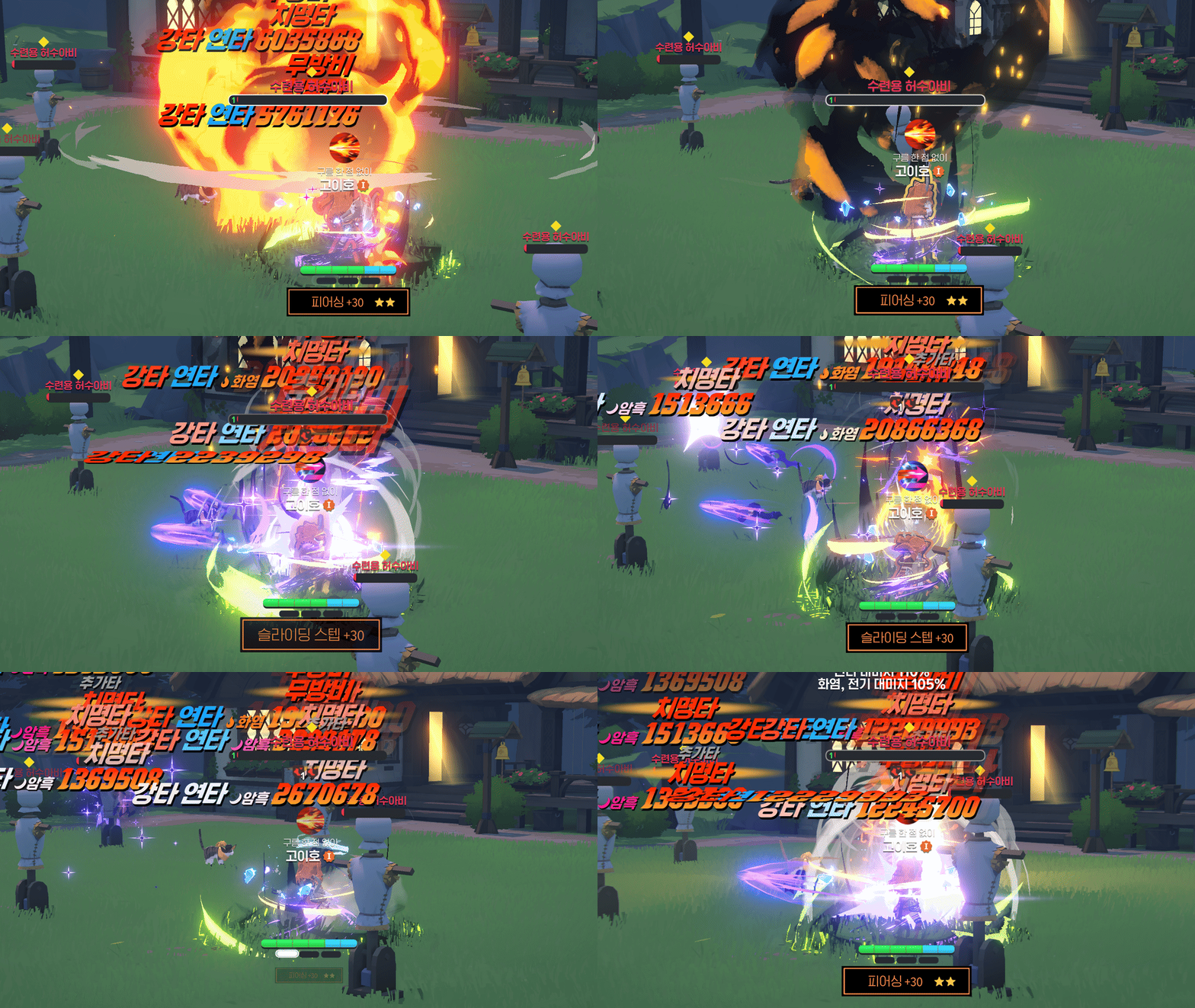
That's why I set [Display Other Players' Skill Effects] to Reduced Opacity under [Settings] → [Graphics] → [Visual Settings].
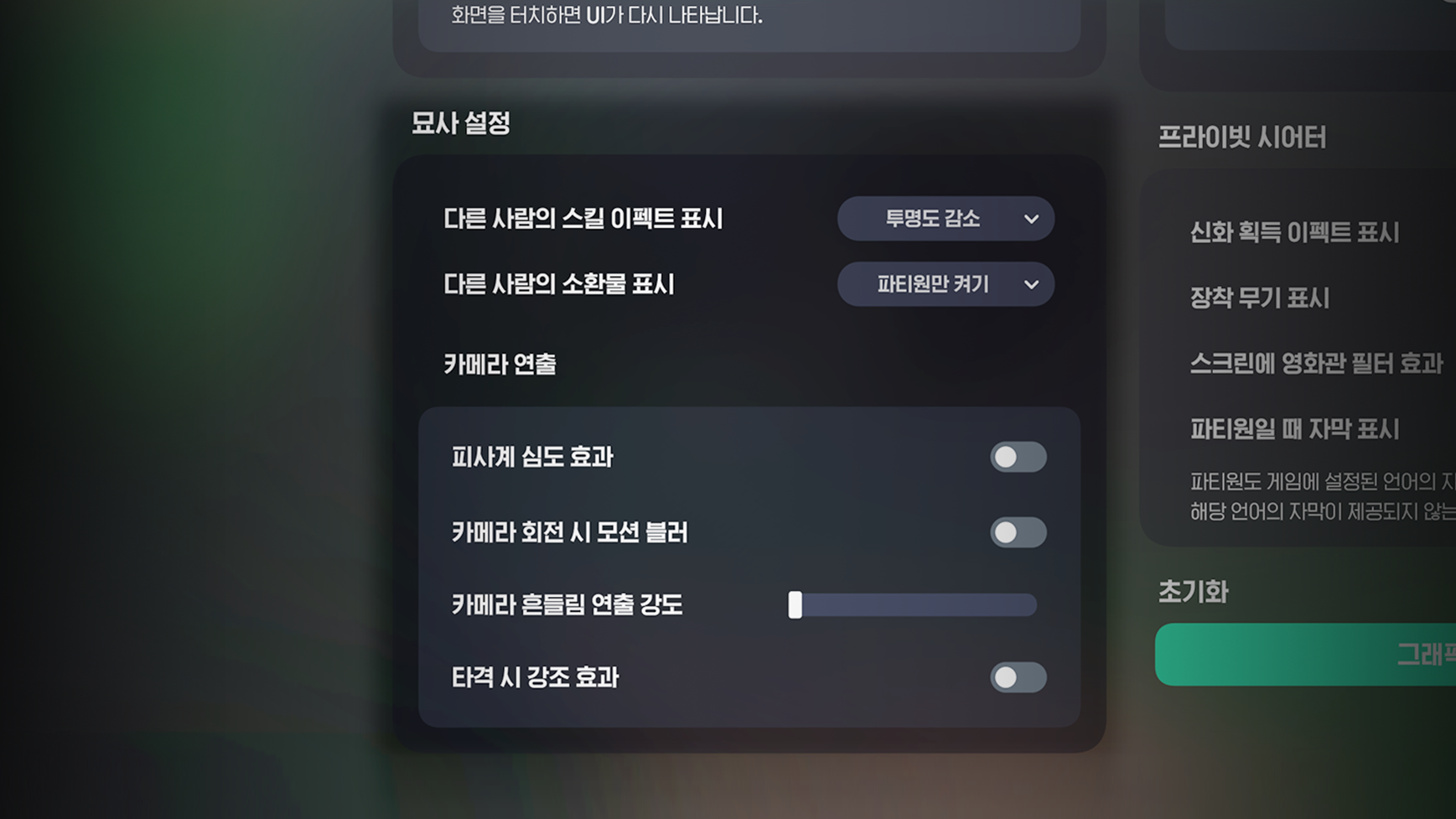
Beneficial Effects Only shows effects from helpful skills, such as buffs. Reduced Opacity shows all effects but makes other players' effects semi-transparent.
I mentioned that I use Reduced Opacity, and that's because, in party play, I sometimes need to watch other players' skills and time my own accordingly. For example, when a Warrior pulls enemies in with a chain skill, I try to follow up with an area-of-effect skill. That doesn't happen often, but I've been watching for those opportunities from the start, which may be why Reduced Opacity feels more comfortable to me.
I've also turned the screen shake intensity down to 0%.
If the flashy visuals still feel overwhelming, I recommend starting with these two adjustments in the visual settings.
-
Set Display Other Players' Skill Effects to Reduced Opacity
-
Set screen shake to 0%
A helpful tip: have you tried these settings?
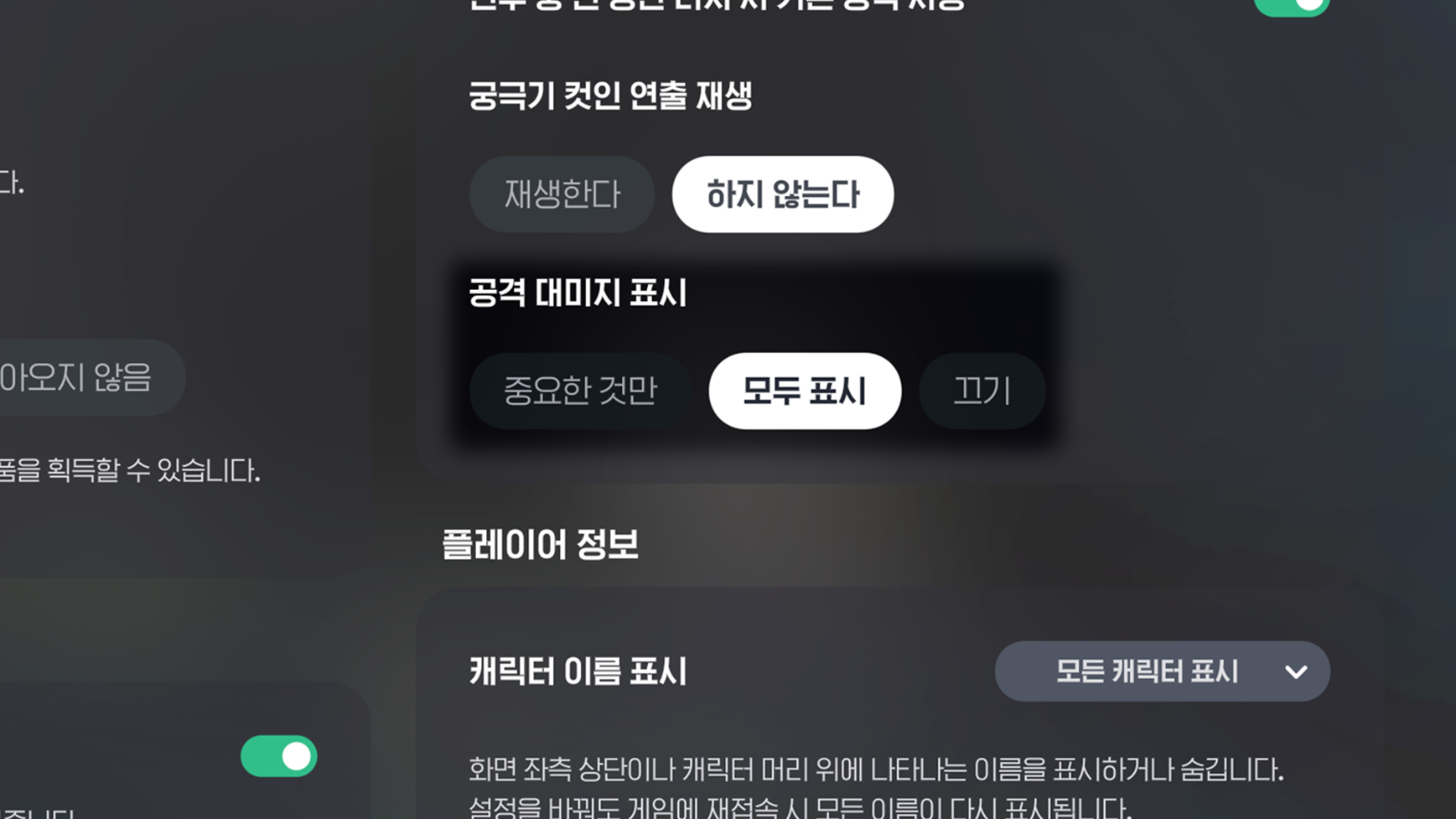
There's now a way to reduce the damage “receipt” numbers themselves, too. The 2026-09-17 update added [Attack Damage Display] under [Settings] → [Combat Settings]→ [Game]. The default option, 'Important Only,' reduces how many numbers appear at once, even when you hit the same enemy multiple times, and shows only the damage you deal directly. 'Show All' includes everything, even pet damage, while 'Off' hides the numbers entirely!
If too many damage “receipts” are blocking your view, set [Attack Damage Display] to 'Important Only' to keep your screen clearer.
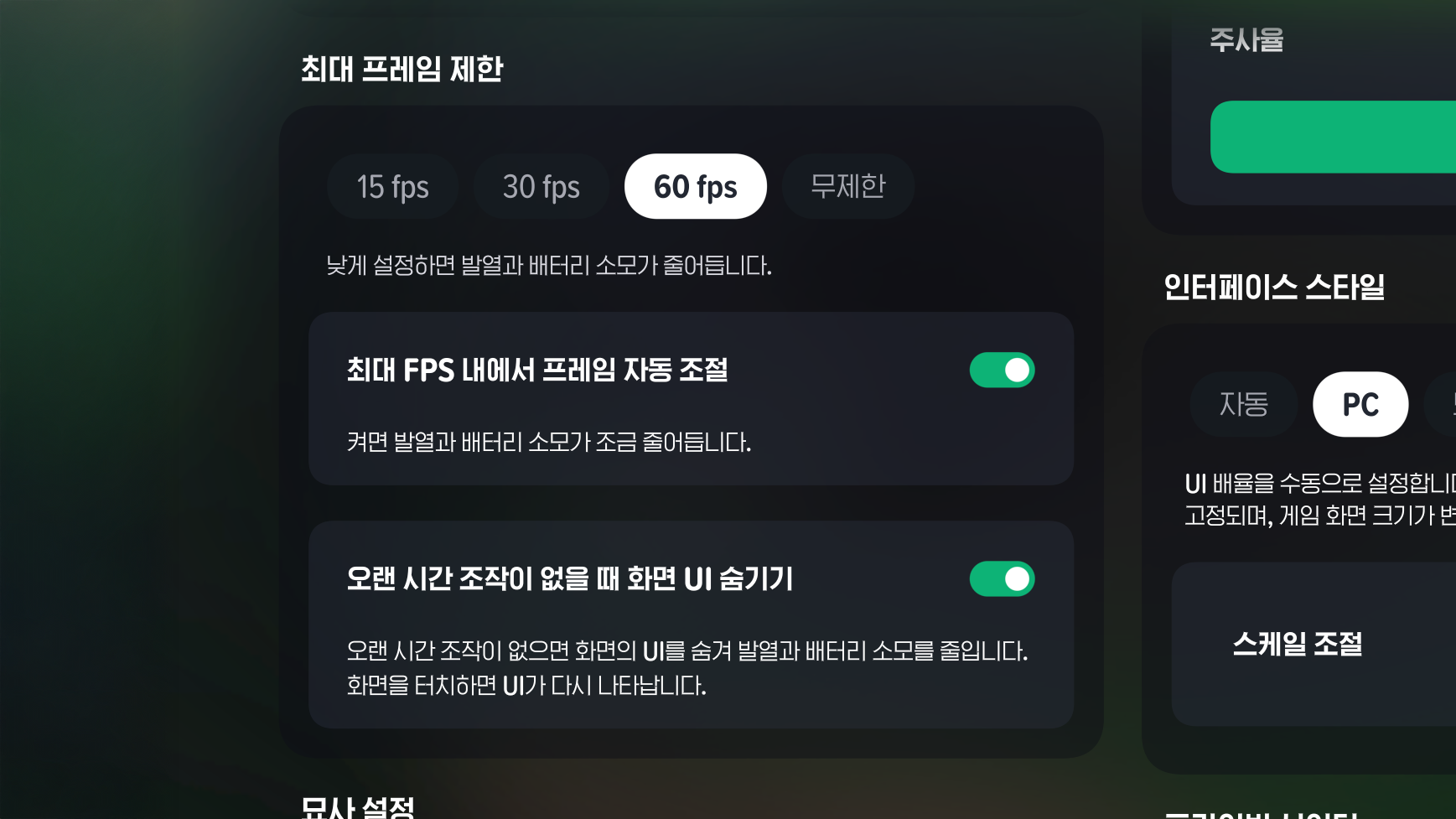
You'll also find [Hide UI After Prolonged Inactivity] under [Settings] → [Graphics]. It's useful to have this turned on for long dungeon runs and similar activities!

I keep my camera on manual. I'm leveling a Dual Blade as an alt, and the class has so many movement skills that the automatic camera would sometimes swing around fast enough to make me dizzy.
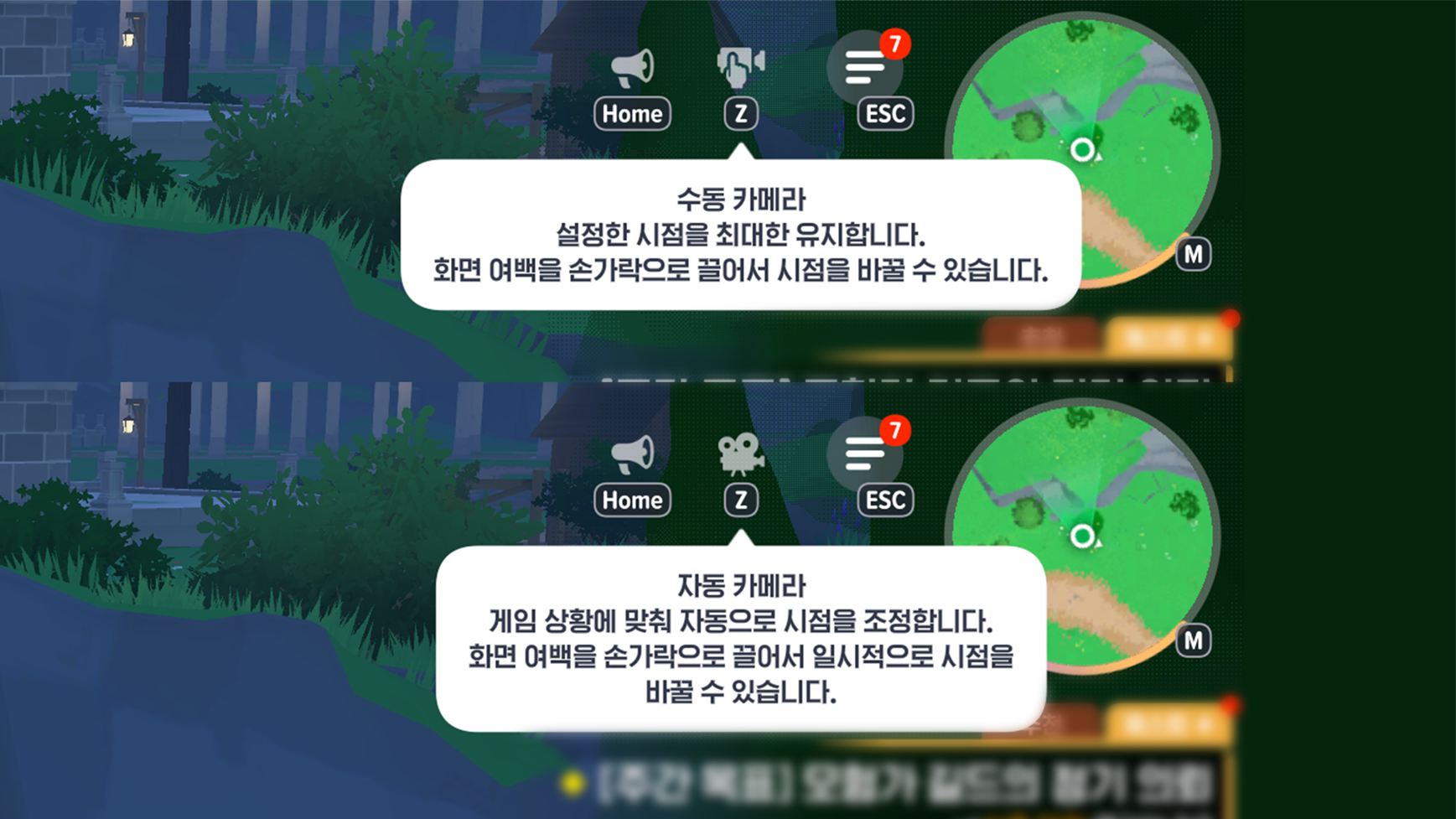
On PC, you can switch straight between manual and automatic camera modes with the Z key.
On mobile, [Motion Blur When Rotating the Camera] is said to have been off by default since the 2025-08 update. This setting adds a blur when you rotate the camera, so if you're concerned about dizziness, check that it isn't turned on.
There's nothing wrong with the automatic camera, but if large camera swings make you uncomfortable, as they do me, I'd strongly recommend switching to manual and controlling the view yourself.

When I first played Mabinogi Mobile on PC, I had trouble keeping track of the mouse cursor. Screens are quite large these days, but the default cursor felt too small. Increasing its size was one of the first things I did.
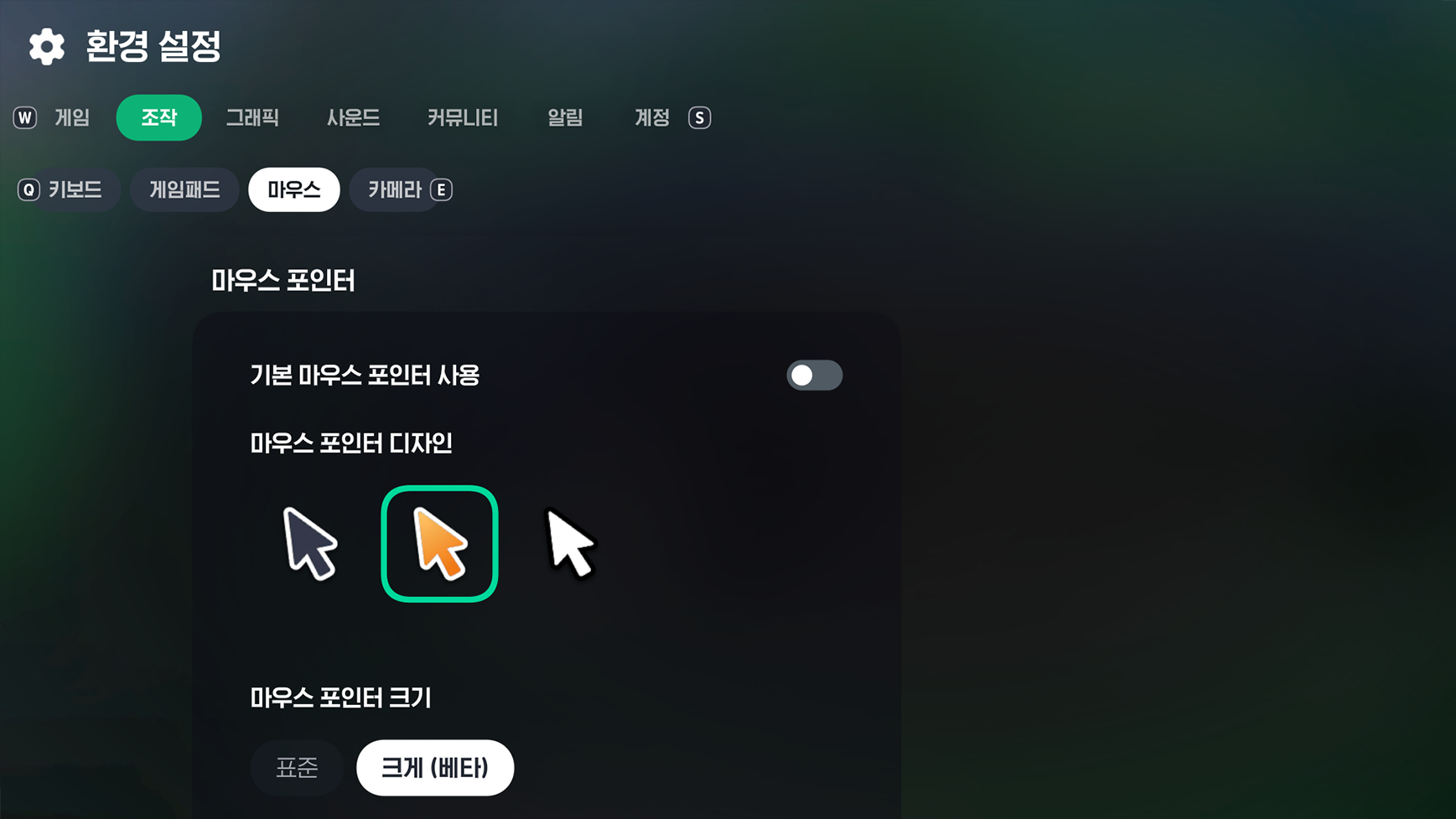
On PC, the Change Mouse Pointer feature under [Settings] → [Controls] → [Mouse] lets you adjust the pointer's design and size. Along with increasing its size, try choosing a shape that's easy to spot!
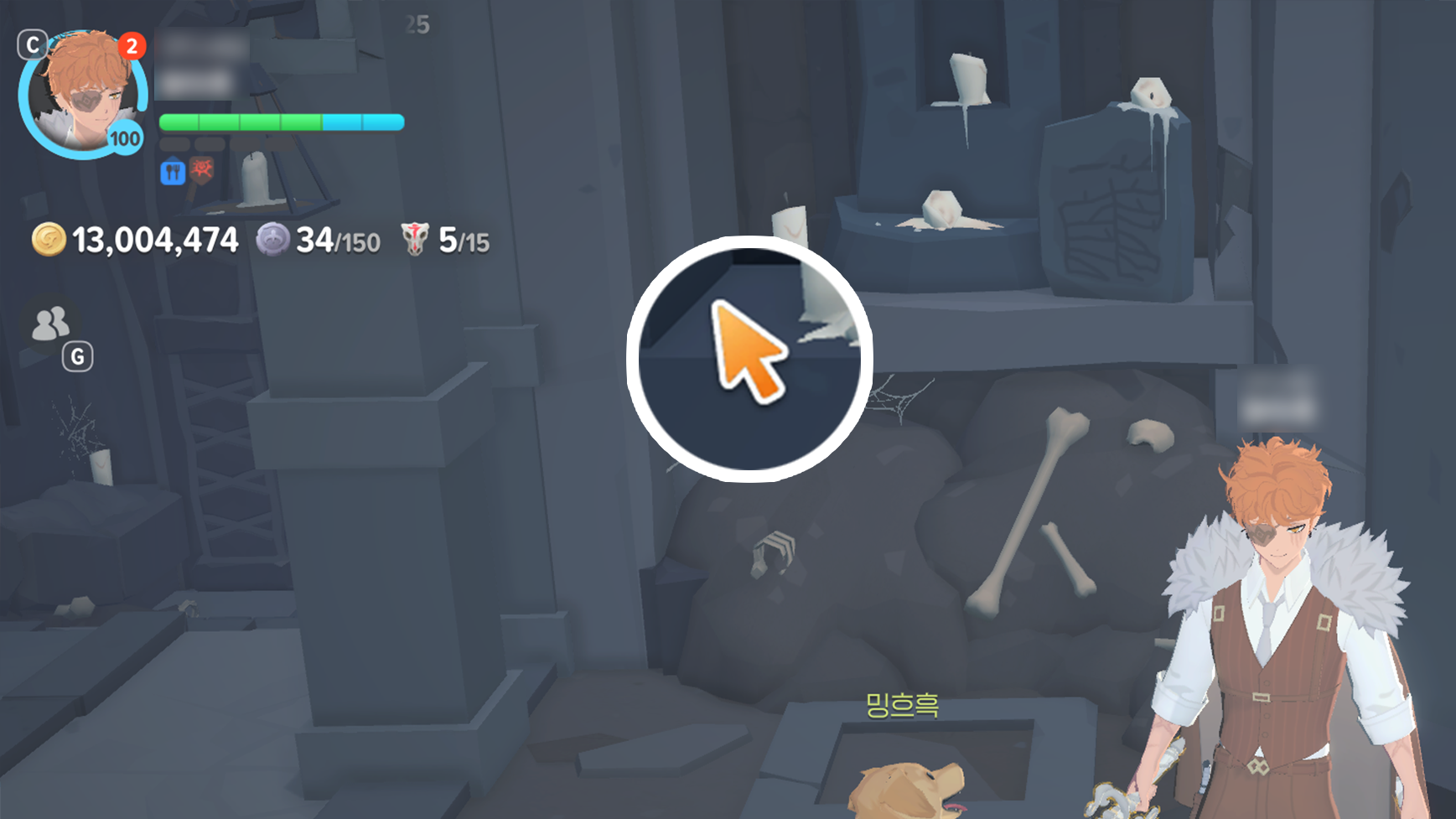
Since orange is my signature color, I use the second mouse pointer design!
(Even my cursor has to show off my signature color…)

That covers my PC settings. Here's a quick recap:
-
Start with the automatically recommended graphics settings. Use Detailed Settings to adjust only what needs improvement, one option at a time. That makes it easier to see what each change does.
-
Playing a class with lots of damage “receipts”? Set effects to Reduced Opacity. That way, you won't miss mechanics hidden behind numbers and effects!
-
Adjust the camera and cursor to suit your preferences. I use the largest mouse cursor size.
There's no single right answer when it comes to settings, but if you'd like a setup that works comfortably for both combat and everyday play, try using mine as a reference. I hope this guide helps!