Key Convenience Settings in MapleStory
마빡도로시
This post was created as part of Nexon PEAK activities.
Hello everyone.
System settings play an important role in gameplay, but MapleStory has so many systems that it can be difficult to know what to adjust and how, especially when you are just starting out. This guide offers a brief overview of the main settings to help you find your way around.
[Skill Sequence]: Activate multiple buff skills at once

[Skill Sequence] lets you activate several buff skills with a single button and virtually no delay. You can open its interface from the Sequence menu in the Skills window.
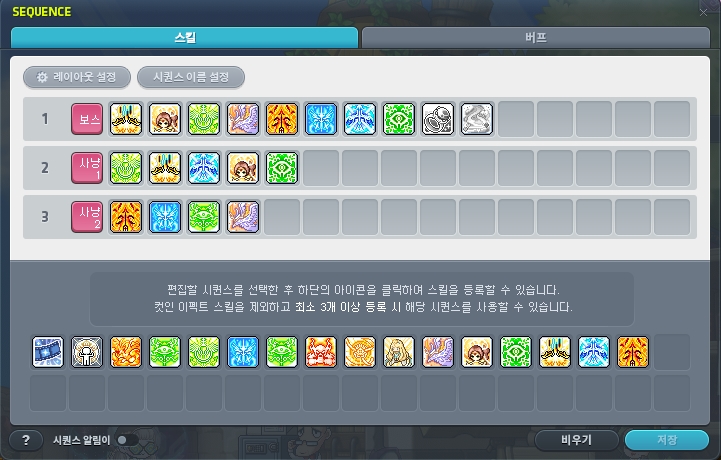
The feature is divided into Skills and Buffs, and you should use both. Both are important, but Skills in particular has fundamentally changed how the game is played, making it essential. The best way to use it varies by class, so search for your class name along with “sequence” to find a setup suited to your class.
[Skill Notifications]: Get an alert in the bottom-right corner when a cooldown ends
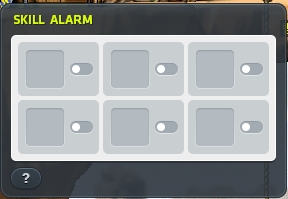
You can set up [Skill Notifications] for up to 6 skills through the Macro/Notifications button in the Skills window.
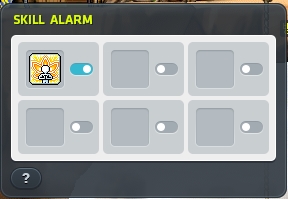
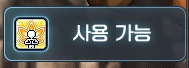
Once you assign a skill here, an alert will appear in the bottom-right corner when its cooldown ends, letting you know it is ready to use, as shown above.
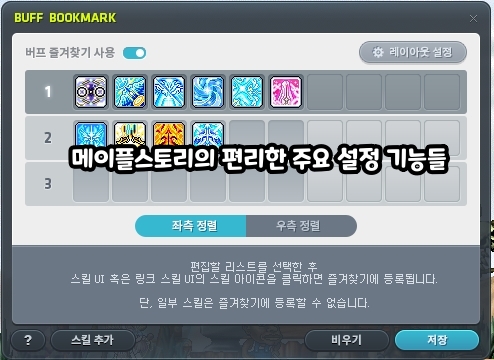
[Buff Favorites]: View the durations of selected skills in a separate area
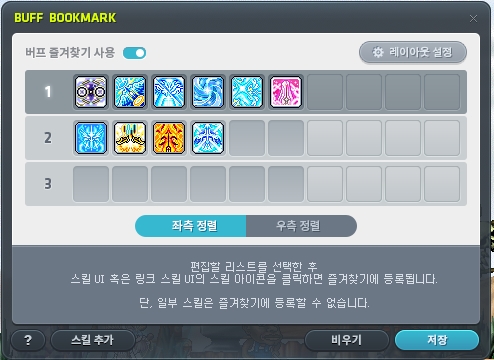
You can also open [Buff Favorites] from the menu in the Skills window. Skills assigned here have their durations displayed in a separate area rather than in the buff display at the top-right of the screen.

The selected skills appear in your chosen layout, as shown here, and you can use the mouse to place the display wherever you want it to stay.
[Auto-Sort Buffs]: Sort buffs in the top-right corner by type
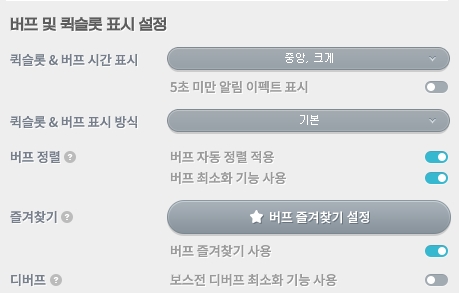
You can configure [Auto-Sort Buffs] in the UI tab under Settings.

When this feature is disabled, active buffs appear in no particular order, as shown here.

Enabling it neatly organizes buffs by type, as shown here, and you can click the arrows to collapse any rows you do not want to see.
Beyond the main features covered above, the tabs under Settings offer many other options, so I recommend taking some time to read through them.
[Improved Repeated Skill Input]: Adjust input delay
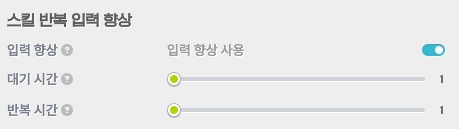
[Improved Repeated Skill Input] lets you adjust the response time for key inputs. Previously, players who knew about “Filter Keys” could achieve this through settings outside the game, but it has since been added as an official option as part of the game's improvements. You can configure it in the Lab tab under Settings.
Using this setting can make a substantial difference to how the controls feel, but the recommended settings vary by class here as well. This is particularly important given the wide range of available values.
As with sequences, it is best to search for this feature along with your class name and refer to the most up-to-date information you can find when applying the settings. These settings are saved per character, so you do not need to change them each time.
[Quick Menu Settings]: Pin frequently used menus to the main screen
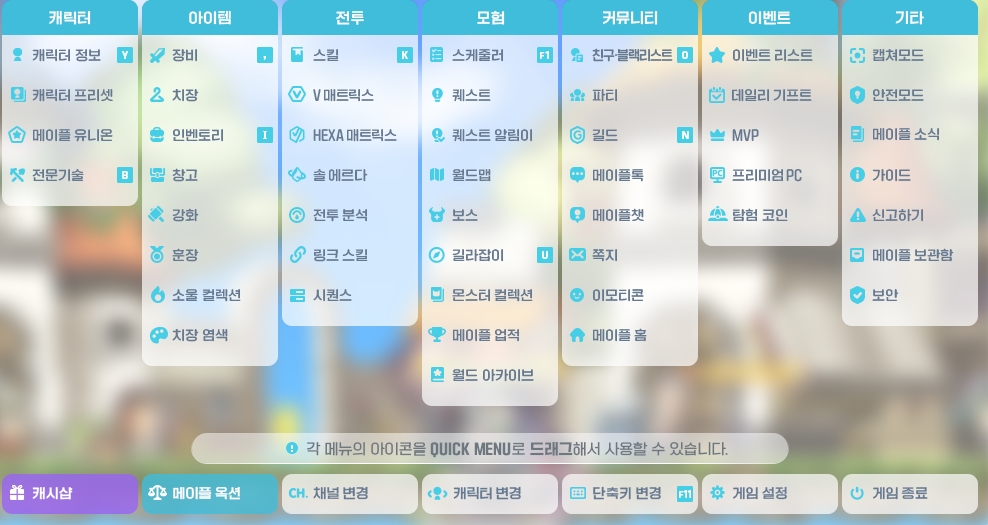
Pressing ESC brings up a large selection of menus, though you will likely use only a few of them regularly. Most are also accessible through keyboard shortcuts, but the limited number of available keys can make this difficult.
[Quick Menu Settings] lets you place these menus on the main screen so you can access them with a mouse click.

The Quick Menu sits to the left of the HP bar in the center of the screen. Once you have set it up, you can click these menus directly without any additional steps.

To set it up, click the Edit Mode button in the menu, then use the mouse to drag the menus shown above into place. Your choices will depend on how you play; my own setup is shown above. Using the Quick Menu alongside keyboard shortcuts makes accessing menus much more convenient, so configure it to suit your needs.
[Character Presets]: Switch multiple presets together
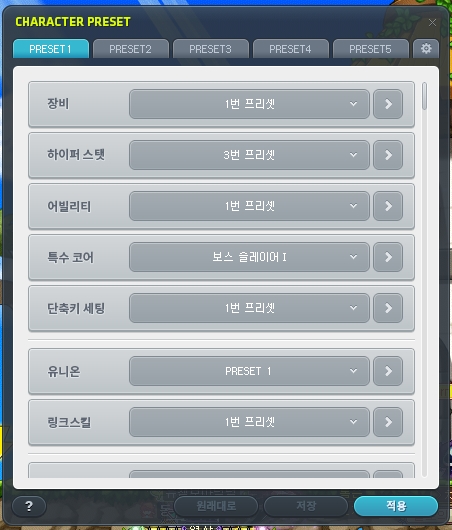
As the name suggests, [Character Presets] lets you set up presets for various features. It now includes a wide range of individual categories, giving you detailed control over your setup.
-
Equipment
-
Hyper Stats
-
Inner Ability
-
Special Nodes
-
Key Bindings
-
Legion
-
Link Skills
-
Damage Skins
-
Outfits
-
Effect Transparency
-
Sound

Players typically create separate presets for bossing, hunting, boss reward rooms, and similar situations, then switch between them using the “Change Preset” shortcut. This is an essential feature for a smoother gameplay experience.
Effect-Related Settings
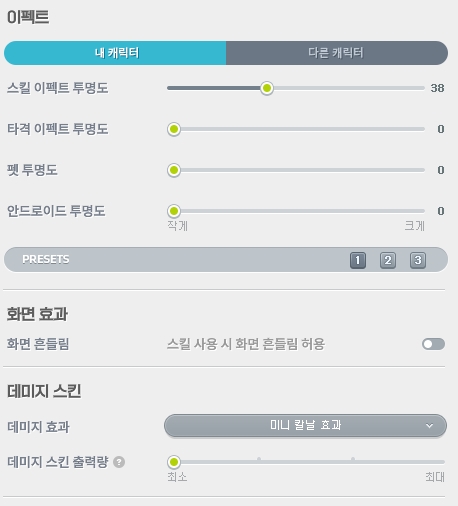
Finally, the Effects menu under Settings offers a variety of options for visual effects. Here, you can adjust skill, pet, and android transparency, disable the screen shake that occurs when using skills, and configure how damage skins are displayed.
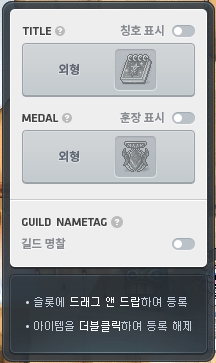
You can also choose whether to display titles and medals through the Title/Medal tab in the Equipment menu.
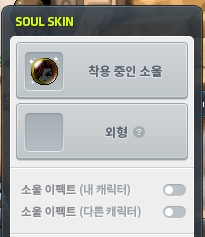

To choose whether to display soul effects, use the Soul Skin interface in the [Soul Collection] menu.
Thank you for reading.