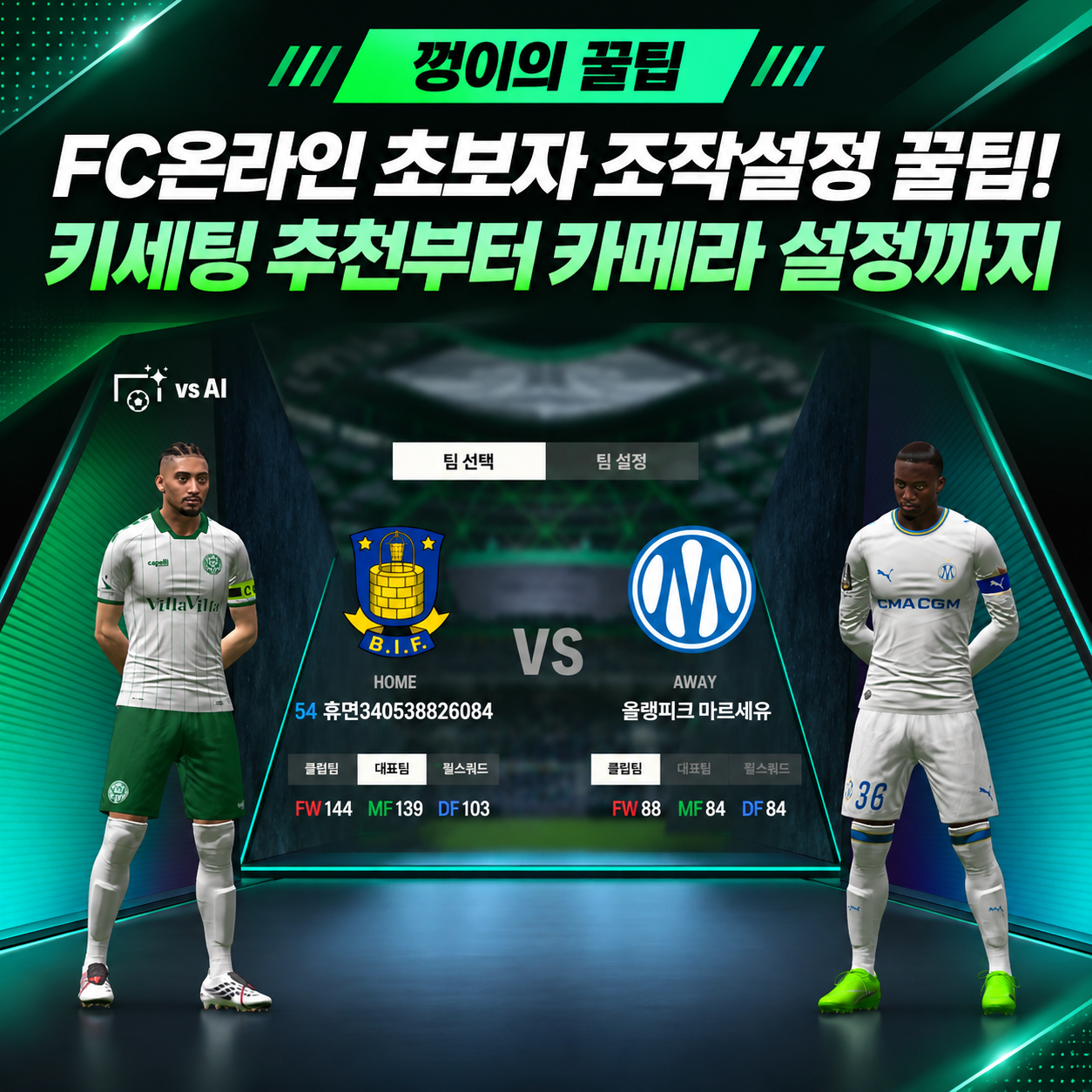
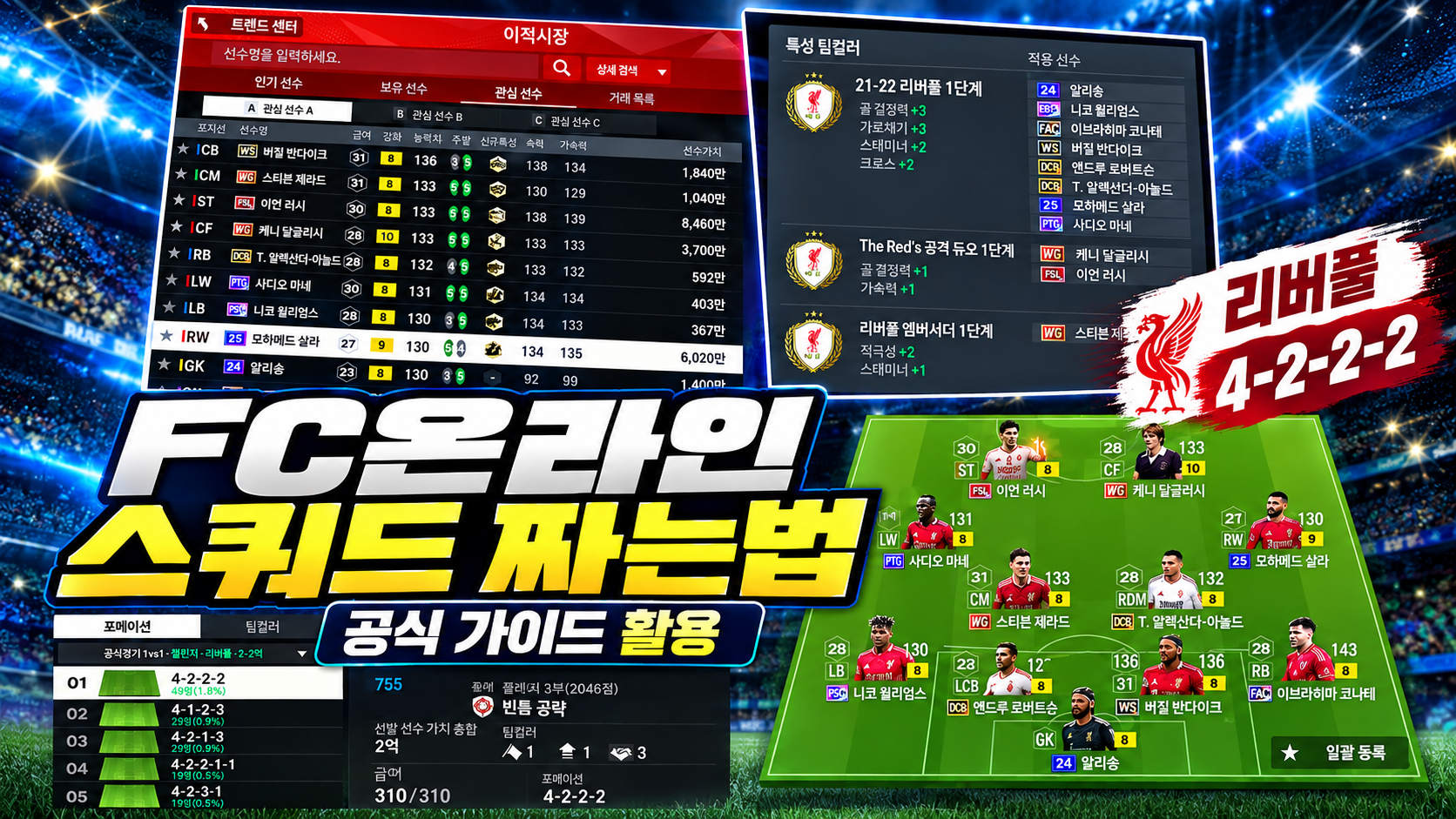
FC Online Control Settings Tips: What Should Beginners Change First?
네오필
|
This post was created as part of Nexon PEAK activities. |
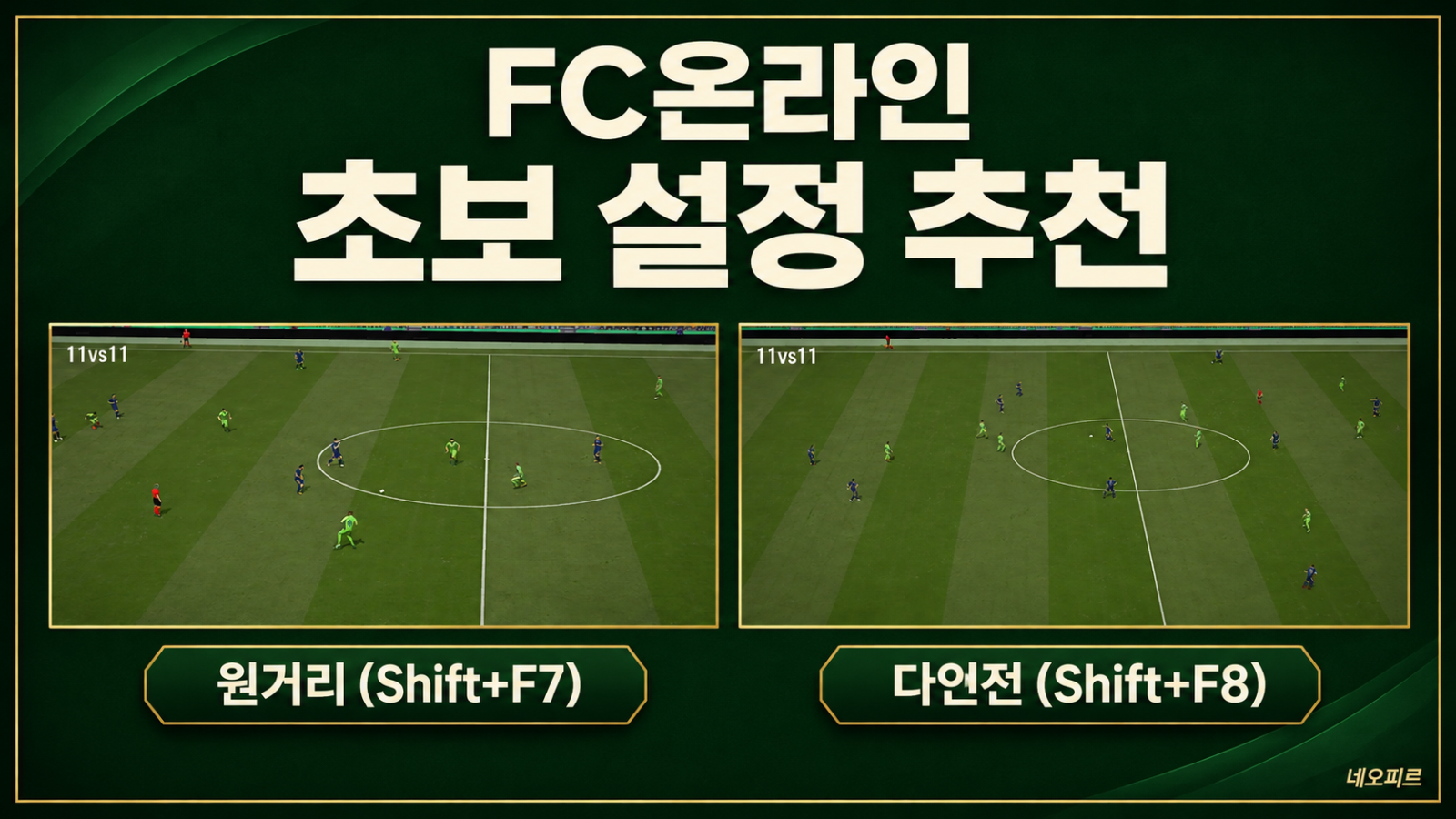
If you are new to FC Online, I recommend adjusting the camera and match display first, then changing only the controls that feel awkward, one at a time rather than remapping every key. A wider view makes it easier to find teammates to pass to, while keeping familiar controls helps you switch to defending as soon as you lose possession. If you are preparing for a friendly or your first ranked 1vs1 match on PC, work through the steps below.
|
Contents |
|---|
|
1. Pre-Match Settings Checklist |
|
2. Set the Camera to Show Passing Options, Not Just the Ball |
|
3. Start with Passing and Player Switching Controls |
|
4. Keep Only the Information You Need on the Match Display |
1. Pre-Match Settings Checklist
|
Category |
Recommended Starting Point |
What to Check During a Match |
|---|---|---|
|
Camera settings |
Compare views, starting with Long Range (F7) |
Can you see teammates on the flanks when you have the ball in the center? |
|
Control settings |
Start with the default controls for short passes, shots, and switching players while defending |
Can you switch to the defender you want as soon as a pass is intercepted? |
|
Automatic player switching |
Keep the current setting at first Adjust it only if you cannot switch to the defender you want |
Do you lose track of players during ground passes or aerial balls? |
|
Match display settings |
Turn on the shooting gauge Set player names in individual matches to Player Name/Position |
Can you check shot power and your controlled player's position at a glance? |
|
Other settings |
Turn on Block All Chat if chat keeps distracting you |
Is it easy to focus on the match? |
2. Set the Camera to Show Passing Options, Not Just the Ball
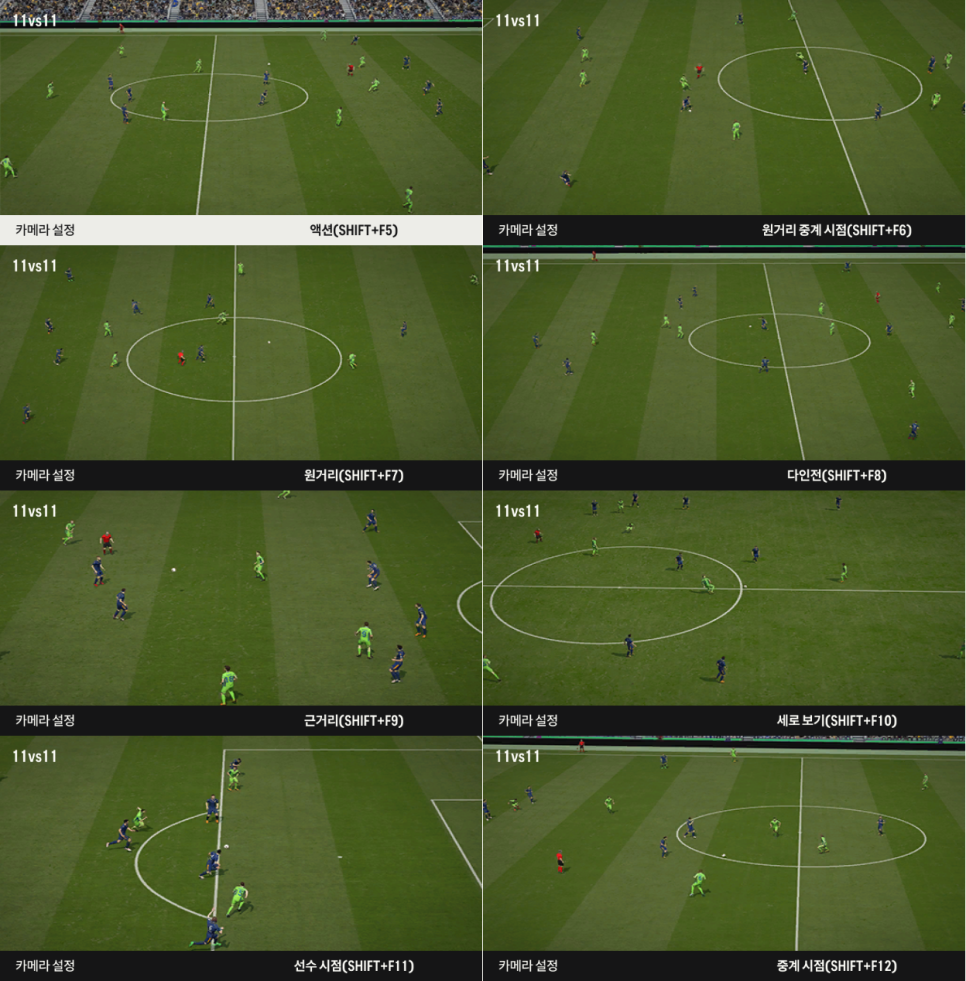
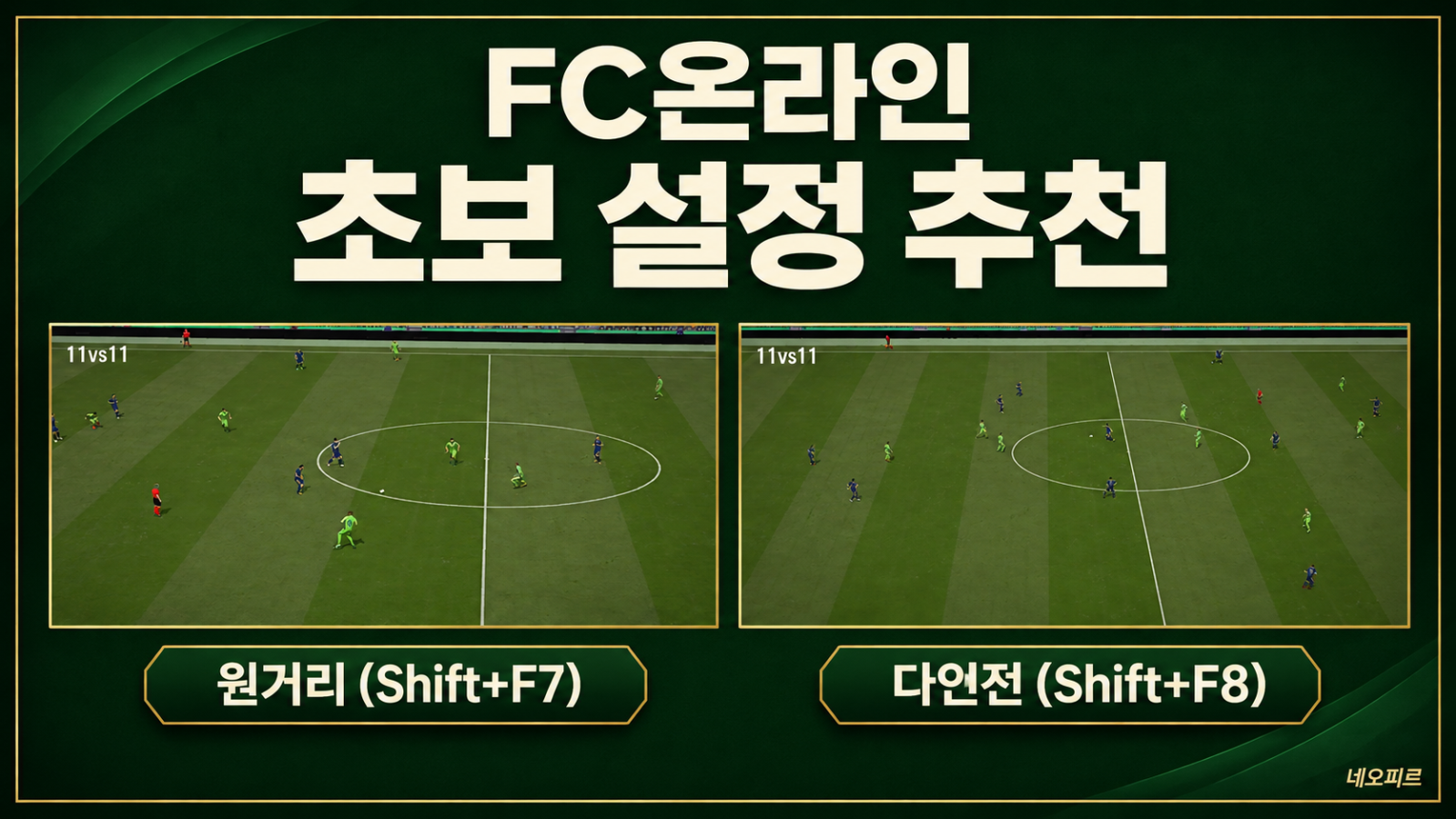
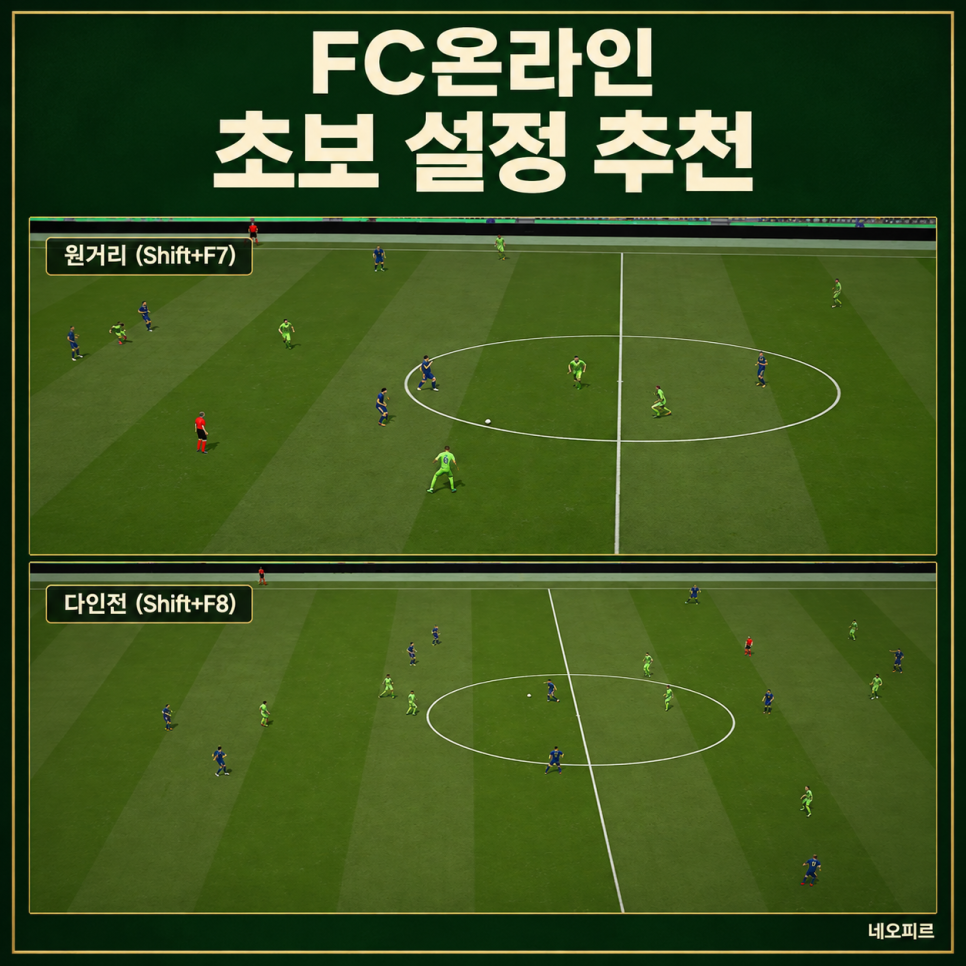
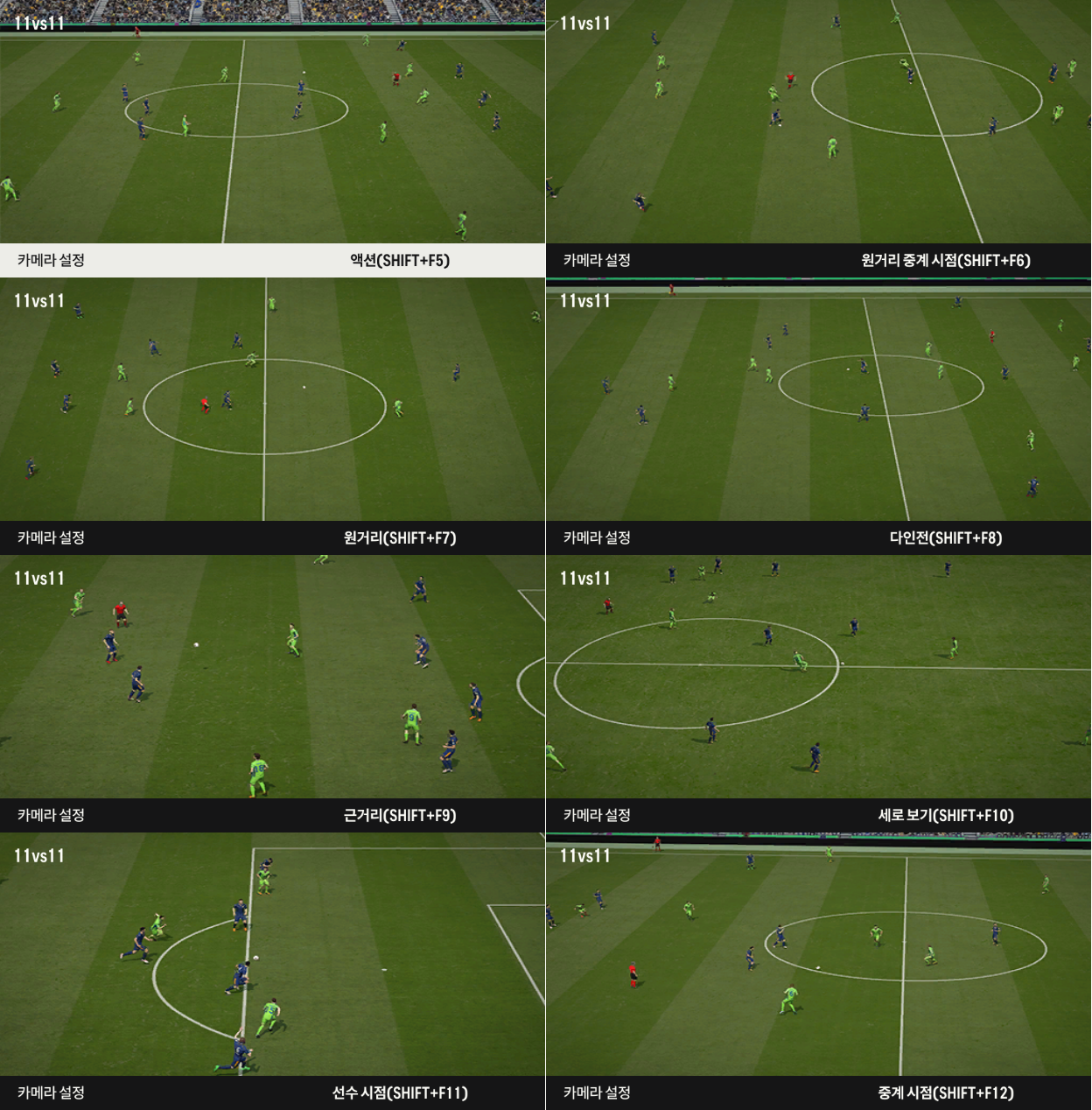 Comparison of 8 camera settings
Start with the Long Range view when comparing camera settings. When you receive the ball from a defender and move up through the center, a view limited to the area around the ball can lead you to pass to the nearest teammate. Being able to see a teammate on the opposite flank gives you another option: moving the ball to the side under less pressure.
A more distant view is not always better, though. If the camera is so far away that you cannot tell which way a player has turned after receiving the ball, choose a view one step closer. For your first match, you can keep the choice simple by checking just one thing: whether you can see teammates on the flanks when you have the ball near the halfway line.
Before entering a ranked match, test your settings against the AI in Kick Off mode. Keep the team and difficulty the same, start with the Long Range (F7) view, and check whether you can see the opposite winger when you have the ball at the halfway line. Leave your controls unchanged while testing camera settings so it is easier to judge which view feels more comfortable.
3. Start with Passing and Player Switching Controls
|
Action |
Default Keyboard Key |
Default Button on an Xbox-Layout Controller |
|---|---|---|
|
Short pass |
S |
A |
|
Shoot |
D |
B |
|
Switch player while defending |
S |
LB |
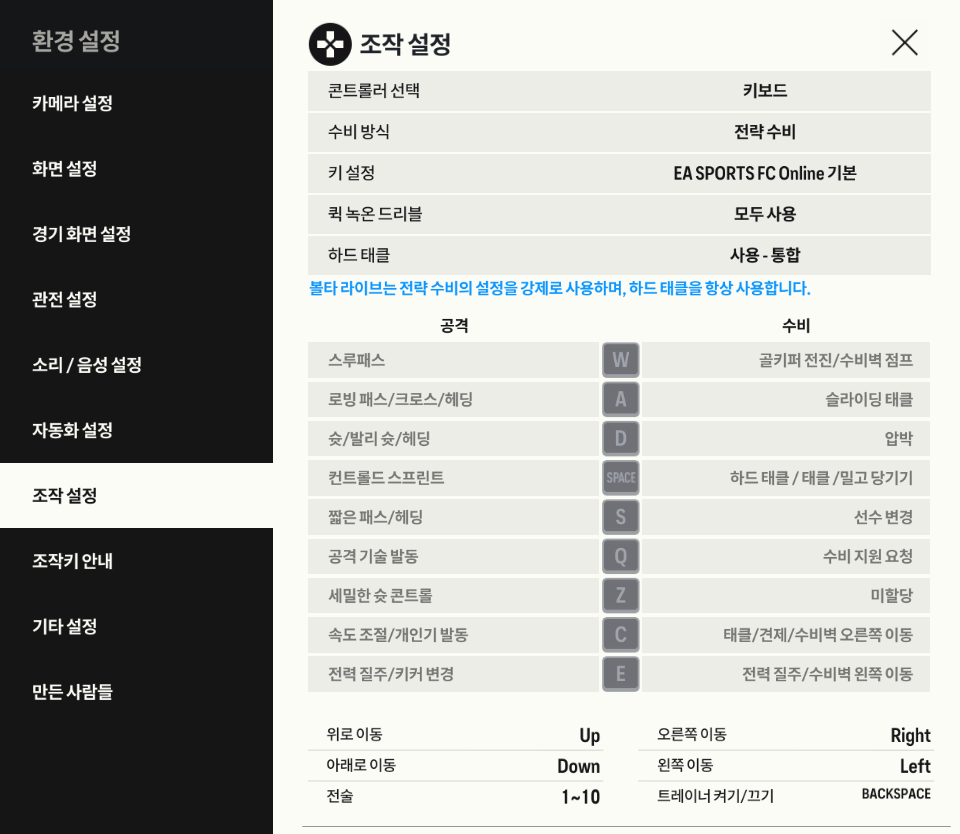
The S key has different functions depending on whether you have possession or are defending. If you keep switching players when you try to head an aerial ball to a teammate, assign only defensive player switching to a separate key. If this is not a problem, there is no need to change a key that already works well for you. For automatic switching, compare using assistance on aerial balls with selecting players yourself. Change just one setting at a time so you can more easily notice the difference.
If you use a controller, connect it before the match. Since the 10/15 update, the PC version automatically switches to controller input when you connect a controller and returns to keyboard input when you disconnect it. If you connect a controller while Settings is open during a paused match, the window may close without saving your changes.
4. Keep Only the Information You Need on the Match Display
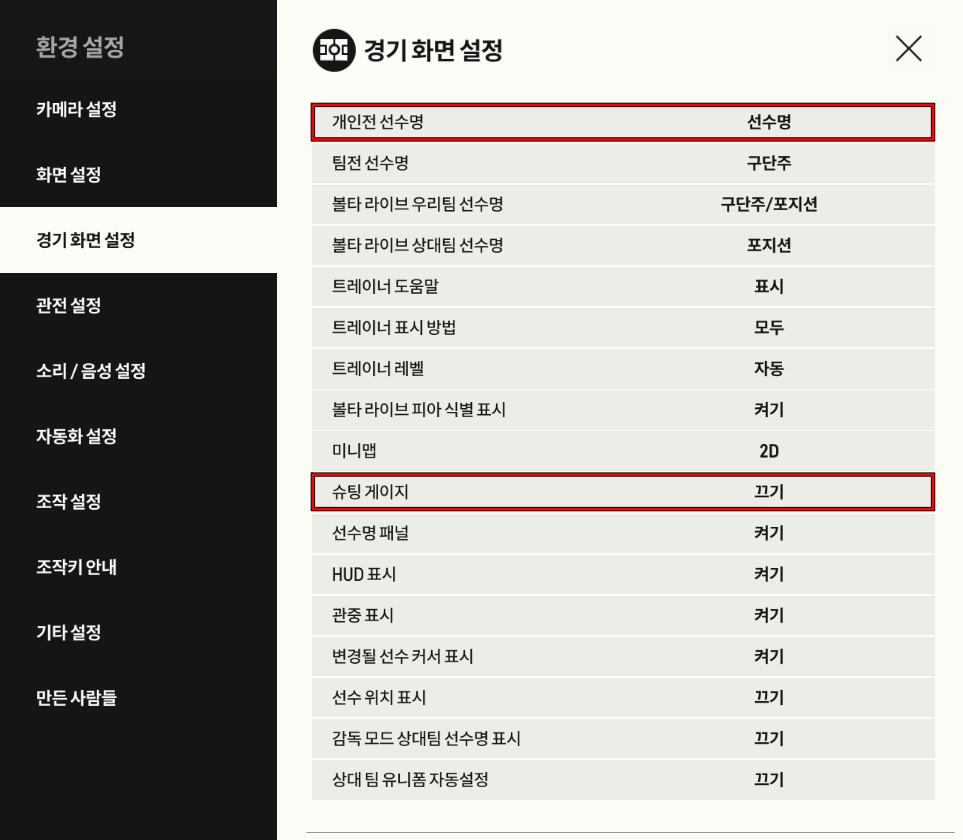
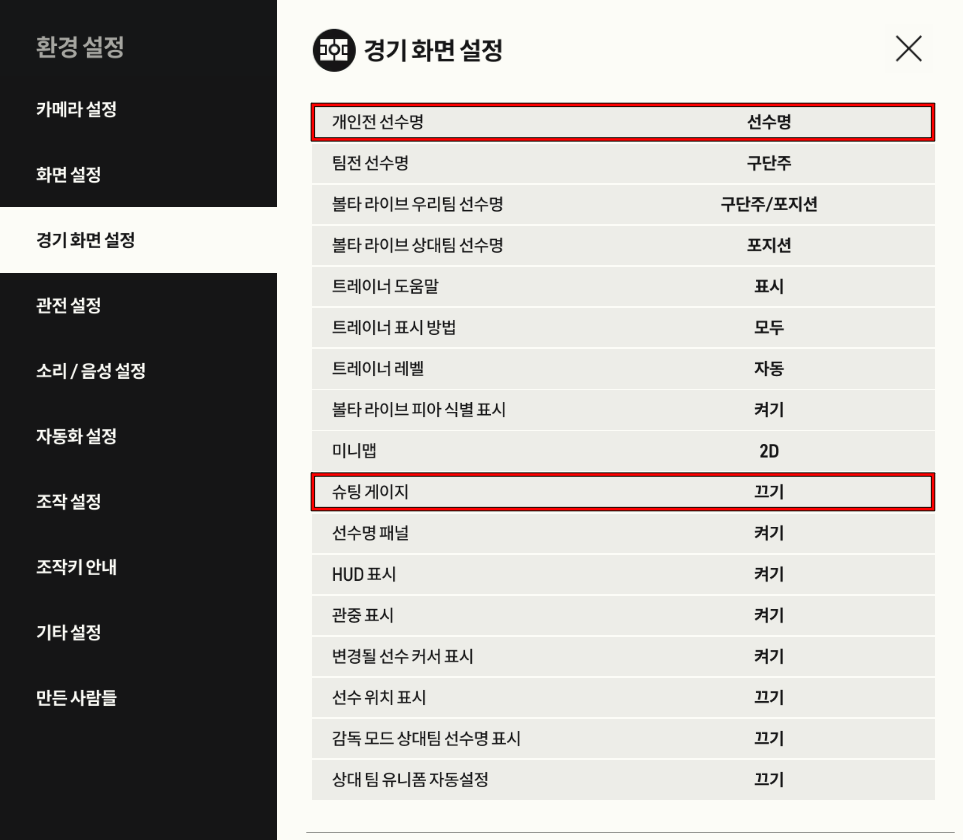
Check the shooting gauge and individual-match player name options under Settings → Match Display Settings. Keeping the shooting gauge visible makes it easier to compare how long you hold the shoot button from one shot to the next.
Showing positions alongside player names makes it easier to tell whether you are controlling a midfielder or a center-back while defending. The defaults for these two options were changed on 9/3 to help new and returning managers, so leave them as they are if they already match your preferences.
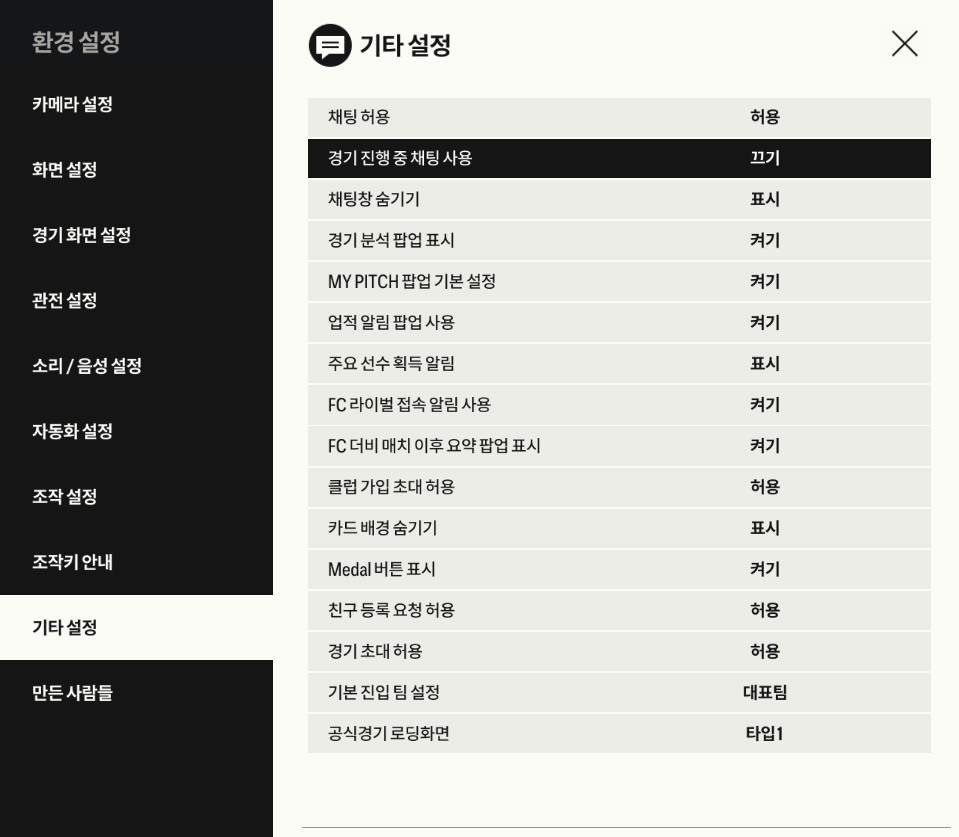
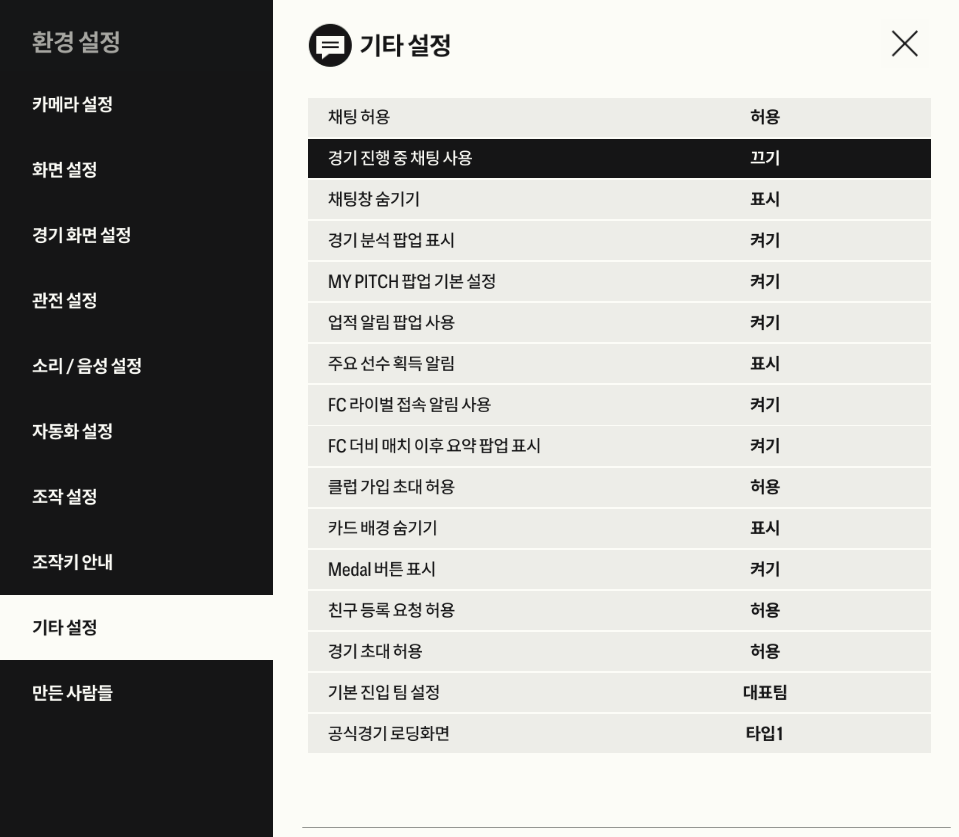
Before each match, I make sure to turn off chat. After a pass is intercepted, choosing which defender to control next matters more than what your opponent is saying. If chat tends to distract you, enable Settings → Other Settings → Block All Chat and try playing a match.
Closing Thoughts
That covers the basic control settings, key bindings, and camera options for FC Online beginners. Rather than changing every setting in your first match, start by checking whether you can see teammates to pass to when you have the ball, and whether you can select a defender as soon as you lose possession. Adjust only the settings that feel awkward in those two situations, one at a time, to find a setup that suits you.