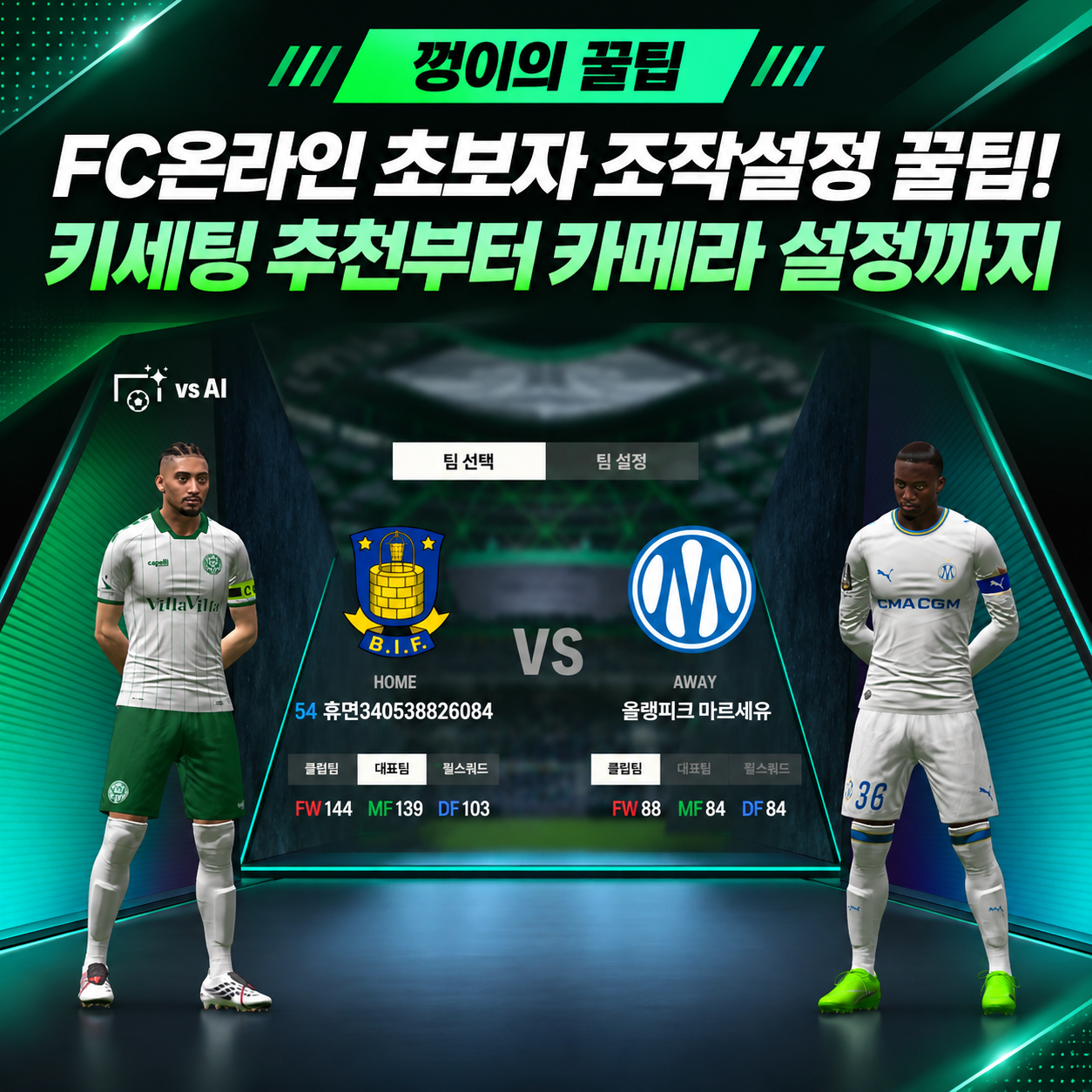
FC ONLINE Beginner’s Guide to Control Settings: Recommended Key Bindings and Camera Settings
껑이
This post was created as part of the Nexon PEAK program.
Includes probability-based items
Hello, I'm 껑이, a gaming blogger.
When you first start playing FC ONLINE, switching players while defending can be trickier than passing or shooting. A narrow camera view can also make it hard to spot space for a pass.
If you're a beginner, I recommend adjusting your camera view and player-switching controls first.
These adjustments make it easier to see the whole pitch, decide where to pass, and quickly select the player you want when defending.
FC ONLINE lets you adjust control and automation settings alongside the basic key bindings, but many players aren't familiar with these options.
In this post, I'll walk you through a beginner's checklist of control settings, recommended key bindings, camera settings, and UI settings.
Let's take a closer look.
Recommended Settings for FC ONLINE Beginners
If you're new to FC ONLINE, changing every setting at once can make it difficult to tell which changes actually help you play.
While you're still learning the basic controls, a comfortable view of the pitch may matter more than your key bindings.
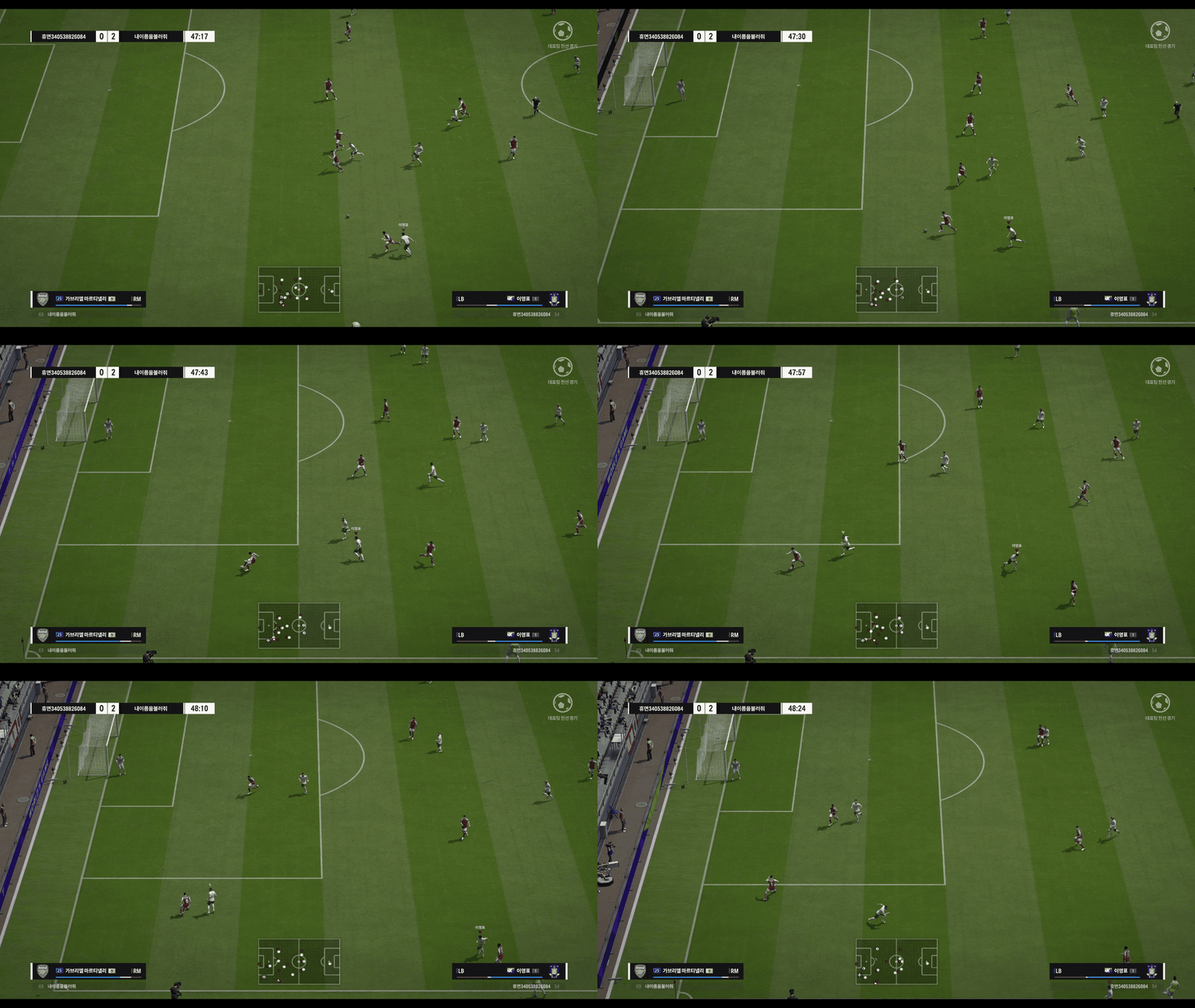
That's why I recommend starting with a camera angle that shows more of the pitch's width.
Here are the settings I personally consider essential.
|
Setting |
Recommendation for Beginners |
|
Camera |
An angle that shows more of the pitch's width |
|
Minimap |
Show |
|
Player Name Display |
On |
|
Skill Move Direction Assist |
On |
|
SHIFT Input Reset |
On |
These are my recommendations for beginners playing on a PC keyboard.
I recommend getting comfortable with the basic controls and changing only what feels awkward, rather than copying an experienced player's setup from the start.
This is more of a gameplay tip than a setting, but I think the first thing beginners should learn is switching players with S.
When defending, chasing only the opponent with the ball can easily pull your defensive line out of position. Instead, it's important to switch to the right player to block passing lanes.
Pressing S alone doesn't always select the player you want, though, which can be frustrating.
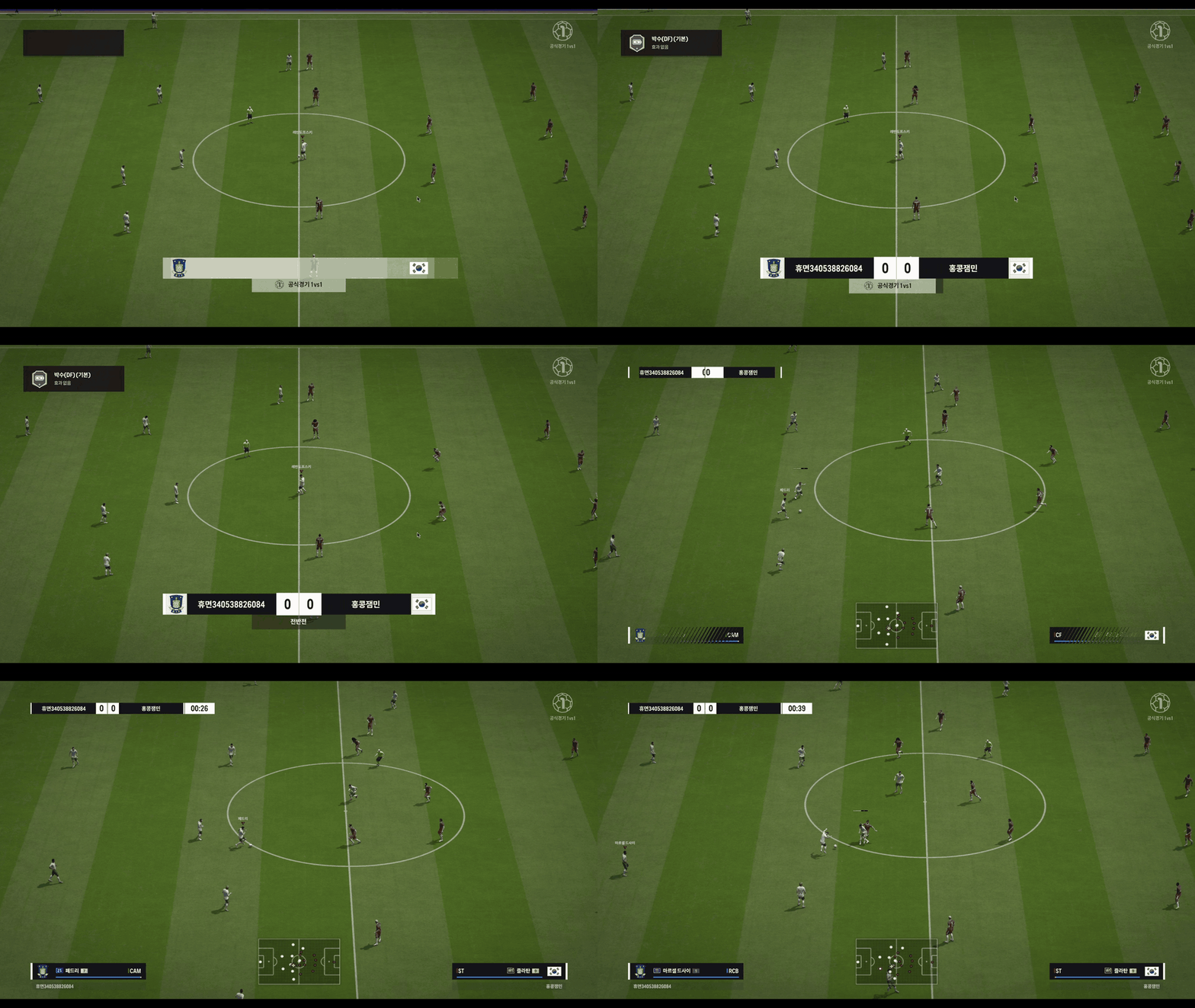
Holding Shift and pressing an arrow key lets you manually switch to a player in that direction while defending.
Relying entirely on more complex manual switching from the start can make the controls harder to manage. I recommend getting used to switching with S first, then practicing SHIFT + arrow keys.
FC ONLINE Camera Settings
FC ONLINE's camera angle is one of its most important settings.
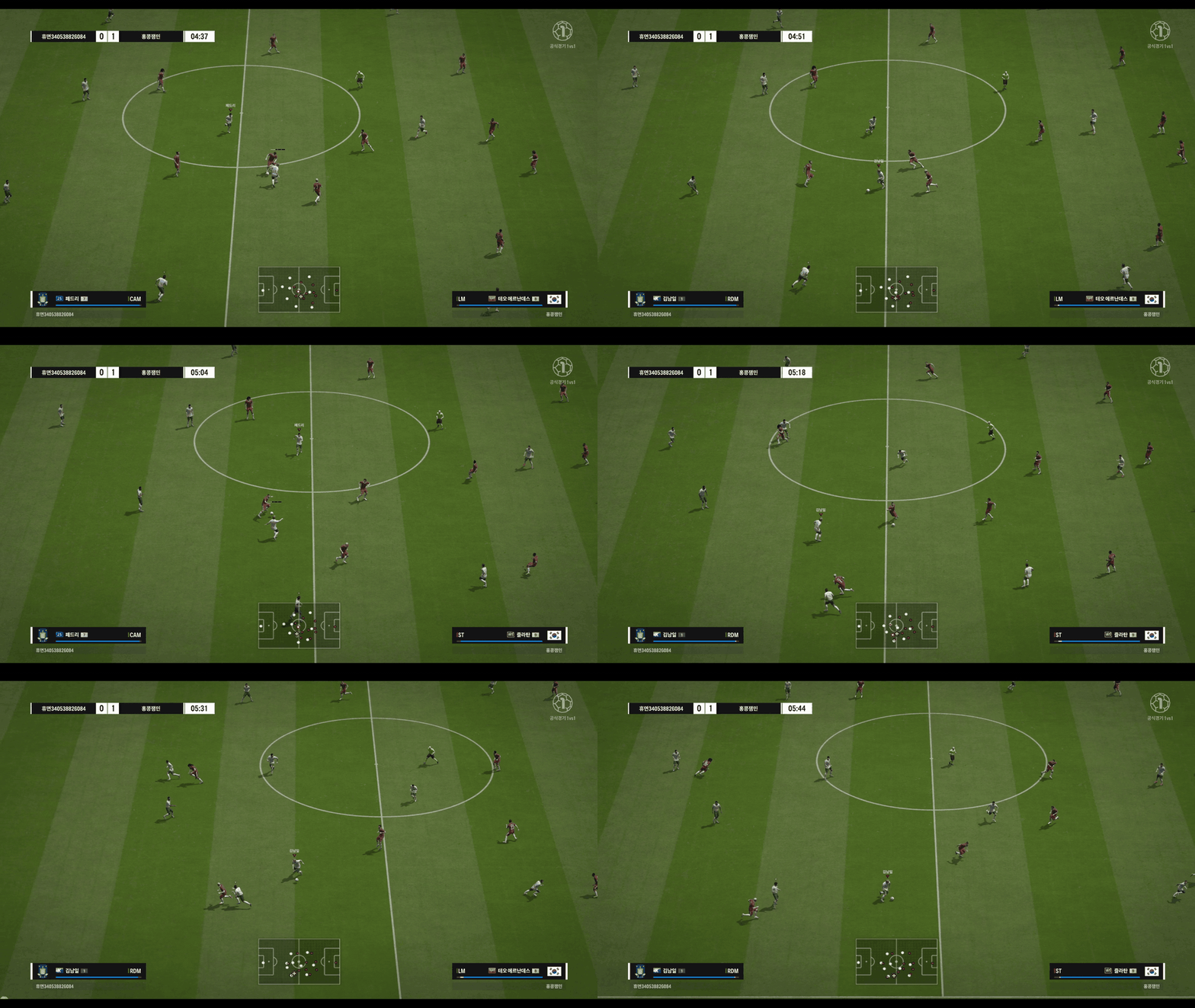
You can change camera angles during a match, too. Use the Shift + F5~F12 keyboard shortcuts to switch views quickly and easily.
If you're a beginner, here's the main thing to remember: I recommend using the camera angle selected by pressing Shift+F7.
The wide view makes it easier to see space on both sides of the pitch and follow your teammates' movements. I find it the best angle for building up play through passes and assessing defensive positioning.
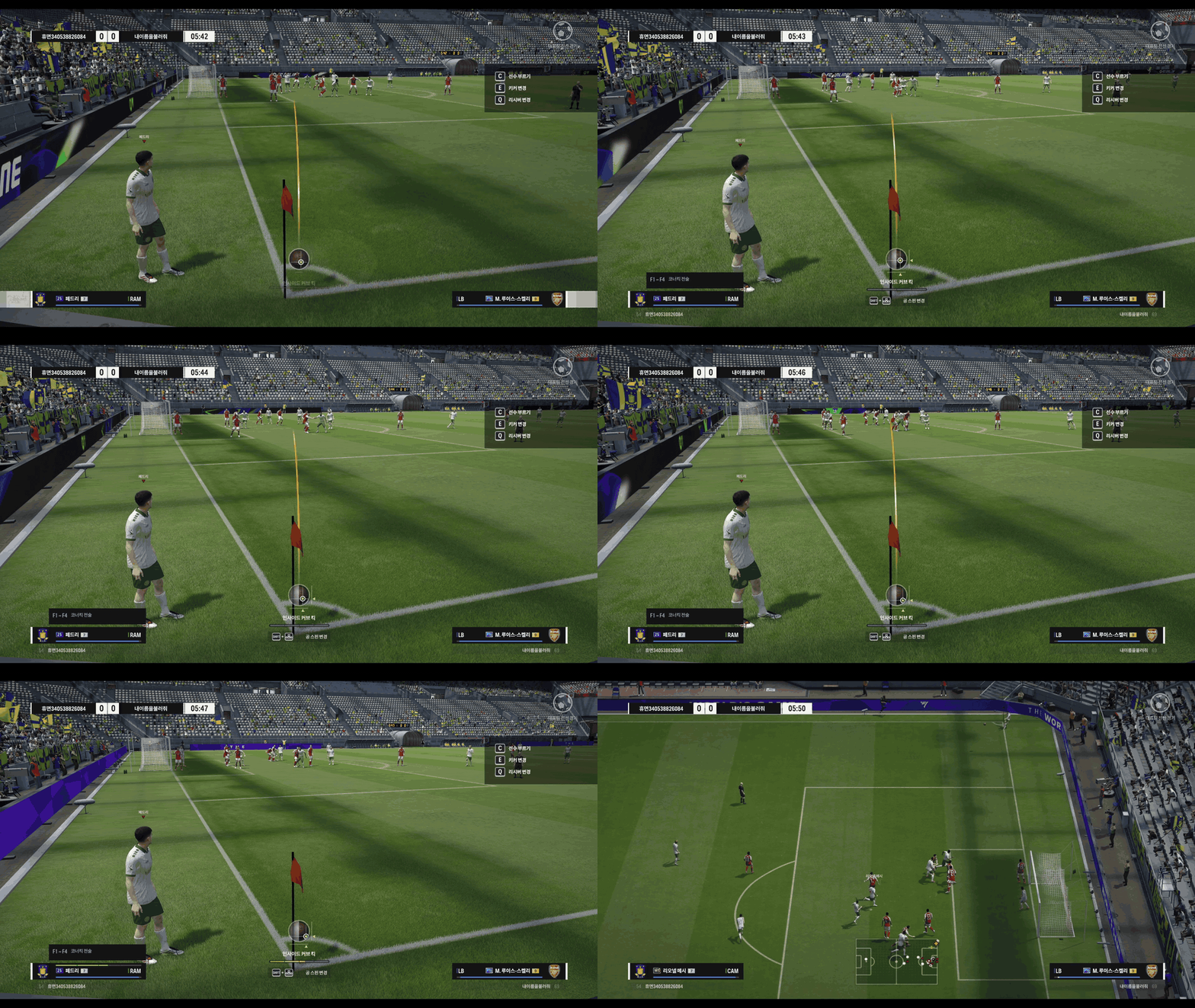
A close-up camera view lets you see player movements and dribbling in more detail, but it can be easy to lose track of teammates off-screen.
For that reason, I recommend a wide view for beginners who pass frequently.
Make Time to Practice After Changing Your FC ONLINE Settings
Have you applied the recommended settings above? Before jumping into a ranked match, test how the controls feel in KICK OFF mode.
Quick Match mode lets you play against AI or friends, giving you a low-pressure way to practice.
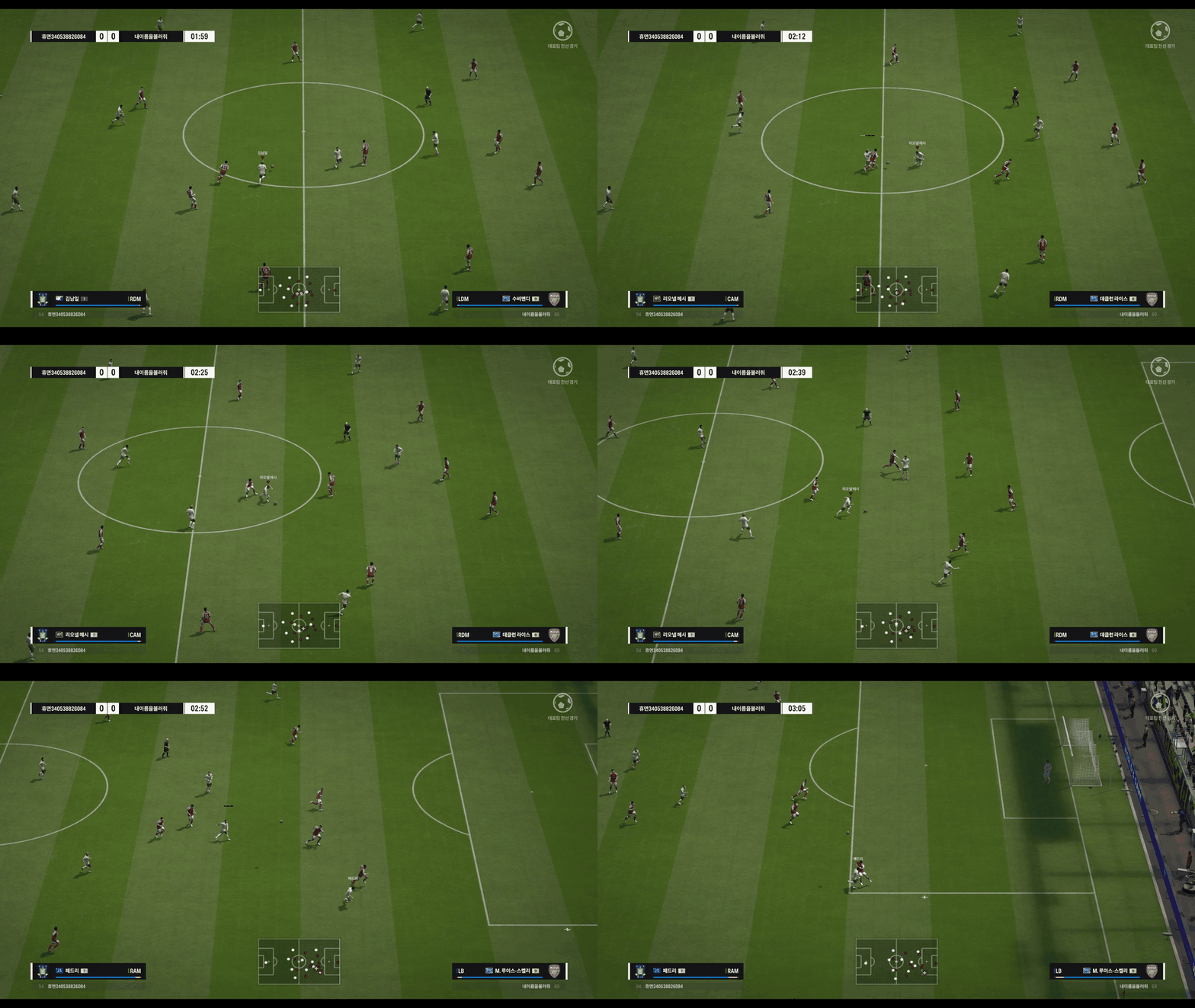
To avoid the frustration of a ranked match right after changing your settings, practice in Quick Match mode first, then take your new setup into ranked play.
Even I find myself blaming a loss on my settings when I play a ranked match right after changing them.
Frequently Asked Questions (FAQ)
Q. Do FC ONLINE beginners have to change their key bindings?
A. No. I recommend keeping the default key bindings at first. Learn the passing, shooting, and player-switching controls, then change only the keys that feel awkward. This makes it easier to adjust.
Q. Which camera angle is best in FC ONLINE?
A. Start by comparing wide views that make it easy to see the whole pitch. If you prefer precise dribbling, though, a closer angle may feel more comfortable.
Q. Should I turn on all the keyboard skill move automation settings?
A. These settings aren't essential. If you struggle with diagonal skill move inputs or make accidental inputs while using SHIFT, try the relevant options both on and off to see which feels better.
Q. Which mode is best for testing my settings?
A. I recommend Quick Match mode. You can practice the basic controls against AI or friends, making it a useful way to check your settings before a ranked match.
That covers my guide to control settings, recommended key bindings, camera settings, and UI settings for FC ONLINE beginners.
Rather than changing everything at once, check your camera view and player-switching controls first. Then adjust the minimap and automation features to suit your playstyle.
Adjusting your settings to help you make fewer mistakes matters more than simply copying a good setup.
Copyright 2026. 껑이 All rights reserved.