[MapleStory] Beginner Tips for Control Settings! From Key Bindings to Effects Settings
온야
This post was created as part of Nexon PEAK activities.
Hi, I'm 온야!
If you're new to MapleStory or returning after a long break, I recommend checking your key bindings and effect settings first.
Assigning frequently used skills to easy-to-reach keys makes the controls more comfortable, while adjusting effects gives you a clearer view when hunting and fighting bosses!
Today, I'll share the key bindings I use, along with some handy settings tips for hunting ㅎㅎ
✔ Customize your keyboard shortcuts for comfort
✔ Check your attack and jump keys on a Mac-layout keyboard
✔ Use recommended key bindings to arrange your skills
✔ Adjust skill effects and damage displays
01 Customize Your Keyboard Shortcuts for Comfort
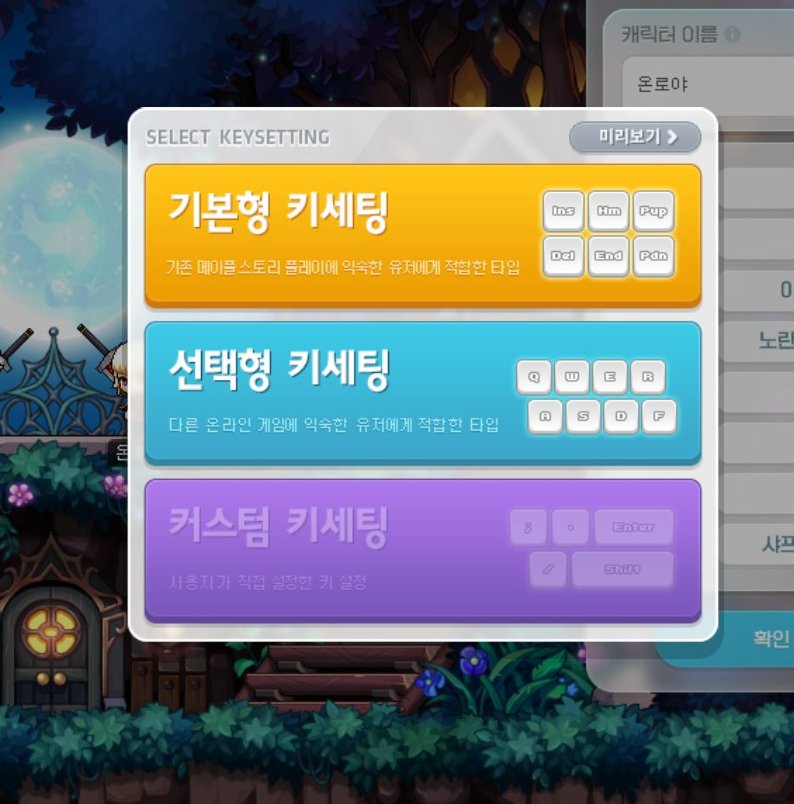
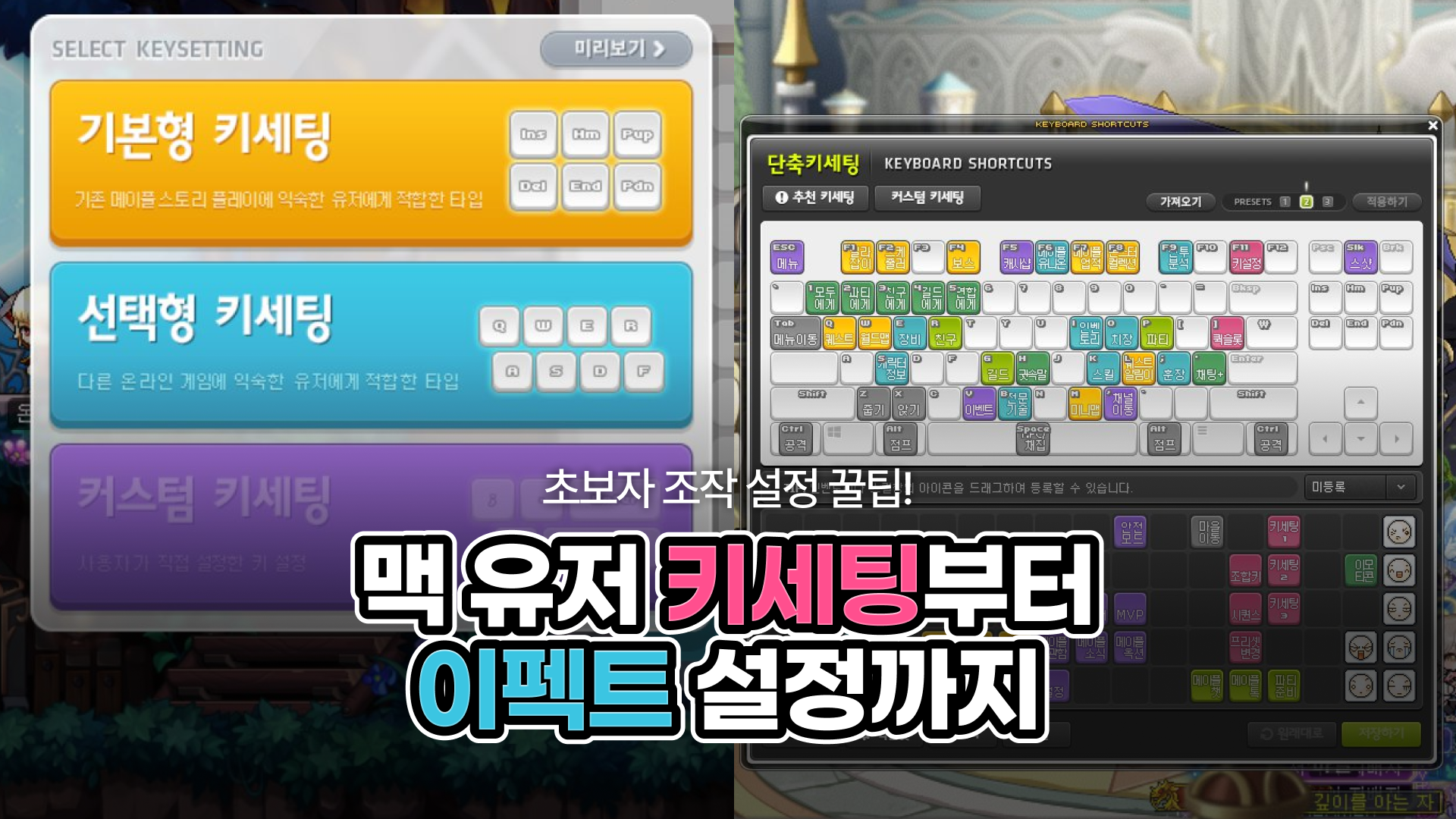
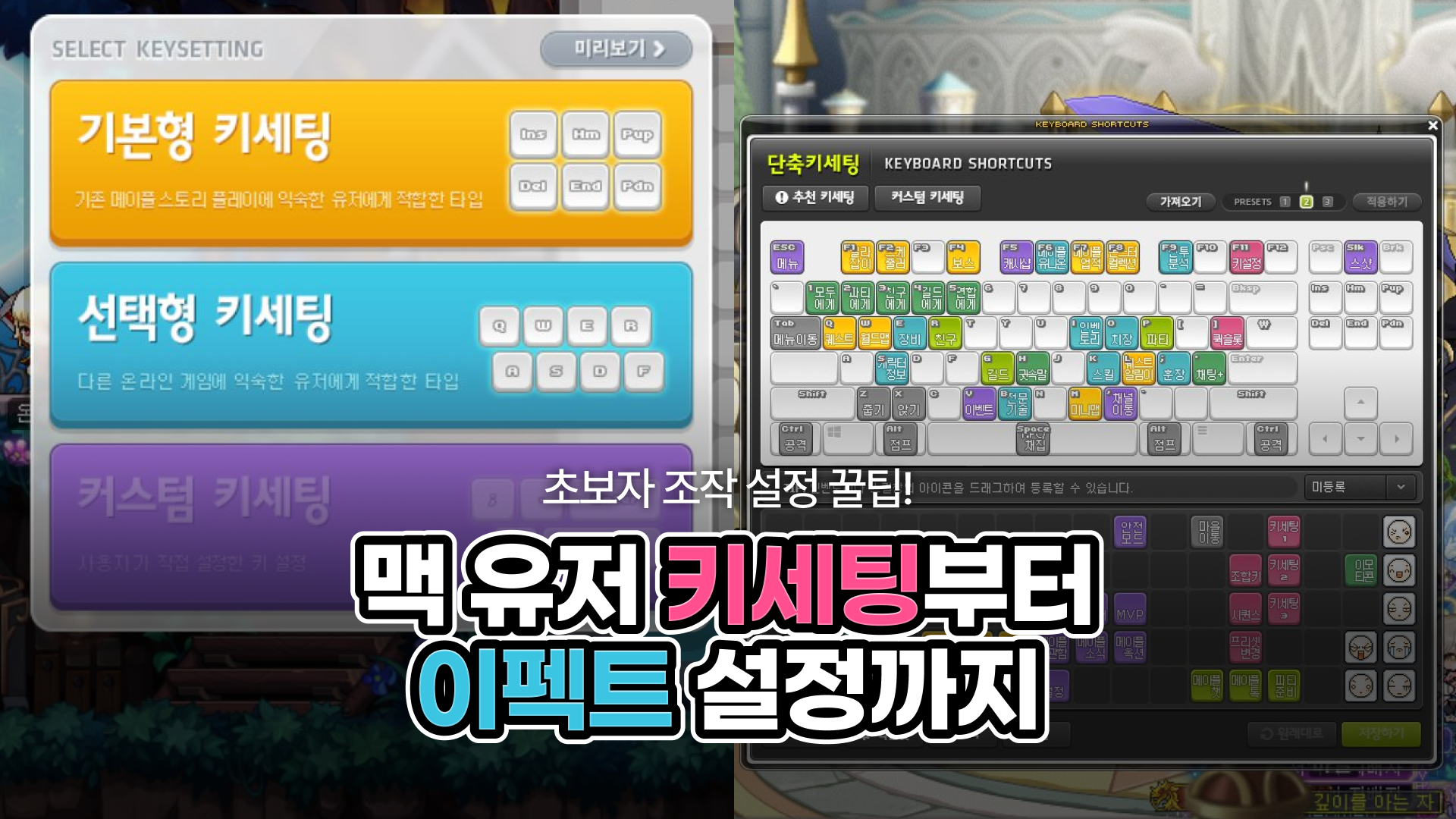
When creating a character in MapleStory, you can choose from Basic, Secondary, and Custom key bindings.
If you're familiar with the traditional MapleStory controls, try Basic. If you're more used to the key layouts in other online games, try Secondary.
Custom key bindings let you load a layout you've previously saved!
I'm used to MapleStory's default key layout, so I usually choose Basic ㅎㅎ
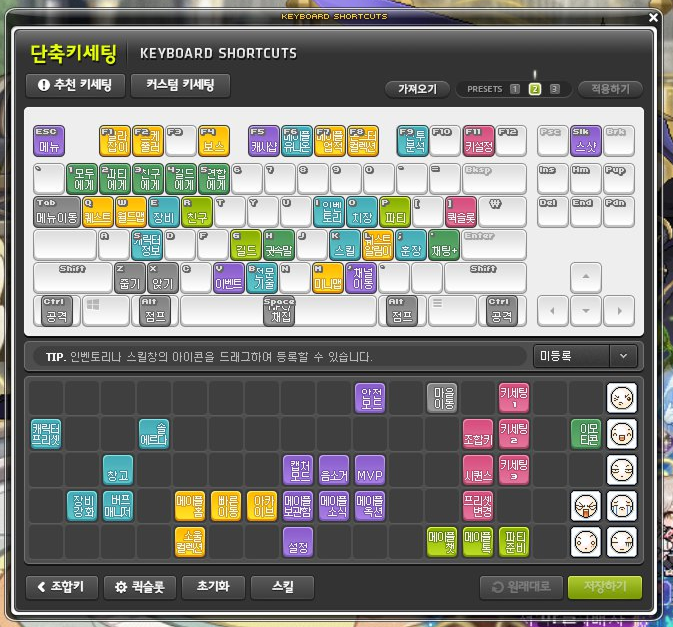
Once you're in the game, you can view and change your key layout under ESC → Key Bindings.
(You can also press F11 to open the Key Bindings window by default.)
You can see at a glance which skills and items are assigned to each key. Any shortcuts not included in your current layout appear below the keyboard.
If a feature you use often is missing, try assigning it to a key of your choice!
02 Used to a Mac Keyboard? Swap Your Attack and Jump Keys
Since I normally use a Mac, I've set up the keyboard on my Windows gaming computer to work like my Mac keyboard, too.
I've remapped my Windows keyboard so that pressing Alt registers as Ctrl, and pressing Ctrl registers as Alt!
But MapleStory's default key bindings assign jump to Alt and attack to Ctrl.
If you've remapped your keys like I have and leave the game's default bindings unchanged, pressing Alt on your keyboard registers as Ctrl in the game, making you attack.
That's why I swap them in Key Bindings, assigning Ctrl to jump and Alt to attack!
This lets me jump with the Alt key on my Windows keyboard, which sits next to the space bar like the Command key on a Mac. It's much more comfortable ㅎㅎ
If you're used to a Mac and have remapped your Windows keyboard like I have, take a moment to check your jump and attack keys in MapleStory, too!
03 Not Sure Where to Put Your Skills? Try Recommended Key Bindings
When leveling a new character, you can gain a lot of skills at once and find yourself wondering where to assign your main skills.
If you've gained levels quickly through a fast-leveling event, it can be especially hard to figure out which skills you'll use most often!
When that happens, try “Recommended Key Bindings” in the Key Bindings window.
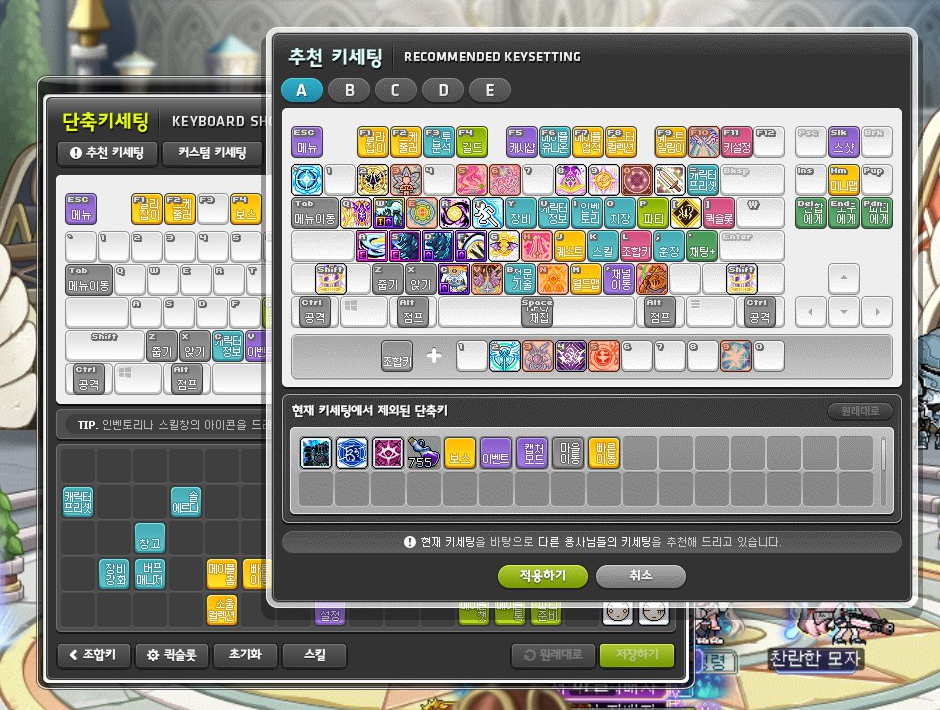
It shows you five layouts, from A to E, based on other players' key bindings.
Take a look at where they assign their main skills and utility functions, then use a layout you like as a starting point and adjust it to suit you ㅎㅎ
04 Adjust Effects for a Clearer View While Hunting and Fighting Bosses!
When hunting or fighting bosses in MapleStory, flashy skill effects and damage numbers can sometimes make it hard to see what's happening.
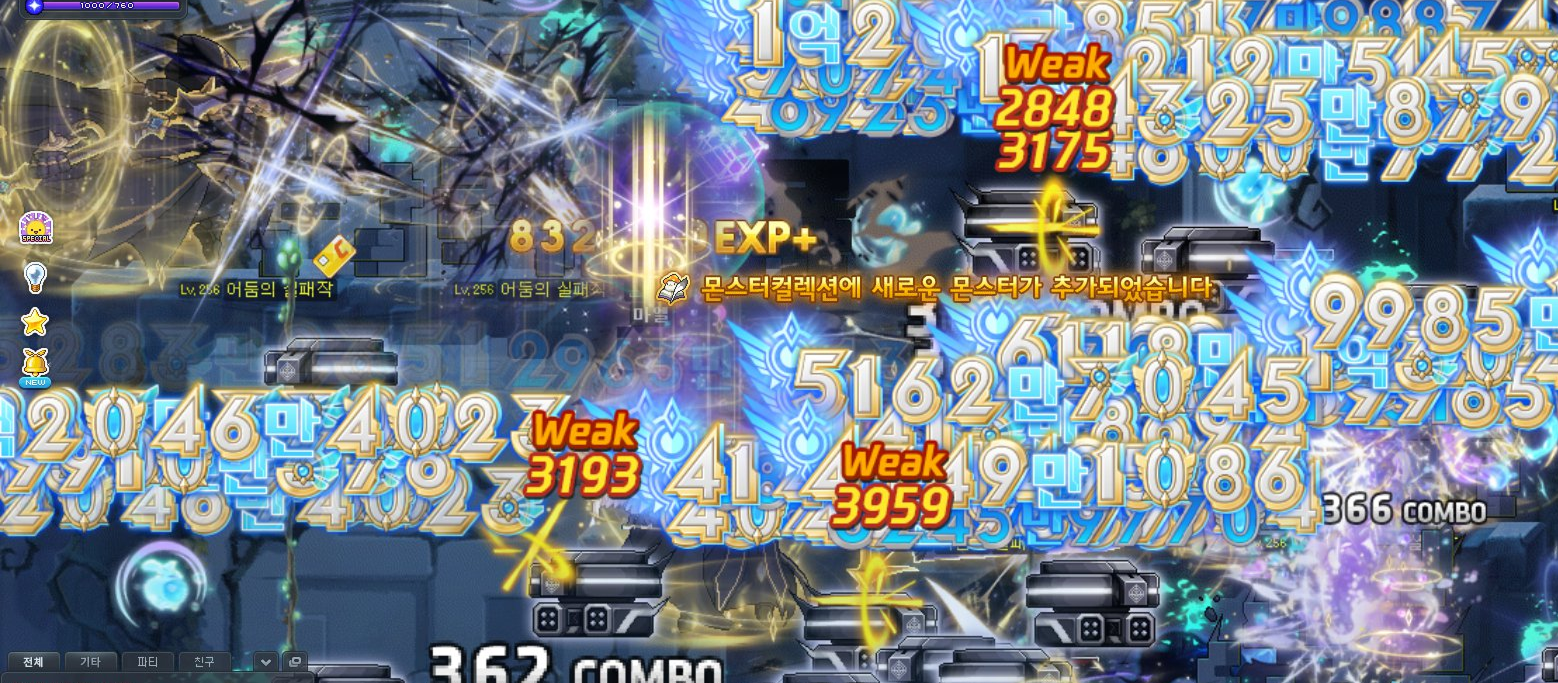
I didn't know these settings existed at first, so I used to hunt with effects set to 100.
Skills with large effects would sometimes cause lag, and damage numbers would obscure the monsters, making them hard to see ㅋㅋ
In boss fights, keeping track of the boss's movements and attack patterns is especially important, so I recommend adjusting your effect settings if your screen feels cluttered!
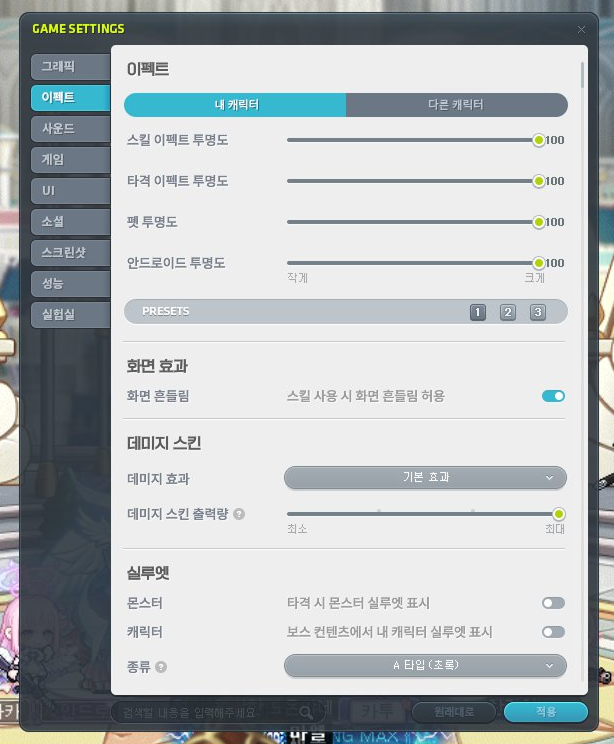
Go to ESC → Game Settings → Effects to adjust the following options:
-
Skill effects and hit effects
-
Pet and android visibility
-
Screen shake when using skills
-
Damage effects and the amount of damage skin numbers displayed
You can also adjust effects for your character and other characters separately. Try tweaking them while hunting until you have a clear, comfortable view!
If damage numbers make it hard to see monsters like they did for me, be sure to check the amount of damage skin numbers displayed as well ㅎㅎ
It's fine to start with the default settings, but if anything feels uncomfortable as you play, try changing things one at a time!
With a comfortable key layout and a clear view of the action, you can enjoy hunting and boss fights a little more comfortably 😊