[Mabinogi Mobile] Bed Mode ON! Play Mabinogi Mobile with One Hand
자경씨
![[Mabinogi Mobile] Bed Mode ON! Play Mabinogi Mobile with One Hand](https://peak-file.nexon.com/uploads/20261026_1155_d5db816d.png)
This post was created as part of
Nexon PEAK activities.
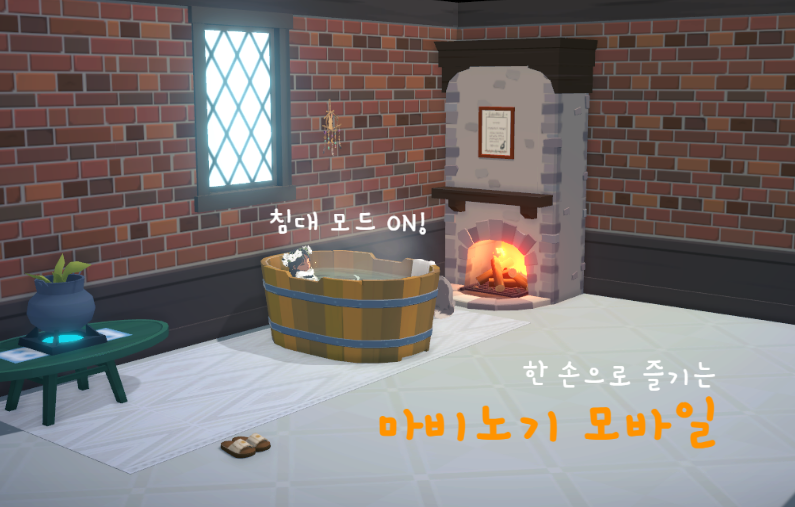
Mabinogi Mobile supports both landscape and portrait mode, so you can play in whichever orientation you prefer. I like playing Mabinogi Mobile in landscape on PC and portrait on my phone, since typing in chat is a little easier in portrait mode. Landscape also means holding the phone with both hands, which is another reason I prefer portrait. When I'm lying down to play, I'd rather not have to use both hands.
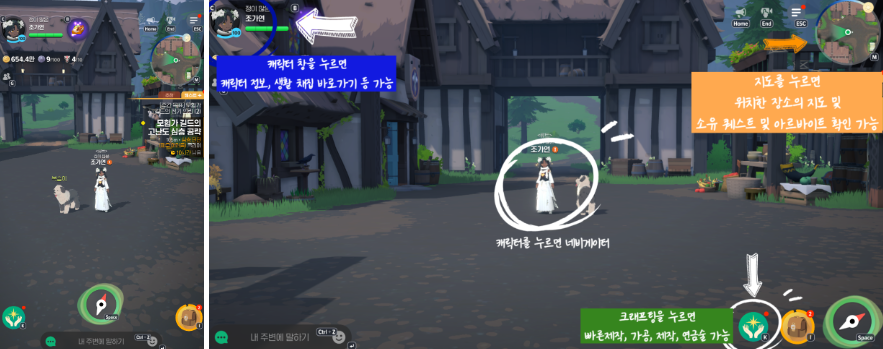
Tap your character to open the Navigator
Travel to different locations with a single tap!
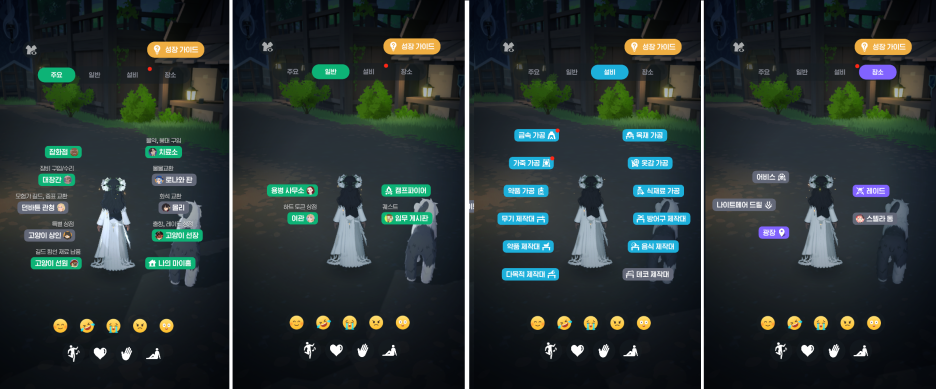
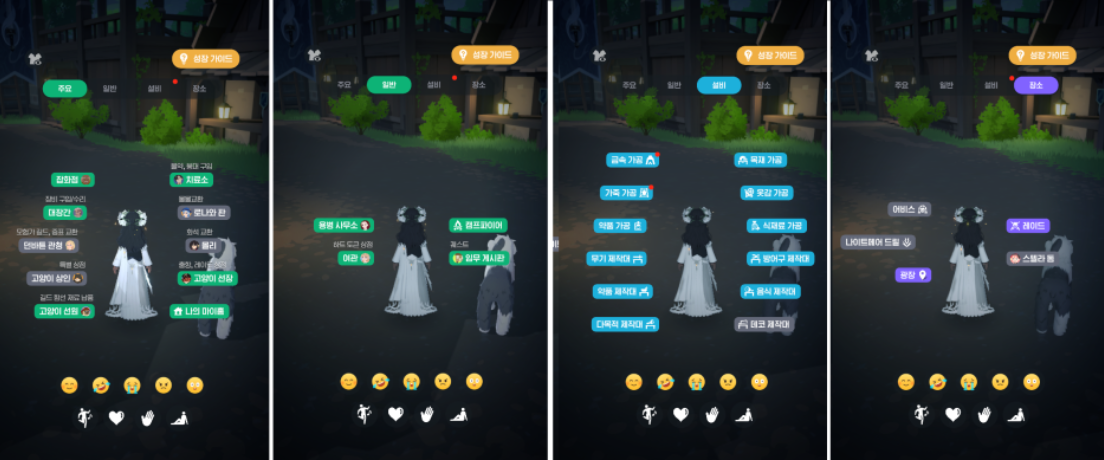
One of the features I use most when playing Mabinogi Mobile on the go or lying in bed is the Navigator, which opens when you tap your character. Choose a destination from the key locations or the General, Facilities, and Places categories, and your character will head straight there on their own. Where you once had to guide your character every step of the way, Mabinogi Mobile lets you simply pick a destination and let them handle the walk. It's a convenient way to get around.
Tap the map icon in the upper right
See a map of your current area and NPC locations, check your quest and part-time job lists, and get started right away.
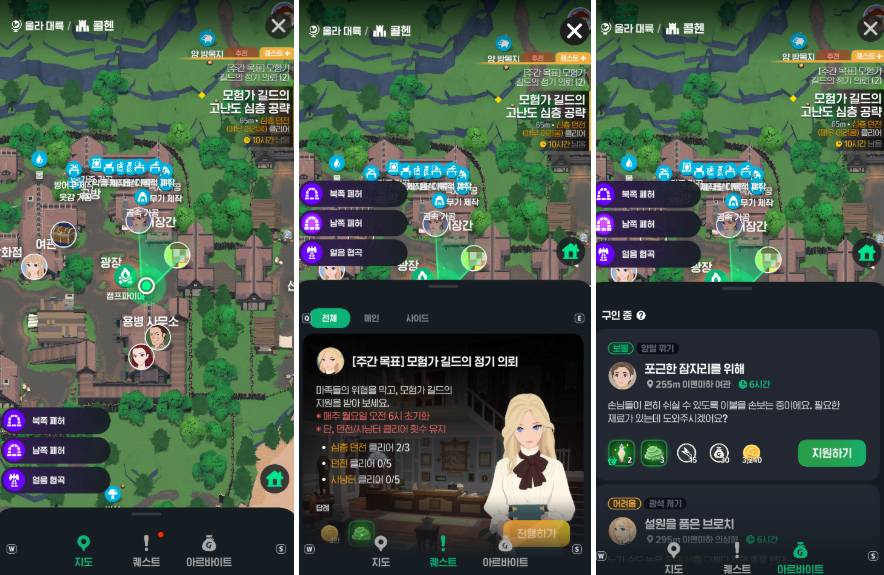
Next is the map screen. Tap the map icon in the upper right to see the town you're in, along with portraits of the main NPCs, then tap an NPC or location to head over there. The Quest and Part-Time Job tabs beside the map also let you get straight to your quests or part-time jobs. Just open the Part-Time Job tab and tap Apply, and your character will automatically go to the NPC and accept the job, without any complicated controls. Quests work the same way.
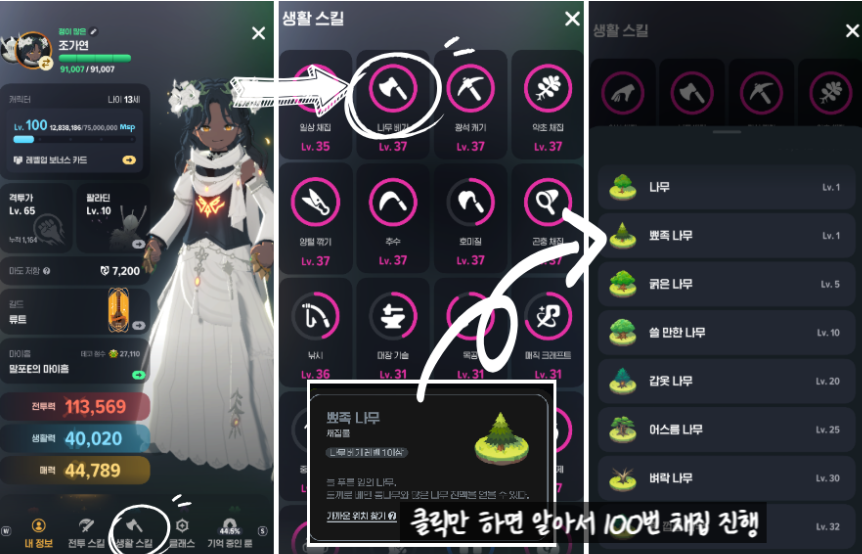
Tap your character's portrait in the upper left,
and you can check your info, combat skills, and life skills, head straight to a source of the materials you need, and even gather 100 times!
Next, let's look at gathering through the character window using life skills. Along with access to combat skills, classes, and memorized runes, the character window offers an easier way to gather materials if you enjoy crafting. Go to Life Skills, tap a gathering skill, and choose what you need from the list. The "Find Nearby Location" option appears, letting you head out and automatically gather 100 times. That makes gathering comfortable to manage with just one hand.
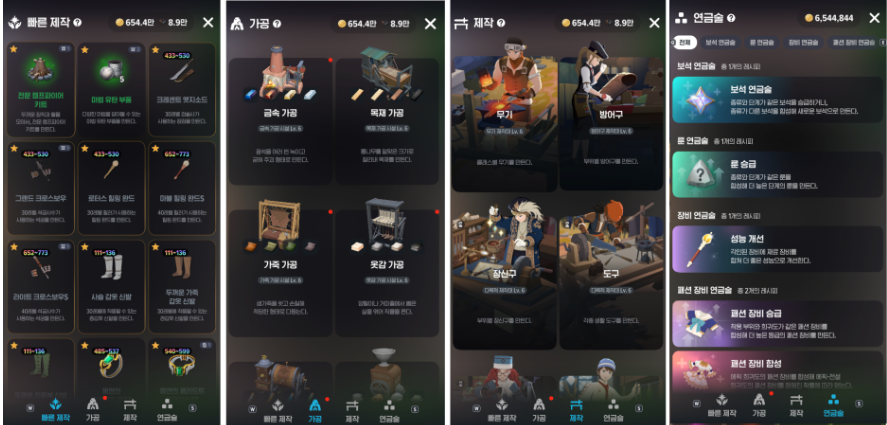
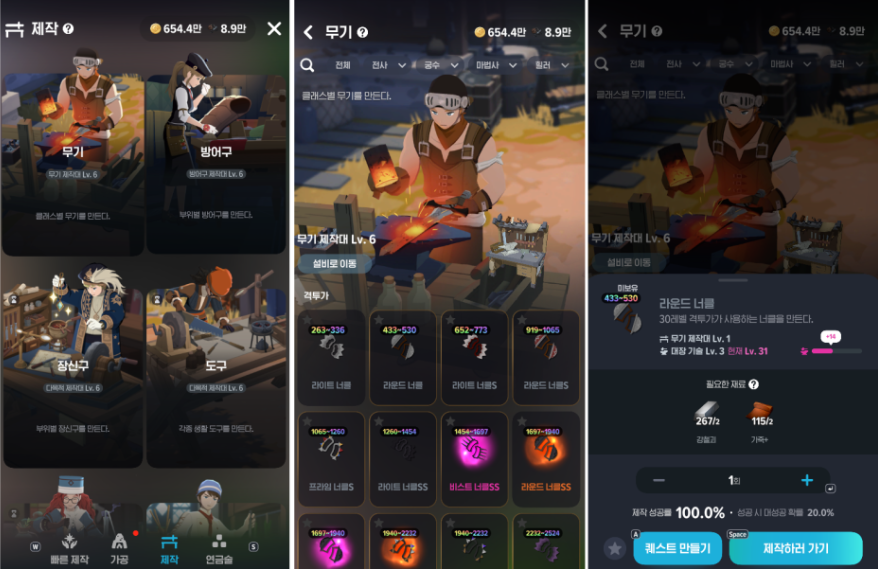
Tap Crafting, the first icon at the bottom left in portrait mode or the bottom right in landscape mode,
to open the Quick Craft, Processing, Crafting, and Alchemy tabs, and process or craft items with just a few taps
The Crafting icon opens the Quick Craft, Processing, Crafting, and Alchemy tabs. Quick Craft is especially handy, since you can save items you make often for easy access. Processing lets you head straight to a processing facility, just as you would through the Navigator, and check on your processing progress. In the Crafting tab, choose a category such as weapons, armor, or accessories, then tap Craft. If you have the materials, your character will head over to craft the item. If you're short on anything, you can see what you're missing and how to get it, all in one place. It's all easy enough to manage while lying down.
Even if you don't know where your destination is,
the Magic Compass gets you there automatically! Then there's the Assist feature.
Select a quest on the right and tap the compass, and your character will head to that dungeon automatically. You don't need to know offhand where this week's Very Hard Deep Dungeon is, either. Your character will be on their way as soon as you tap!
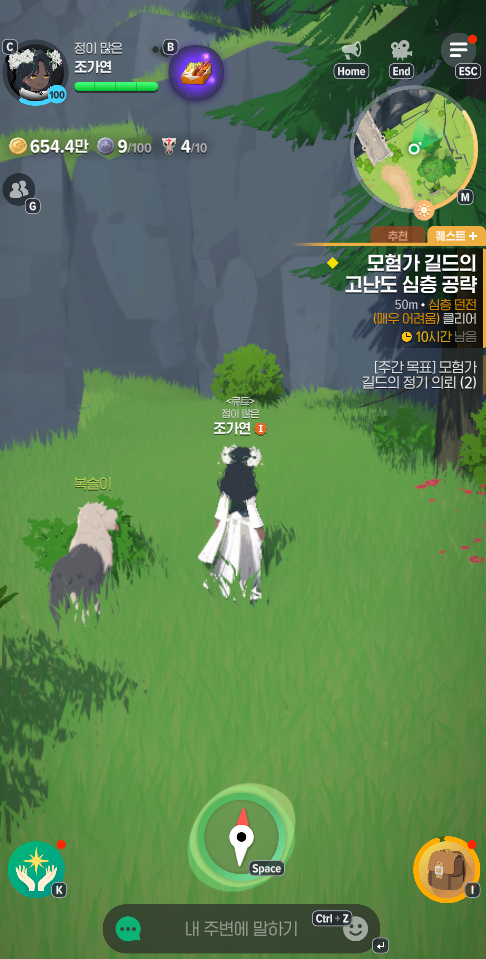
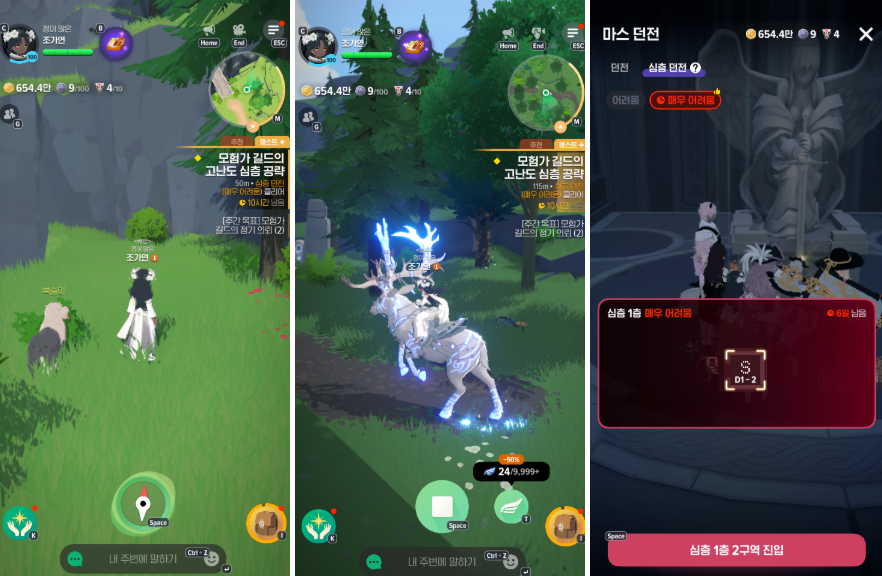
If a dungeon isn't too difficult for your character's stats, you can also use Assist to make combat easier to manage. It even moves your character to the next area automatically, so you don't have to handle every fight manually when Assist can help. Of course, if a mechanic requires you to move your character yourself, you'll need to turn Assist off and take control. Even with that in mind, the features we've covered take some of the strain out of playing.
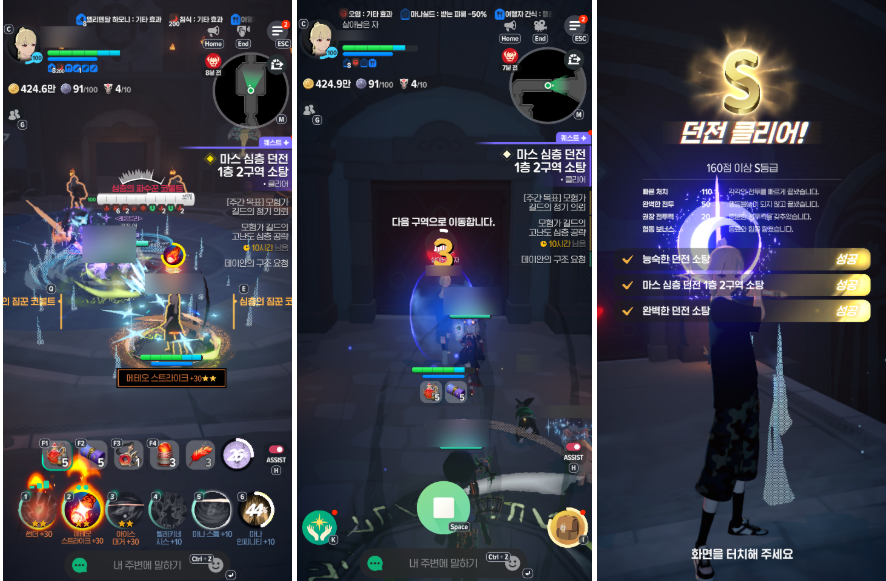
That's a look at how you can play Mabinogi Mobile with one hand while lying down. If you're tired but still feel like gaming, why not get comfortable and play a little to unwind? I'm going to settle into bed and log into Mabinogi Mobile on my phone as I get ready to sleep. I hope everyone reading this has a happy day!



![[마비노기 모바일] 폐 끼칠까 걱정될 때 필수! 레이드·어비스 연습 모드 활용 꿀팁 (에이렐 매우 어려움 추가 기믹 간단 공략 포함)](https://peak-file.nexon.com/uploads/20261017_1135_8ea66dc8.png)