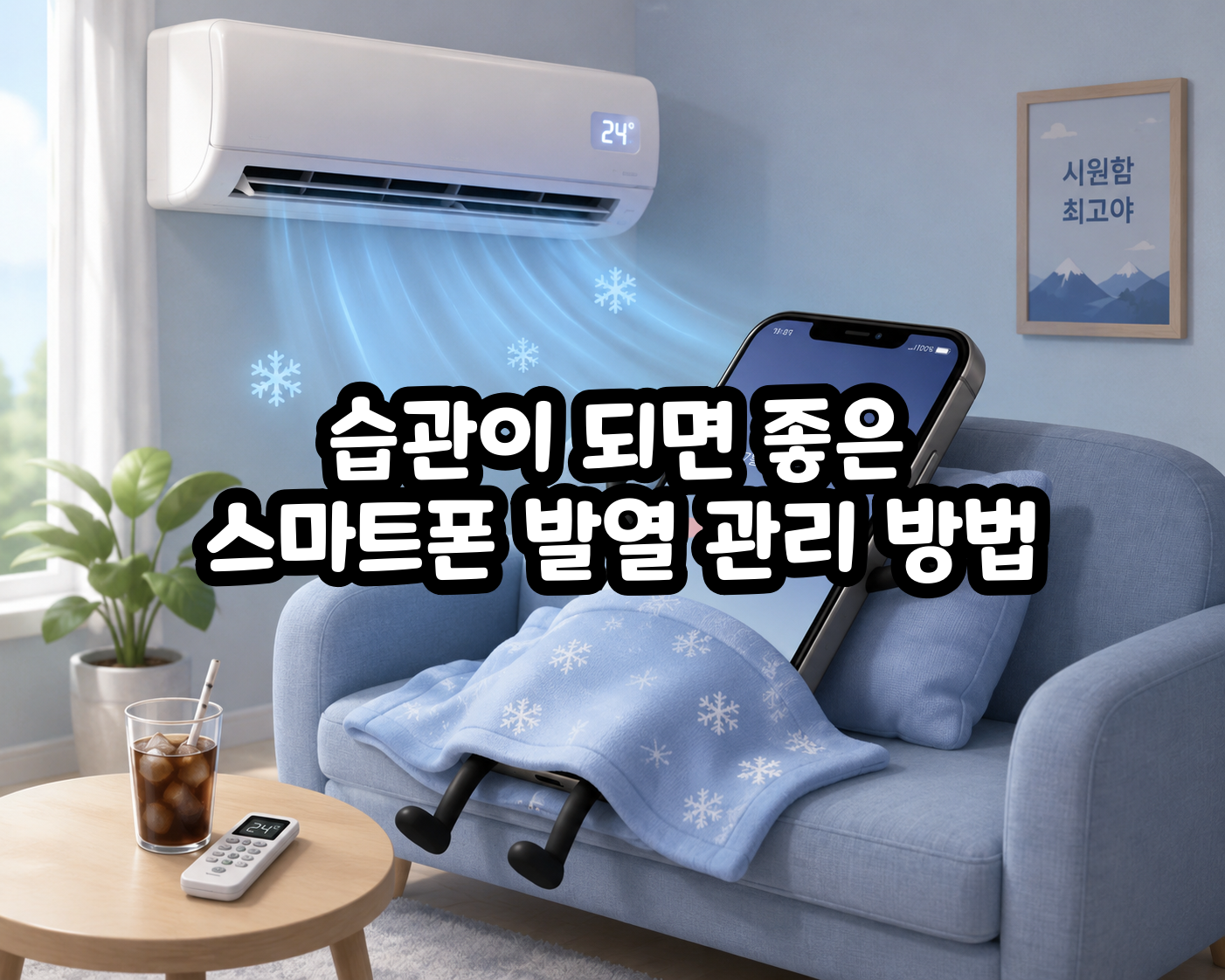
Tips to prevent PC and mobile overheating in summer!
네오필


Once the summer heat sets in, your devices heat up with it. On PC, the fans get louder. On smartphones, frame rates can suddenly tank after about 30 minutes. Today, I’ll briefly cover everything from the absolute basics of heat management to a few surprisingly bad habits you should avoid.
What causes PC heat?
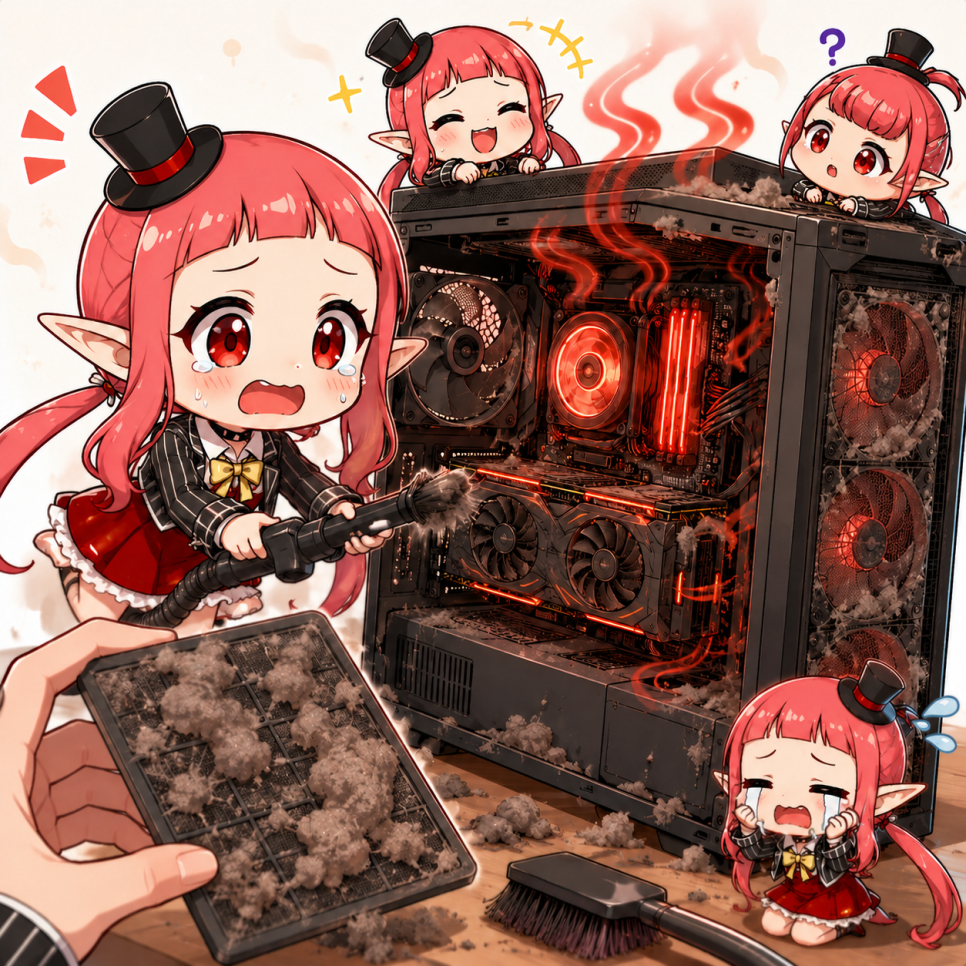

There are three main reasons a gaming PC starts running hotter.
Dust, blocked airflow, and excessive hardware load.
Think about when you last cleaned your PC case. If you can’t remember, it’s probably time. Once you open it up and clean it, you’ll likely be surprised by how much dust has built up on the fan filters.
PC case cleaning cycle and tools


Clean it at least once every 3 to 6 months. For tools, an air blower or air gun, like the kind used for car washing, is enough.
When dust builds up inside a PC, airflow gets blocked and temperatures rise noticeably. Even a light cleanup around the cooler and fan filters can make a big difference.
For proper case ventilation, don’t place the PC flush against a wall. Leaving some space around it is a basic but important step.
PC and game settings


V-Sync matches FPS to your monitor’s refresh rate.
Graphics settings and frame limits are also powerful tools. In the game options, lowering resolution, shadows, and texture quality by just one or two steps can significantly reduce GPU load.
A lot of the time, the GPU is using 100% power just to push frames far beyond the monitor’s refresh rate. Set the frame rate to match your monitor’s refresh rate, or lower.
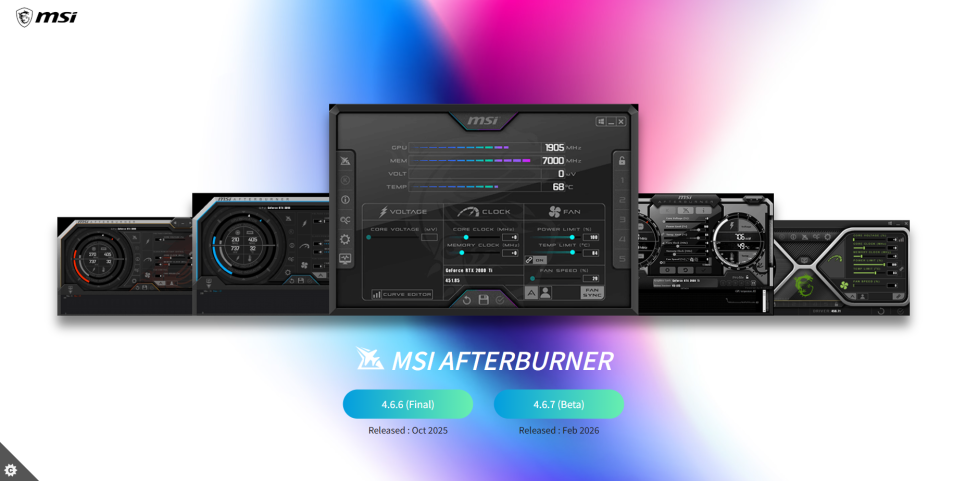
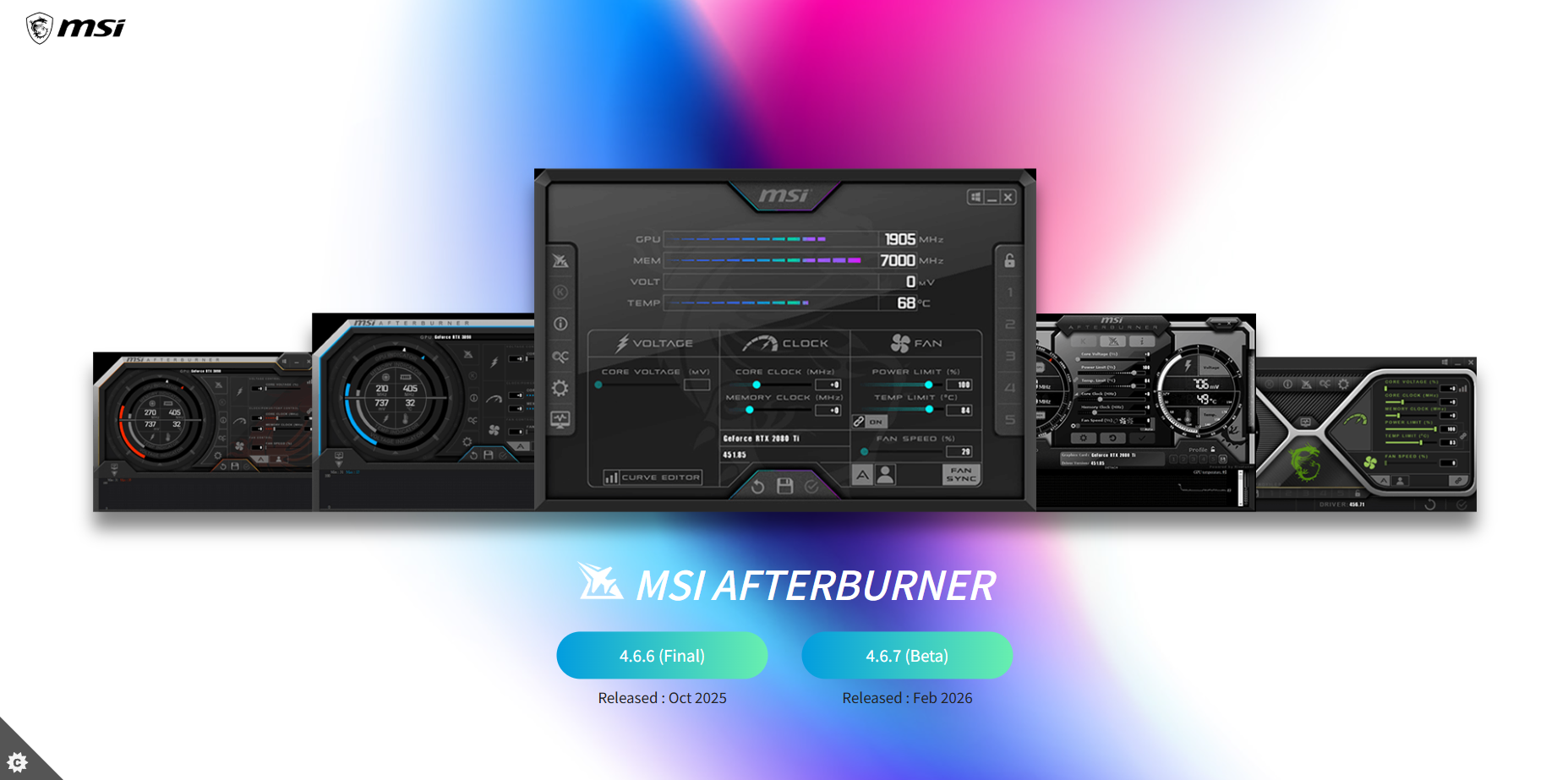
Setting an FPS cap in-game or lowering the power limit in MSI Afterburner (an overclocking utility) to 80–90% can realistically reduce GPU temperature by 5–10°C. Once you apply it and see the temperature graph come down, the effect is pretty clear.
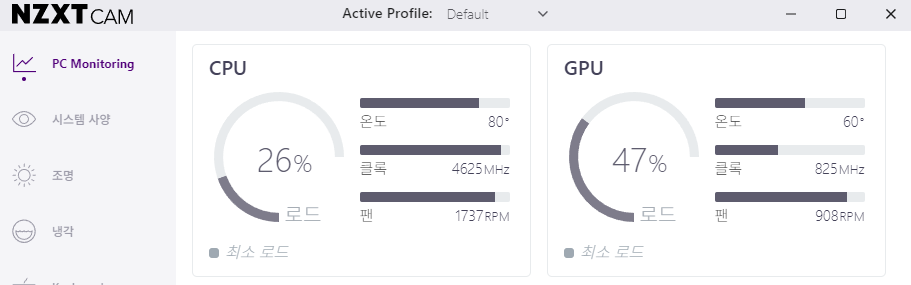
I use an NZXT cooler, so I rely on the monitoring program it provides.
If you don’t know your temperatures, you can’t manage them. Install a free program like HWMonitor or MSI Afterburner, and you can check CPU and GPU temperatures in real time.
As a general reference point, under 80°C for the CPU during gaming and under 85°C for the GPU is considered a safe range. If either one stays above 90°C, thermal throttling can kick in, and over time it can shorten component lifespan.
Tips for laptop users
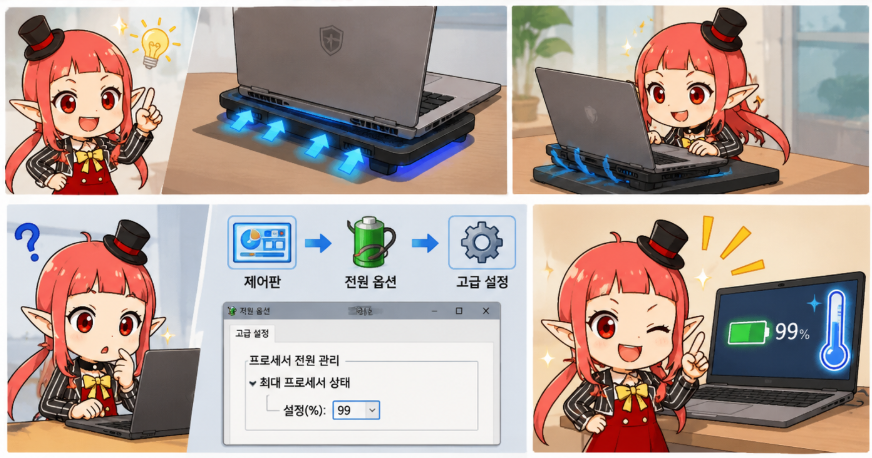
If you use a laptop, a cooling pad on your desk can help maintain airflow underneath.
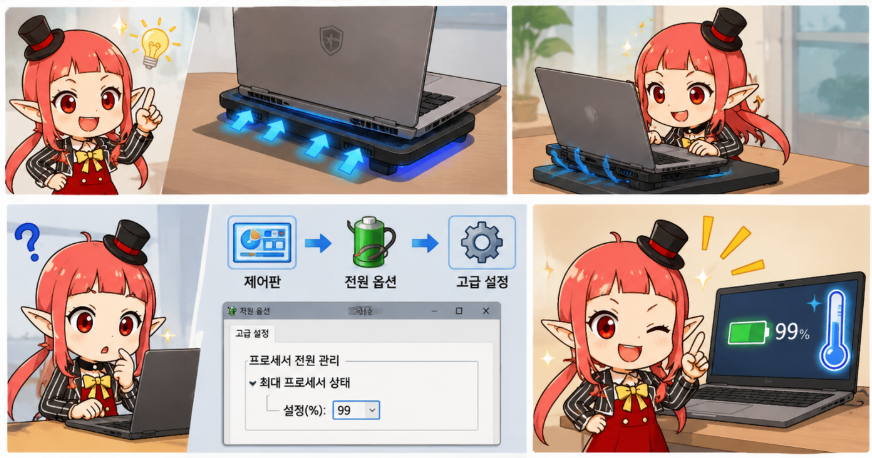
In addition, setting “Maximum processor state” to 99% in the power management options can reduce heat by preventing unnecessary power draw.
You can change this setting in Control Panel → Power Options → Advanced settings. If you game on a laptop, it’s worth checking at least once.
Why does mobile start lagging?


On smartphones, once internal temperature goes above 40–45°C, the CPU and GPU enter a protection mode that automatically lowers clock speed. That’s why a game can run smoothly at first, then suddenly start dropping frames after around 30 minutes. If you manage heat well, you can push that point back quite a bit.
How to reduce mobile heat
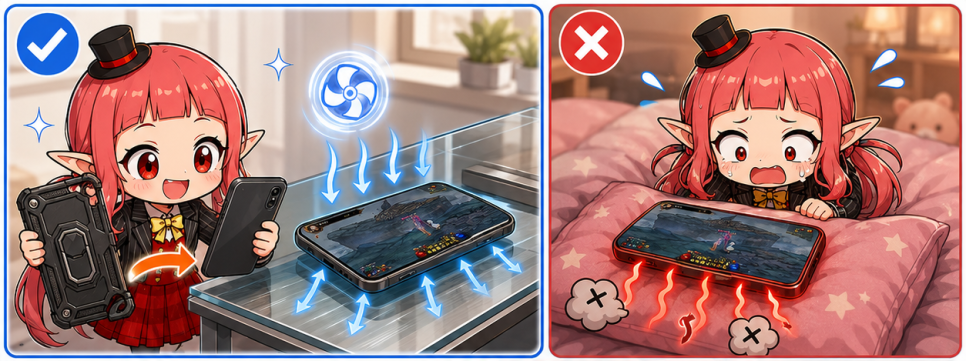
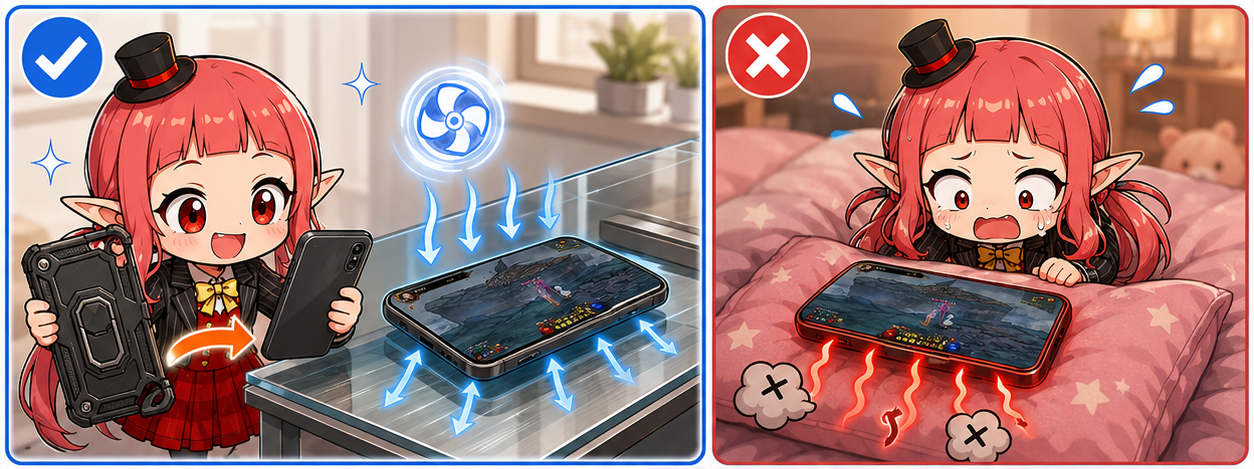
The most immediate fix is removing the case. A thick case blocks heat from escaping, so if you’re playing demanding games for a long time, it’s better to take the case off and place the device on a hard, well-ventilated surface such as glass or a metal desk.
Gaming with the device on a blanket or pillow is one of the worst habits for heat, so avoid it. In my experience, even removing the case alone makes a clearly noticeable difference.
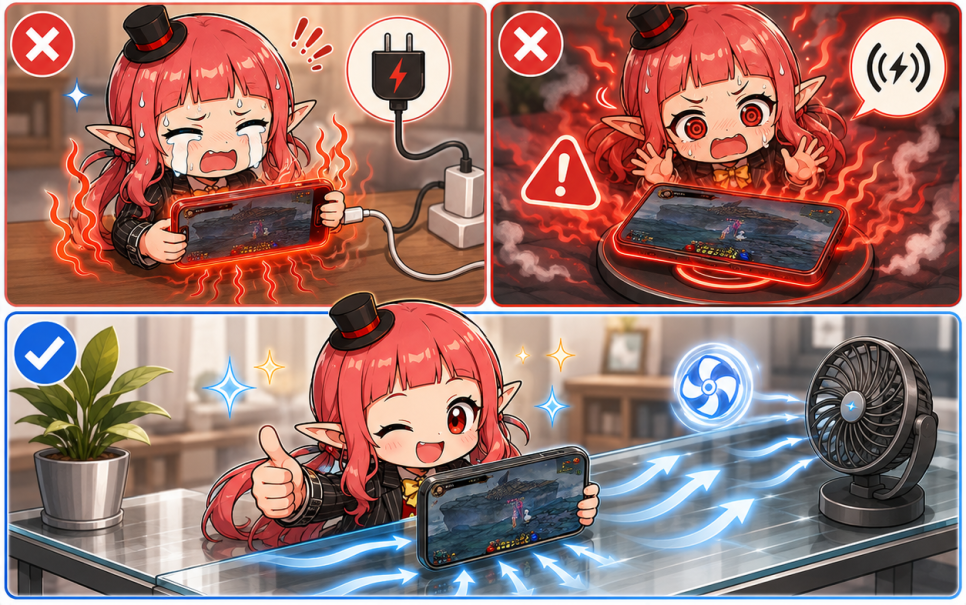
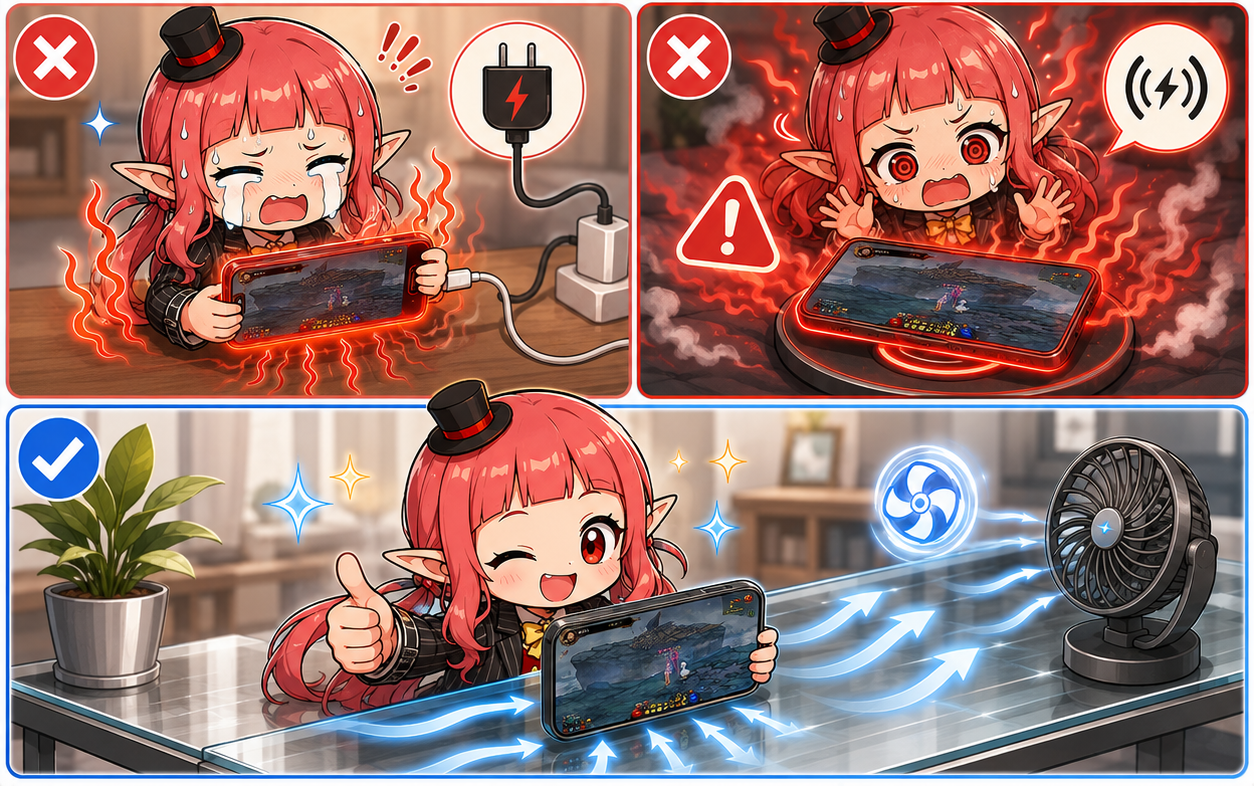
Gaming while charging is also a major cause of heat. When charging and gaming load happen at the same time, heat can nearly double. If possible, charge first, unplug the cable, and then start playing. Gaming while wirelessly charging is even worse, so it should be avoided completely.


DNF Mobile has also started supporting a low-spec mode.
Adjusting graphics options is also highly effective, just like on PC. In-game, lowering the resolution by one step and locking FPS to 60 instead of 120 can reduce heat by 20–30%. Turning off auto brightness and manually setting screen brightness to 50% or lower also makes the heat much less noticeable.
Clearing background apps before starting the game and turning off unrelated features such as Bluetooth and location services can also help reduce CPU load.

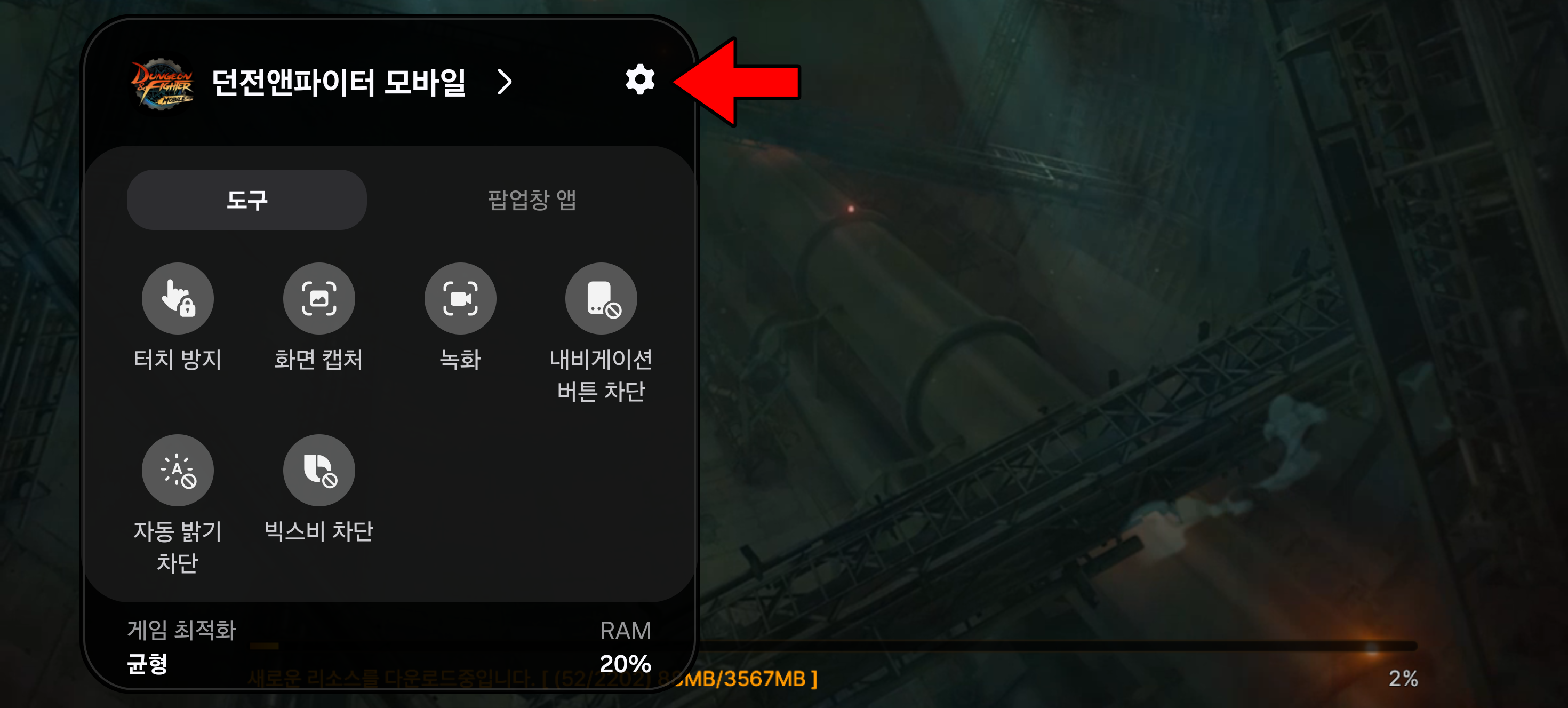

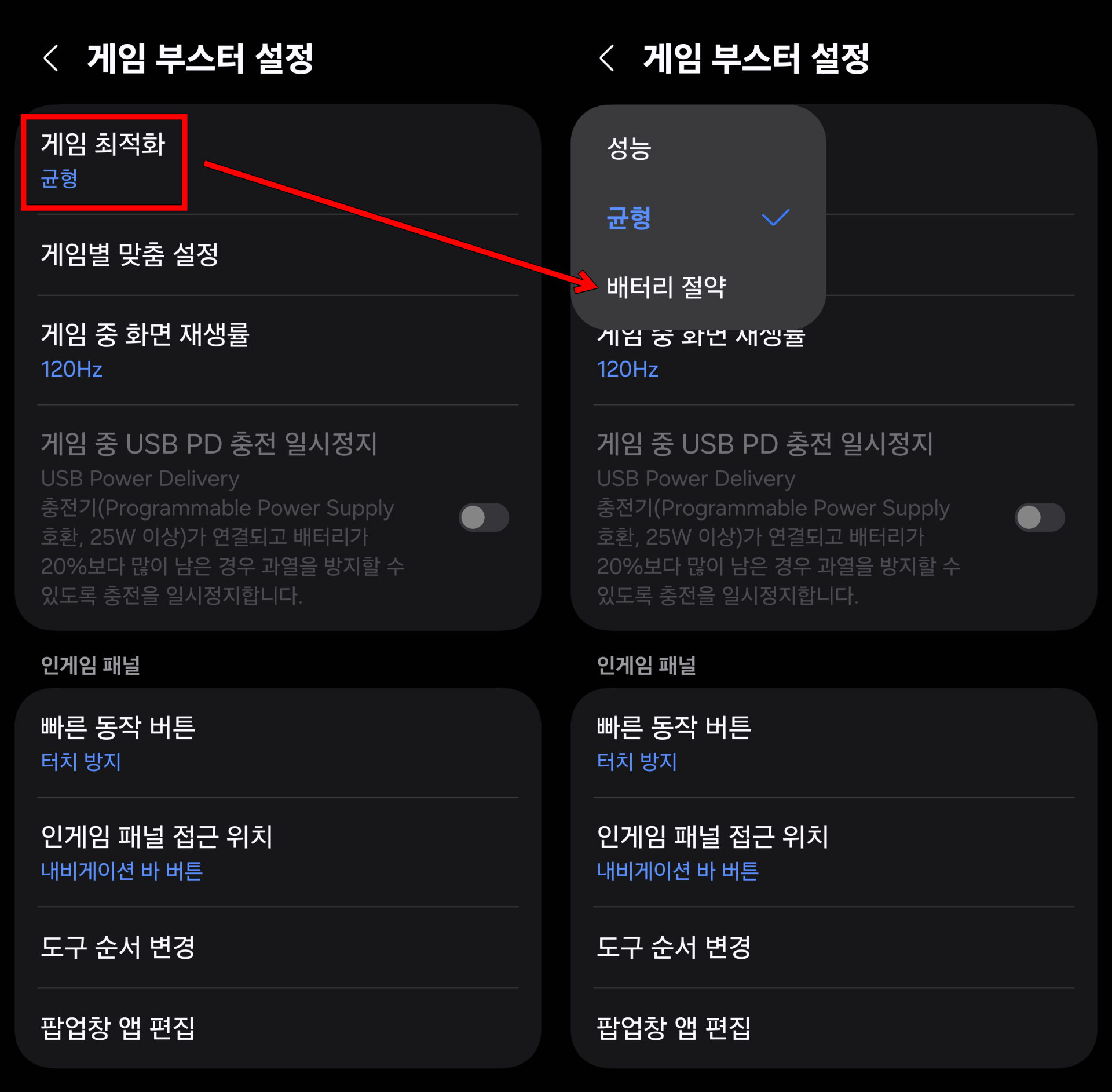
If you use a Galaxy device, switching to Game Booster → Battery saving mode from the bottom right of the screen while the game is running can help control both heat and battery use with a single setting.
Also, if you follow a routine of turning the screen off and letting the device cool down for about 5–10 minutes once every 60 minutes, you can use the device longer and keep game performance more stable.
Is it okay to put your device in the freezer?
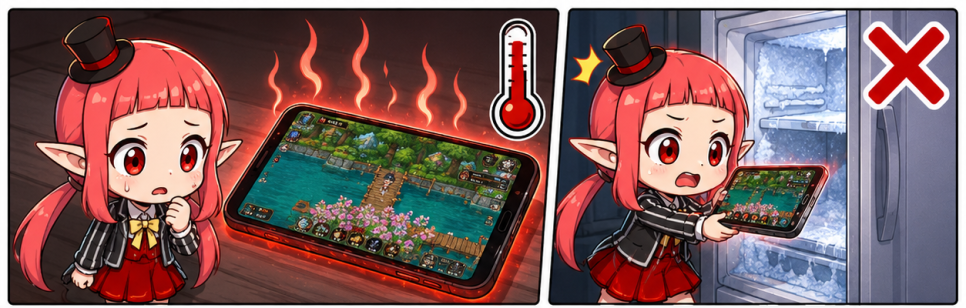
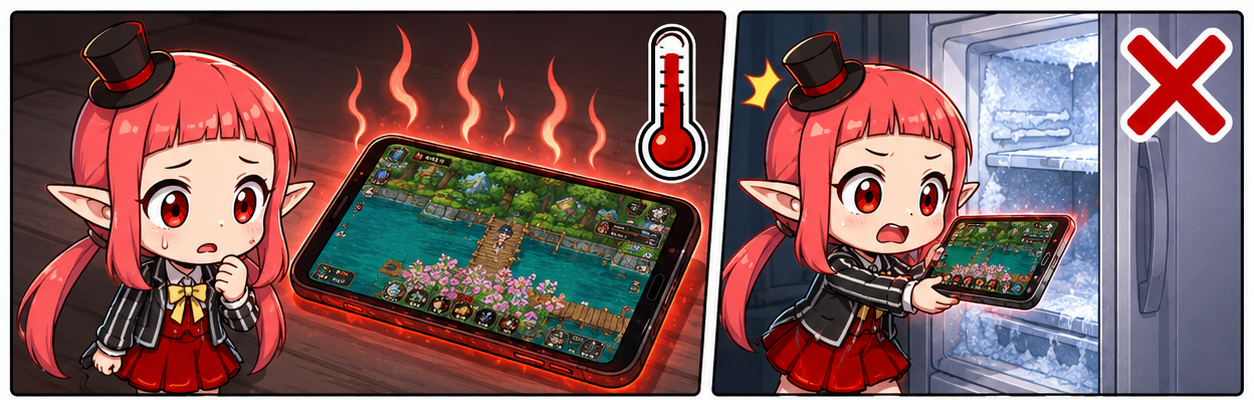
Some people put a smartphone or tablet into the freezer when it gets too hot. This is something you should never do.
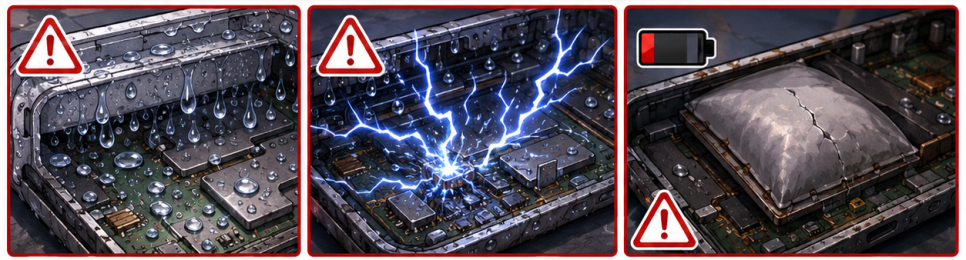
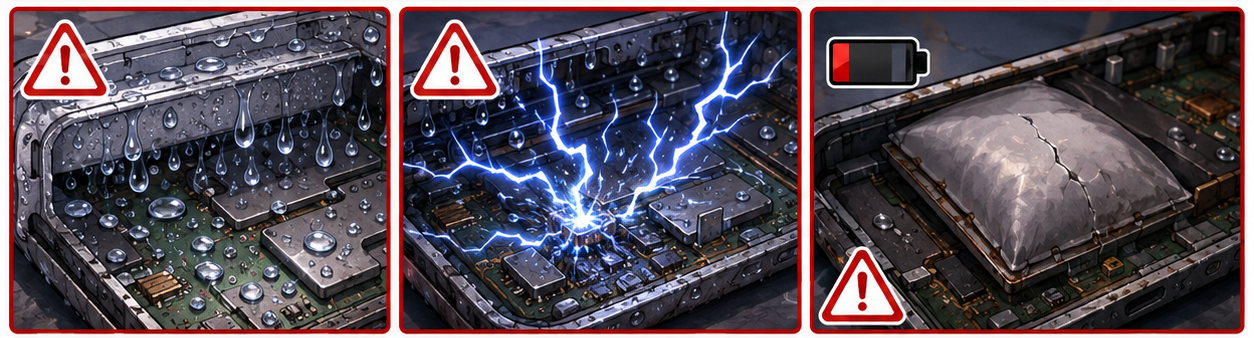
The moment you put it in the freezer, the sudden temperature change causes condensation inside the device. In other words, moisture forms on the internal components. If you power it on in that state, it can short out and fail.
Lithium batteries are also very vulnerable to sudden cooling. If this is repeated, battery capacity can permanently decrease, and in the worst case it can lead to swelling.
The safest and simplest option is to leave it in a shaded spot at room temperature, or turn the game off and leave the screen off.
Wrapping up


Heat management doesn’t have to be complicated. Cleaning the case, changing one or two settings, or fixing a charging habit can make your device much more stable throughout the summer. In the summer heat, I hope both you and your device stay a little cooler while you game.